Key Takeaways
- Use soft natural light, clear framing, and a clean background to instantly improve clarity in any professional profile picture.
- Mix simple photography with AI avatars or aesthetic filters to match your PFP to different platform styles without heavy editing.
- Create polished, high-quality profile pictures using beginner-friendly workflows that work for home selfies, faceless shots, and AI-generated portraits.
I’ve been looking at profile pictures across different platforms lately, and one thing became clear fast: the photos that stand out are never the most complicated ones. When I was researching profile picture ideas, , I browsed through both LinkedIn’s professional photo tips and Pinterest’s popular PFP inspiration boards, and the same patterns kept showing up—clean backgrounds, soft lighting, and a simple, intentional style.
Your profile picture is often the first thing people notice online. Whether you are updating Instagram, refreshing LinkedIn, staying low-key on Discord, or experimenting with AI-generated avatars, a thoughtful photo helps people understand your vibe instantly. You don’t need special gear to get started. With a few small adjustments, you can create a clear, polished photo that matches how you want to show up online.
This guide gives you practical, easy-to-try profile picture ideas—home portraits, faceless options, aesthetic looks, AI avatar styles, platform-specific tips, common mistakes, and simple edits that make any image look cleaner and more expressive.
Create DIY Profile Pictures at Home
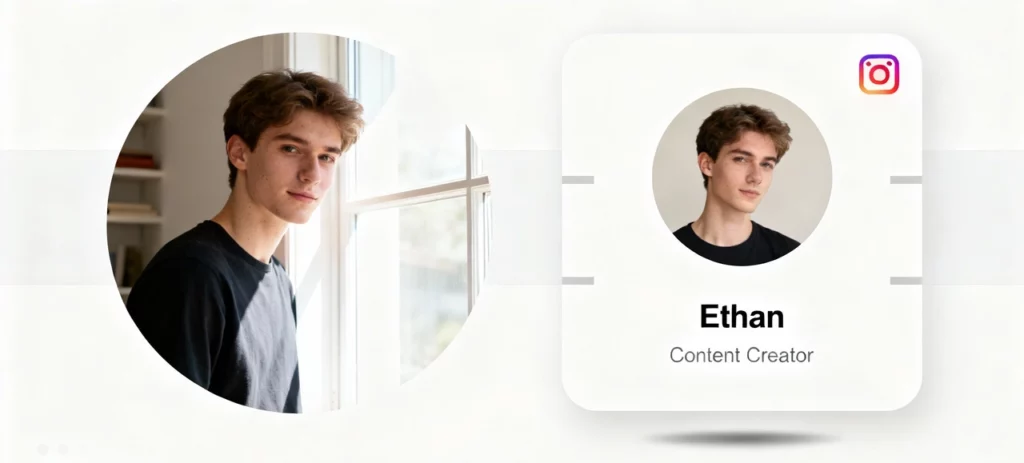
Home setups are more than enough to create clean, flattering portraits. A bright window, a simple background, and a few small adjustments already elevate your photo from “quick selfie” to “good pfps.” These profile picture ideas work well even if you’re shooting at home with simple setups.
Use Soft Natural Light
Stand near a window and let soft, even light fall across your face. This brightens your features and reduces harsh shadows. Eye-level light usually works best.
Choose Simple Backgrounds
Plain walls, tidy shelves, soft curtains, or plants create a calm visual space. Minimal backgrounds help your face stay the center of attention, especially when the image gets cropped into a small circle.
Angle Your Body, Not Only Your Face
Turn your shoulders slightly away from the camera and look back toward the lens. This creates a relaxed shape that works across most social platforms.
Capture Natural Expressions
Move lightly while taking photos—tiny shifts keep your expression soft and genuine. The frames right after a small laugh or a calming breath often look the most natural.
3-Step Workflow
- Stand near a window and take multiple variations.
- Select the clearest, most relaxed frame.
- Increase brightness and contrast lightly to improve clarity.
Mini example:
I once shot a portrait beside a bookshelf, and natural window light instantly made it look brighter and more intentional than any indoor selfie I had taken before.
How to Take a Professional Yet Authentic Profile Picture at Home?
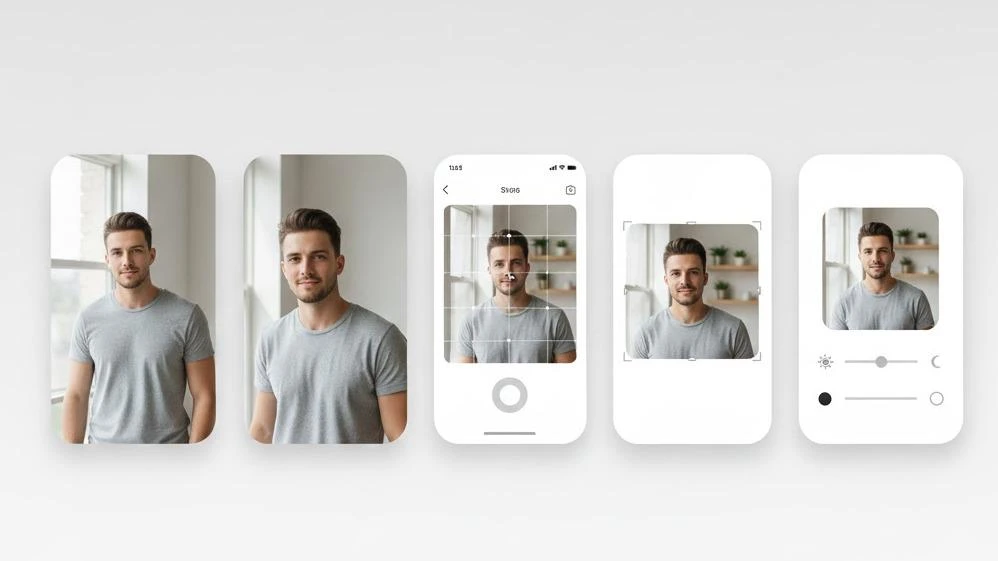
A strong profile picture for LinkedIn or any professional platform does not require a studio. People respond well to photos that feel clear, confident, and authentic.
Use Soft Window Light
Stand beside a bright window so the light falls evenly across your face. Avoid overhead lights since they create unflattering shadows. Soft morning or late-afternoon light works especially well.
Choose a Clean, Distraction-Free Background
Plain walls or tidy shelves give the portrait a calm, focused look and keep attention on your expression.
Frame Your Face for Clarity
Let your head and shoulders fill about half the frame. This balance feels natural on LinkedIn and supports trust and clarity. Keeping your eyes slightly above the centerline adds presence.
Capture Natural, Approachable Expressions
Small motions help avoid stiffness. Tilt your chin a little, relax your eyebrows, shift your shoulders, and let your expression evolve naturally.
Use the “Chin Forward and Down” Technique
Bring your chin slightly forward and lower it a bit. This simple adjustment defines the jawline and adds subtle confidence.
Quick 5-Step Professional Workflow
- Stand beside a window with soft side lighting.
- Angle your body about 45°.
- Take several shots while staying in light motion.
- Crop to a clean 1:1 frame.
- Keep adjustments soft and natural.
AI Profile Pictures Ideas: Professional or Creative, Depending on Your Style
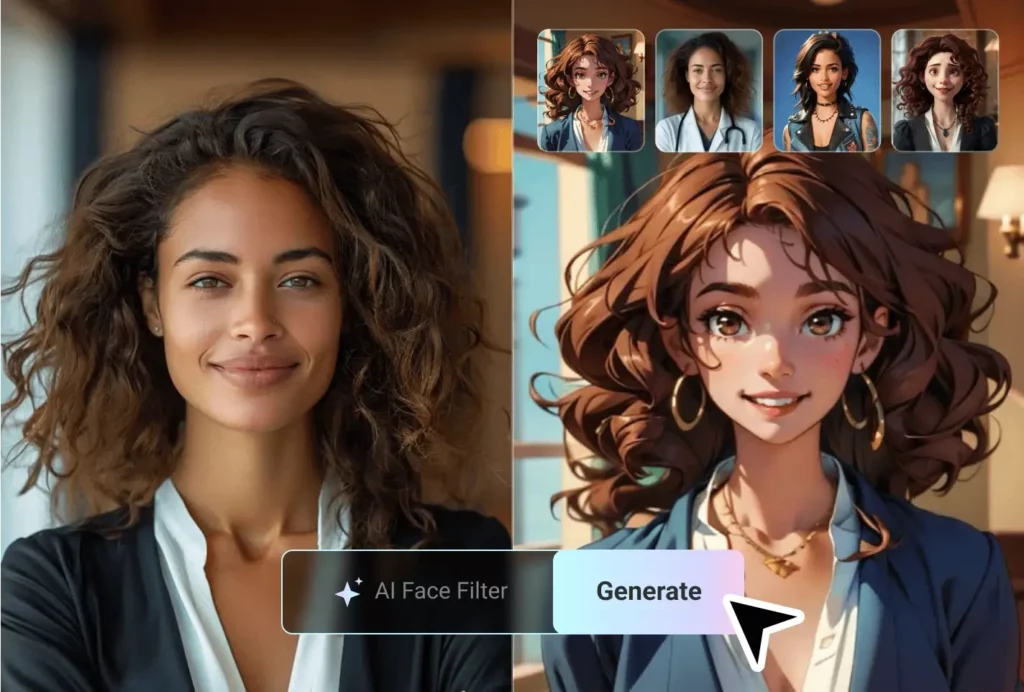
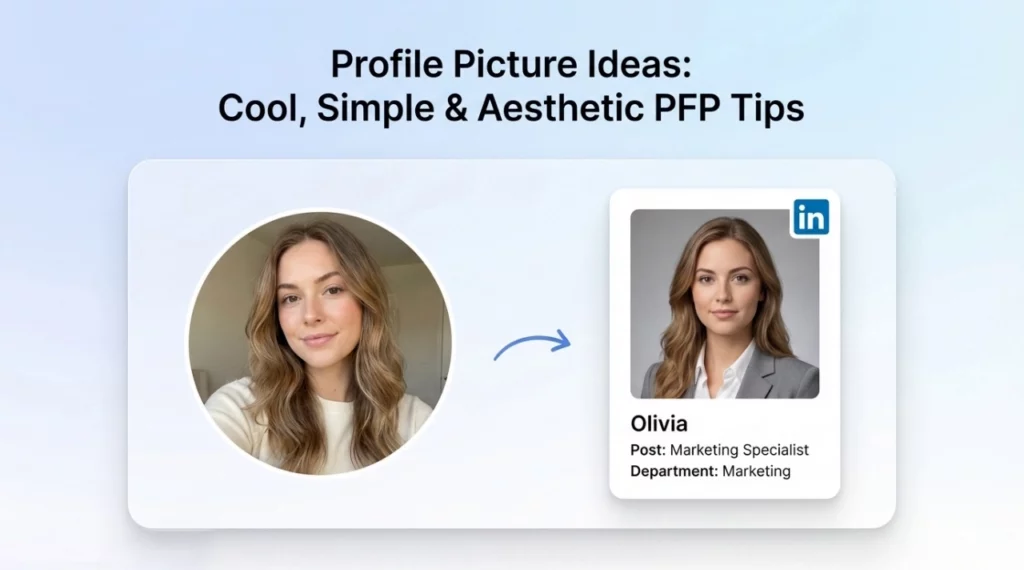
AI tools can generate high-quality profile pictures from just a few well-lit selfies. The key is choosing a direction that fits your platform—professional realism or creative stylization—while still keeping the result recognizably you.
Professional AI Headshots
For LinkedIn or any work-related space, choose styles that stay close to real photography: natural corporate looks, soft-light portraits, or semi-realistic painted textures. A good AI headshot keeps your facial structure accurate, preserves natural skin texture, and looks like a polished version of your real self—not a completely different person.
Creative AI Avatars
For Instagram, TikTok, Discord, or creator feeds, AI avatars let you experiment with more stylized looks. Popular options include soft pastel portraits, anime or chibi art, neon cyberpunk effects, comic-style headshots, and retro or film-inspired aesthetics. These styles make it easy to match your PFP to different platform vibes while staying recognizable.
Try Faceless Profile Picture Ideas for More Privacy
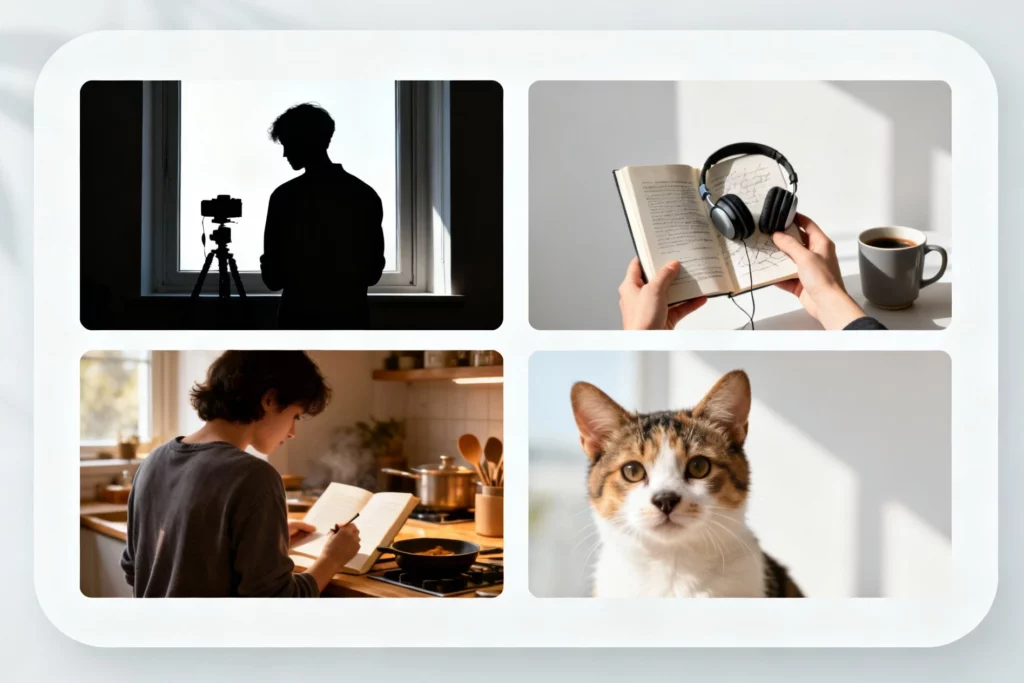
If you prefer privacy or simply enjoy a more artistic style, faceless compositions can still feel personal and expressive.
Try Silhouettes
Stand between your camera and a bright window to create a clean outline. Silhouettes stay readable even when displayed small.
Use Personal Objects
Books, headphones, sketchbooks, and coffee cups communicate personality without revealing your face.
Show Your World, Not Your Face
Over-the-shoulder shots—reading, drawing, cooking—feel warm and intimate while keeping your identity private.
Let Your Pet Lead the Photo
Pet-centered profile photos feel friendly and work well across social platforms.
3-Step Workflow
- Choose a theme: silhouette, object, or moment.
- Use soft, uncluttered backgrounds.
- Crop tightly so shapes stay readable.
Mini example:
I once used a pastel close-up of my hand holding a warm drink near a window. It felt calm, anonymous, and surprisingly personal.
How to Choose the Best Profile Picture Ideas for Your Platform?
Different platforms display profile pictures at different sizes. These simple framing adjustments help your image stay sharp everywhere.
| Platform | How to Shoot (Lighting/Angle) | How to Crop/Style | Why it Works |
| Instagram / TikTok | Slightly above eye level, Soft window light | 1:1 square, Face fills 60–70% | Small icons benefit from close, expressive framing. |
| Chest-up portrait, Clean background, Soft light | Face and shoulders fill about half the frame | Balanced, clean portraits feel trustworthy and professional. | |
| YouTube | Strong contrast, Simple shapes | 1:1 square | Channel icons shrink significantly, so simplicity helps with recognition. |
| Discord / Gaming | Anime, chibi, neon, or stylized AI looks | 1:1 square, Icon fills 70–80% | Bold, graphic shapes work best in dark-mode environments. |
The Circle-Crop Rule
Every platform displays your profile picture in a circle. 👉 Always preview your image inside a circle mask before posting. If the subject stays centered and still looks readable, it works.
Real-World Profile Picture Scenarios
| Scenario | What Works Best | Works For (with keyword integration) |
| Professionals(LinkedIn / Resume) | Bright soft lighting;clean background;neutral colors;approachable expression | Great for good profile pictures and clean, trustworthy PFP for Instagram when you want a consistent “professional but friendly” vibe. |
| Creators & Aesthetic Feeds(Instagram / Pinterest) | Match your feed palette:pastel、warm、neon、film grain;stylized framing | Ideal for cool profile pics and aesthetic pfp for Instagram that fit a curated theme or brand look. |
| Gamers & Anonymous Users(Discord / TikTok) | Stylized avatars;neon cyber looks;anime/chibi styles;bold silhouettes | Perfect for pfps for TikTok or dramatic weird profile pics where personality shines without showing your face. |
| Dating Apps(Tinder / Bumble / Hinge) | Warm outdoor light;soft expressions;natural smile;simple background | Works well for people searching simple PFP ideas that feel real, relaxed, and approachable. |
| Small Shops & Personal Brands | Clean portrait or simple logo;brand-color background;consistent styling | Good for good profile pictures that make a shop or brand instantly recognizable across platforms. |
Quick Editing Workflow
- Crop for clarity
- Adjust brightness and soften shadows
- Remove distractions
- Keep retouching light
- Preview in a circle
Common Profile Picture Problems & How to Fix Them
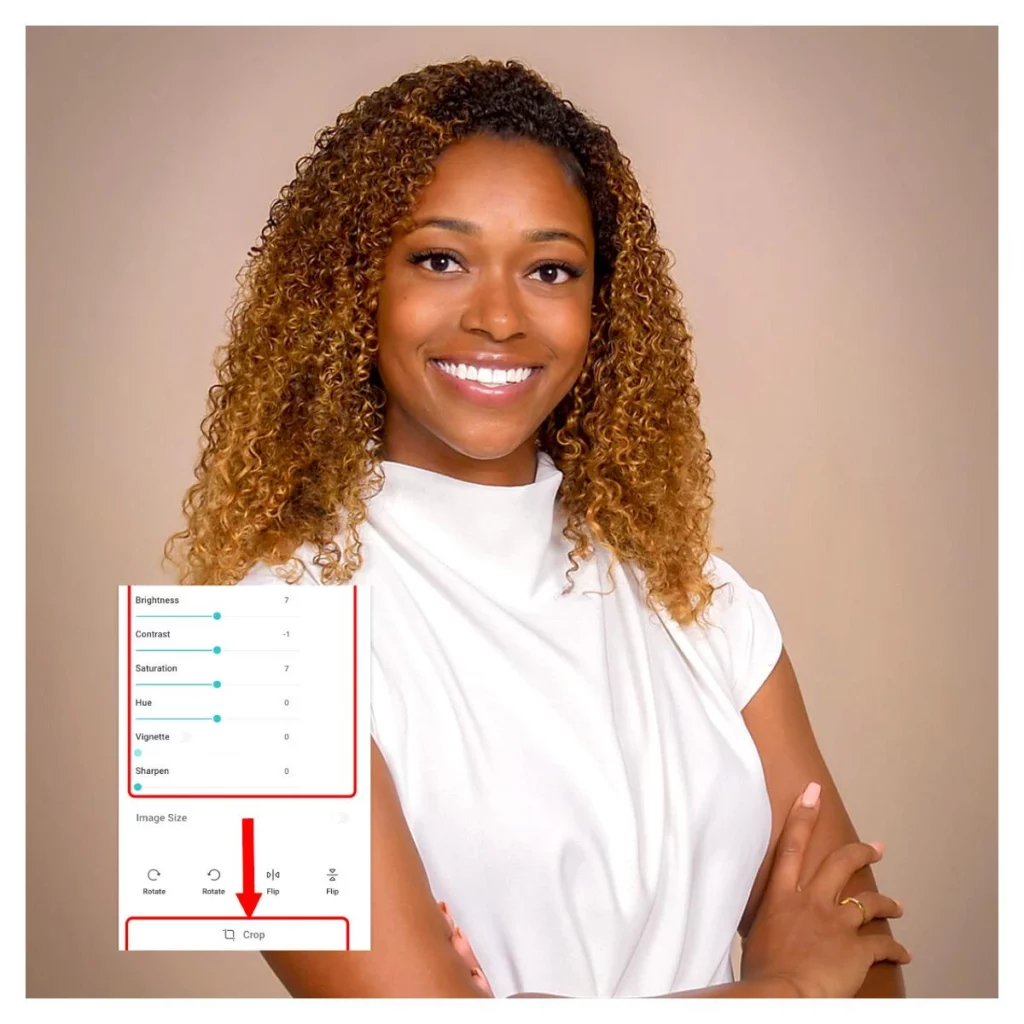
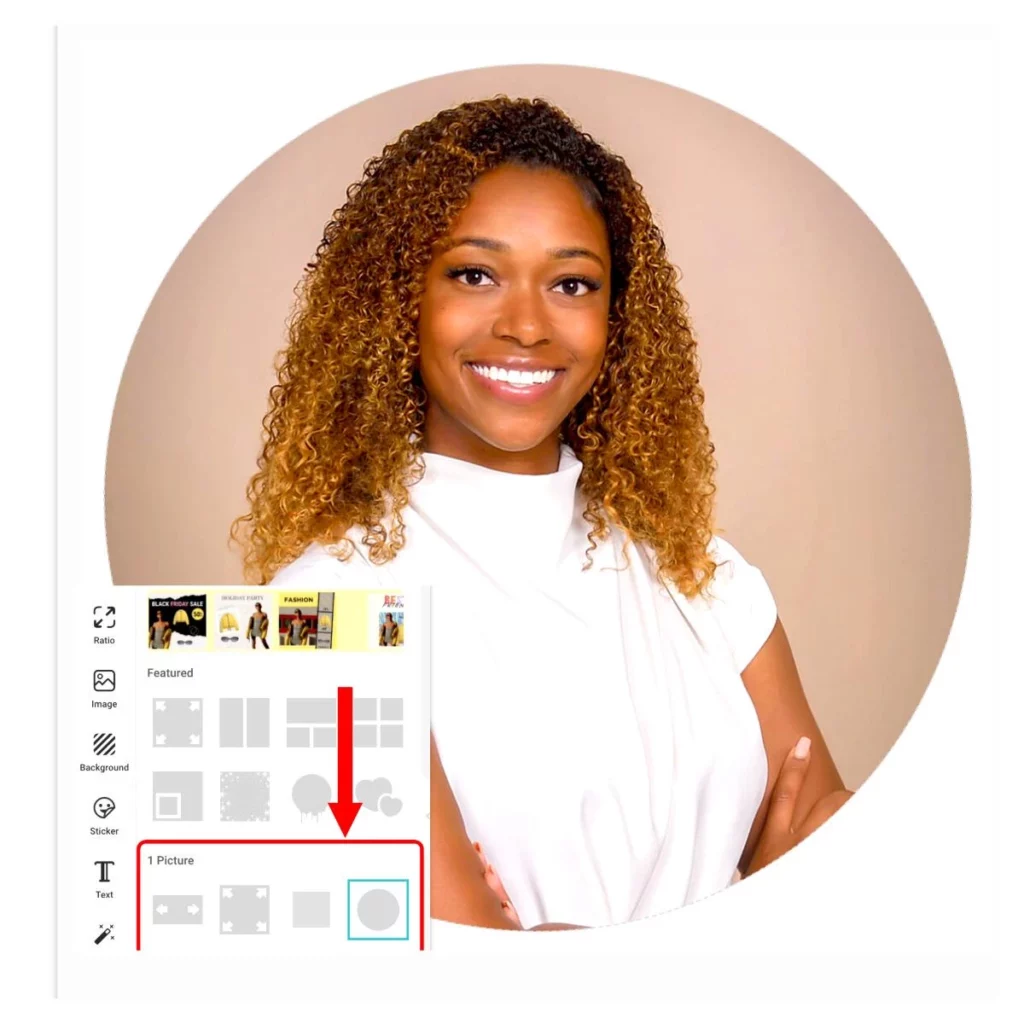
Most profile photos fall into the same few issues—especially after being cropped into a tiny circle. Here’s how to fix them fast:
- Blurry uploads → Start with a sharp image and crop before posting
- Awkward crops → Leave gentle headroom
- Harsh lighting → Use window light or open shade
- Dull colors → Lightly increase warmth and mid-tones
- Over-processed AI → Reduce smoothing and saturation
- Over-editing → Keep natural skin texture
Top Tools for Creating or Enhancing Your Profile Picture Ideas
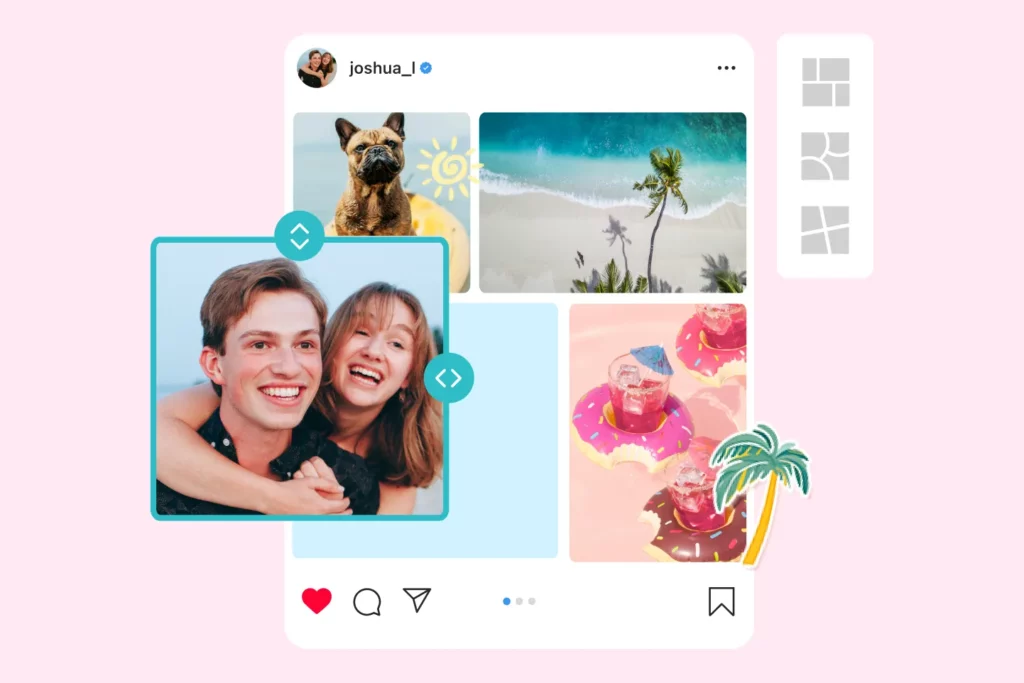
Want to improve the clarity or style of your profile picture? With no advanced editing required, PhotoGrid’s online free tools clean up most problems in seconds.
I needed a way to fix the usual profile-picture problems—soft details after upload, messy backgrounds, and photos that just don’t look cohesive—and I found that PhotoGrid’s upscaler, background remover, and AI filters handle all of that in a few seconds. They’re fast, easy to use, and the improvements are immediately noticeable.
Enhance Photo Quality
Sometimes a photo looks perfectly sharp on my phone, but once it’s uploaded to Instagram, TikTok, or LinkedIn, the compression makes the profile picture look soft or slightly blurry. When that happens, I’ve found that giving the image a quick clarity boost changes everything.
What I usually do is simple:
I upload the photo to PhotoGrid’s image upscaler—it lets me enhance up to five photos for free at once, which is surprisingly convenient. After a few seconds, the AI sharpens the edges, restores the tiny details that were lost during upload, and can even upscale the image to 4K while still keeping the skin texture natural.
Once it’s done, I download the clearer version, crop it for the platform I need, and it immediately looks more defined inside the tiny profile-picture circle. For something that takes less than a minute, the difference is huge.
Clean Up Your Background
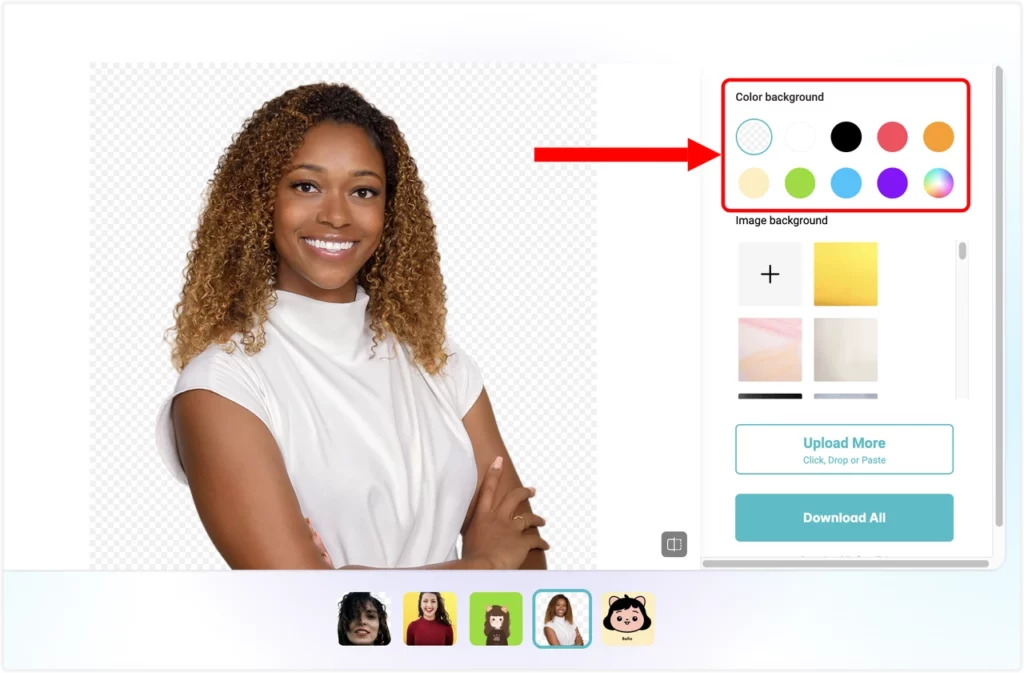
Background clutter becomes way more noticeable once your photo shrinks into a tiny circular profile icon. Whenever I want a cleaner, more intentional look, I run the image through PhotoGrid’s background remover — it cuts out the messy parts in seconds, even if the original photo was taken at home.
After that, I usually swap the background to a soft navy, gray, pastel shade, or even a custom image using PhotoGrid’s background changer. It supports up to five images at once and keeps the output sharp and high-quality. Solid colors feel professional on LinkedIn, while aesthetic patterns or uploaded backgrounds work beautifully for Instagram or Discord.
It’s a simple tweak, but the difference is huge, especially when your profile picture is displayed so small that every distraction suddenly becomes obvious. This is one of the most overlooked Instagram profile picture ideas because even subtle cleanup can make your PFP look sharper on the feed and also work well as clean, high-clarity profile pictures for TikTok.
Use Light Photo Filters or AI Filters
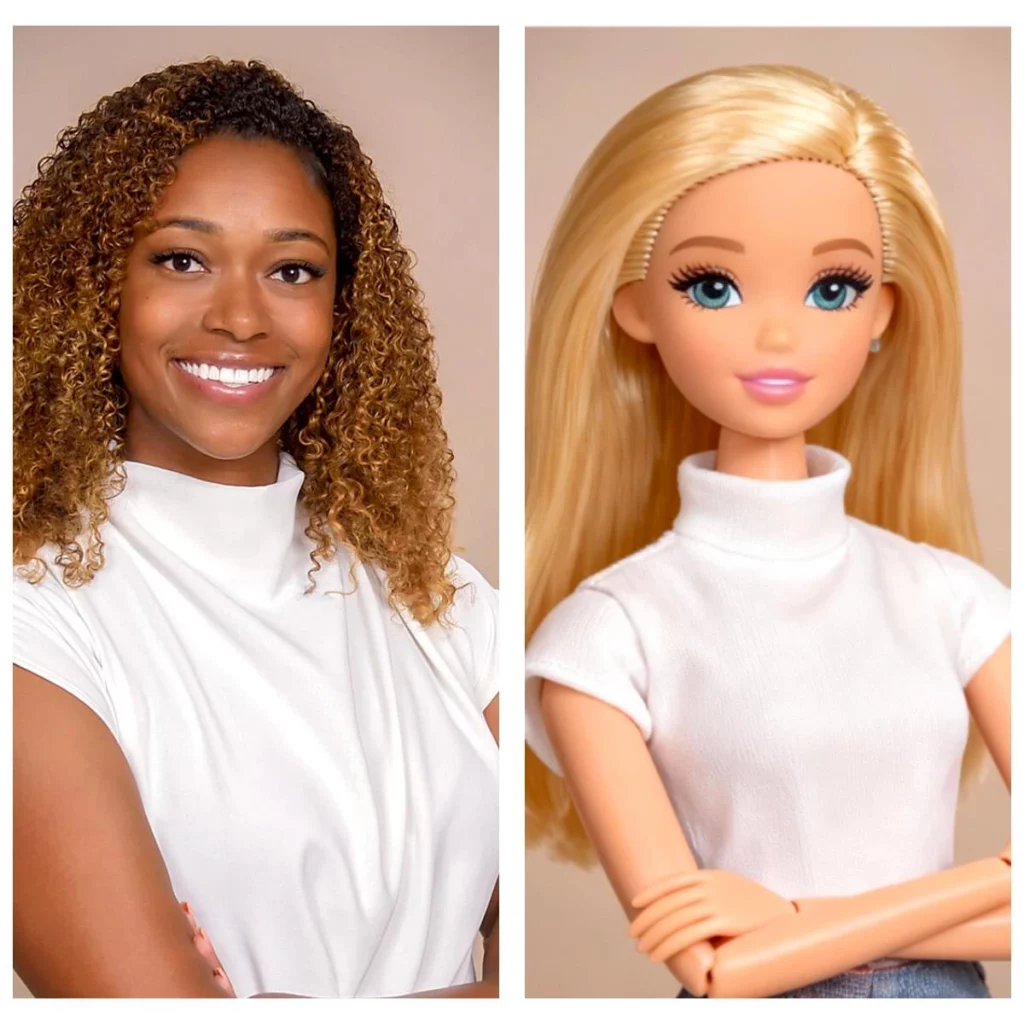
Light filters help the photo look more cohesive without heavy editing. I normally make tiny adjustments—slightly brighter exposure, a touch more contrast, and softer mid-tones. These subtle changes keep the picture clean across Instagram, TikTok, or Discord.
When I want a more aesthetic look, I use PhotoGrid’s AI Filters. They keep the lighting and skin texture realistic while adding a unified style. It’s great for soft portraits, matching your feed colors, or creating a stylized PFP without the overly smooth “AI face” look.
Latest 2026 Profile Picture Ideas
These profile picture ideas also follow the key 2026 trends, making it easier to choose styles that feel fresh, intentional, and platform-ready.
- Warm film-like grain
- AI-painted headshots
- Soft neon and cyber-pastel tones
- Minimalist color-block backgrounds
- Seasonal swaps
- Chibi avatars
- Backlit silhouettes
Conclusion
With the right profile picture ideas and a clean, repeatable workflow, you can create a sharp, expressive image that fits Instagram, LinkedIn, TikTok, or Discord without needing pro gear. If you want to polish your photo even more, try a quick pass with PhotoGrid to clean the background, enhance clarity, or create an AI-styled avatar that stands out instantly.
Profile Picture Ideas FAQs
What is best for a profile picture?
The best profile picture is clear, well-lit, and simple. Soft natural light, a clean background, and a crop where your face fills most of the frame work well on Instagram, LinkedIn, TikTok, and Discord. If the background is messy, you can tidy it up in seconds with PhotoGrid’s background remover and background changer to keep the focus on your face.
How do I create cool profile pictures?
Start with a sharp selfie shot near a window, then crop in close and add a small contrast boost. For extra style, try a subtle aesthetic look with PhotoGrid’s AI filters or turn your selfie into a stylized avatar using effects like the Studio Ghibli filter. This keeps your PFP cool and eye-catching without looking over-edited.
How do I make my profile look more attractive overall?
Use one clear, recent photo across your main platforms and keep your colors consistent. A relaxed expression, simple outfit, and uncluttered background usually feel more approachable than heavy beauty filters. If your image looks soft or pixelated after upload, run it through PhotoGrid’s image enhancer to restore detail and make the whole profile picture more professional.
What is the most common profile picture, and should I avoid it?
The most common profile picture is a quick front-facing selfie with a busy background, often taken indoors at night. It is not always bad, but it rarely stands out in a feed full of similar shots. Cleaning up the background, brightening the image, and giving it a light PhotoGrid edit can turn the same selfie into good profile pics.
How can I improve a low-quality or blurry profile picture fast?
If you already like the pose but the image is blurry or low-resolution, there is no need to retake it. Upscale the file with PhotoGrid’s image upscaler, then make small adjustments to brightness and sharpness. In most cases this quick pass is enough to fix compression issues and give you a crisp or cute aesthetic profile. With the right profile picture ideas and a few small edits, anyone can create awesome profile pics that stand out on any platform.