Key Takeaways
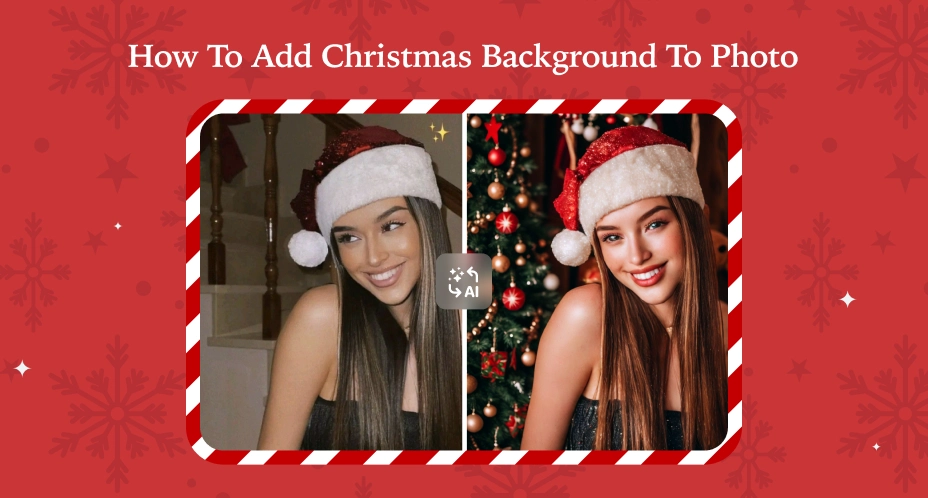
- Add a Christmas background to a photo for free using AI tools that automatically remove and replace backgrounds, with no Photoshop needed.
- PhotoGrid works on both app and online, letting you edit Christmas photos on iPhone, Android, or directly in your browser.
- Save Christmas photos as GIFs, Live Photos, or animated wallpapers to create festive visuals beyond static images.
Christmas is almost here, and you might already have photos you love—but the background doesn’t feel festive enough. Maybe it’s a cluttered living room, a plain wall, or just missing that Christmas magic
The good news is that you don’t need Photoshop or professional editing skills to fix this. With free Christmas background tools powered by AI, you can instantly place your photo into a festive scene, add snow effects, or export an animated version for Stories and posts.
In this guide, we’ll show you how to add Christmas background to a photo using two easy methods:
- using the PhotoGrid app on iPhone and Android 📱
- using the PhotoGrid online editor for free directly in your browser 💻
Both options are free and beginner-friendly.
🎄 Method 1: How to Add Christmas Background to Photo Using the App (Fastest, 100% Free)
Best for: Quick edits, social media posts, animated effects, beginners who want instant results
If you prefer editing on your phone, the PhotoGrid app is one of the easiest ways to add a Christmas background to a photo on iPhone or Android. It works on both devices and offers a wide range of ready-to-use Christmas templates.
How to add a Christmas background to photo on iPhone and Android
- Download the PhotoGrid app on your iPhone or Android device (free, 52MB)
- Open the app and tap Template at the bottom of the screen
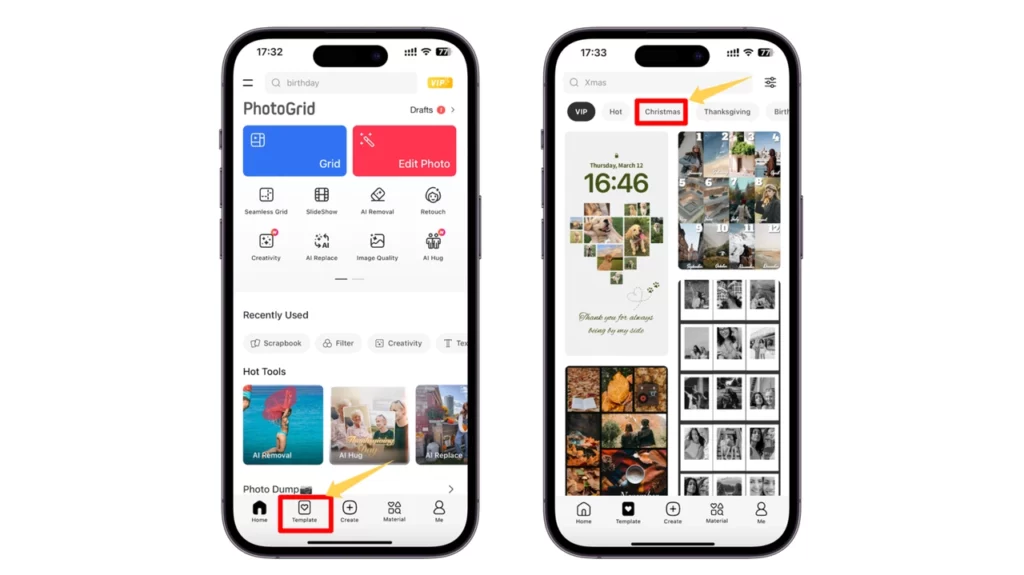
- Select the Christmas category to browse 200+ festive templates
- Choose a Christmas background you like and upload your photo
- AI automatically detects your face and fits it naturally into the scene
- Adjust your image, add optional stickers or text if you want a more festive look
- Tap Save in the top-right corner
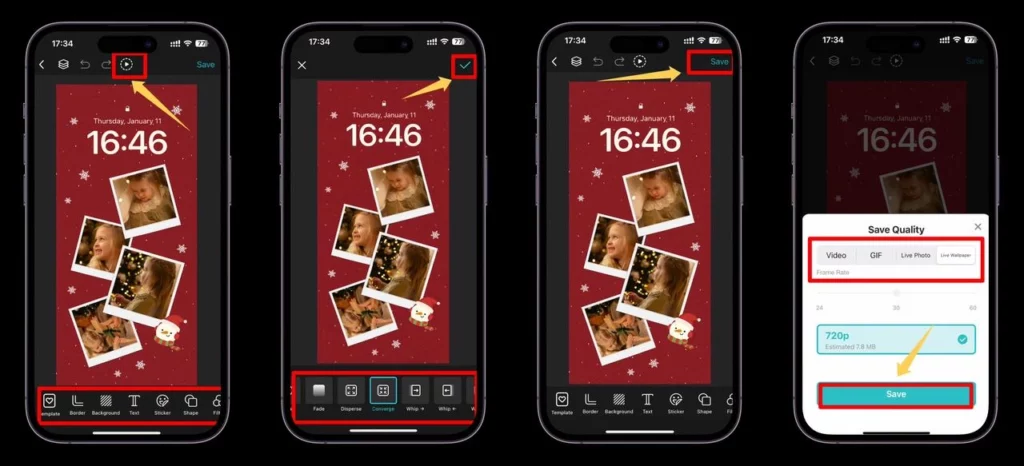
- Choose your preferred format: photo, GIF, live photo, or live wallpaper
Real example: “I uploaded my daughter’s bedroom selfie, chose the ‘Cozy Fireplace’ template, and got a professional-looking family portrait in 90 seconds. The AI placed her perfectly without me doing any manual editing.”
Pro tip: Use the “Dynamic Background” feature to add animated falling snow or twinkling lights—perfect for Instagram Stories and TikTok. This is why PhotoGrid is the fastest way to add a Christmas background to a photo—no complicated steps, just upload and go.
What’s included in the free version:
- ✅ Unlimited edits with no watermark
- ✅ 200+ Christmas templates
- ✅ AI background placement
- ✅ GIF and Live Photo export
- ⚠️ Some premium templates require in-app purchase (most are free)
💻 Method 2: How to Add Christmas Background to Photo Online Free (No Download Needed)
Best for: Desktop users, quick one-time edits, shared computers, users who don’t want apps
If you don’t want to download an app, you can also add a Christmas background to a photo online free using your browser.
How to add Christmas background to photo online free
- Open PhotoGrid in your browser (works on Mac, Windows, Chromebook)
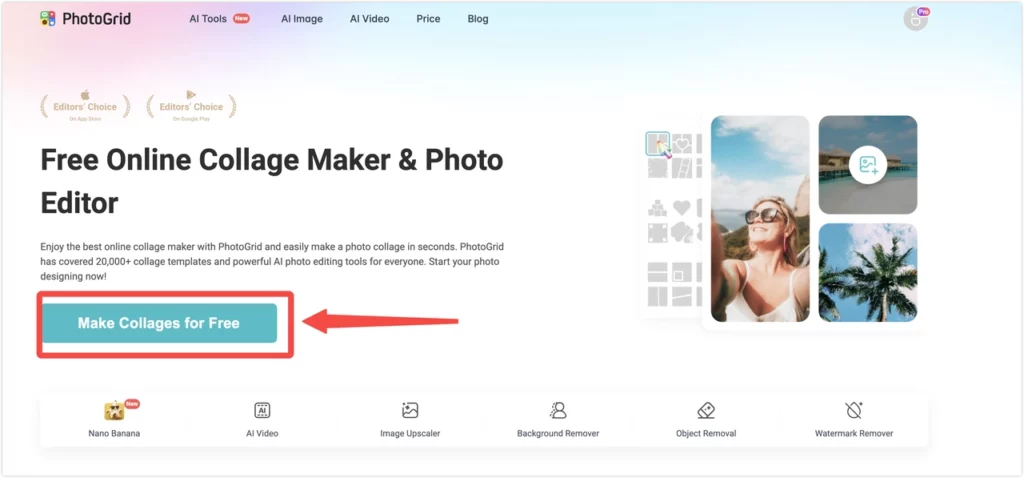
- Upload your photo from your phone or computer
- Choose festive categories like Christmas Scenes or Gift Box
- Let the AI place your photo into the Christmas background automatically
- Download your finished image without installing any software
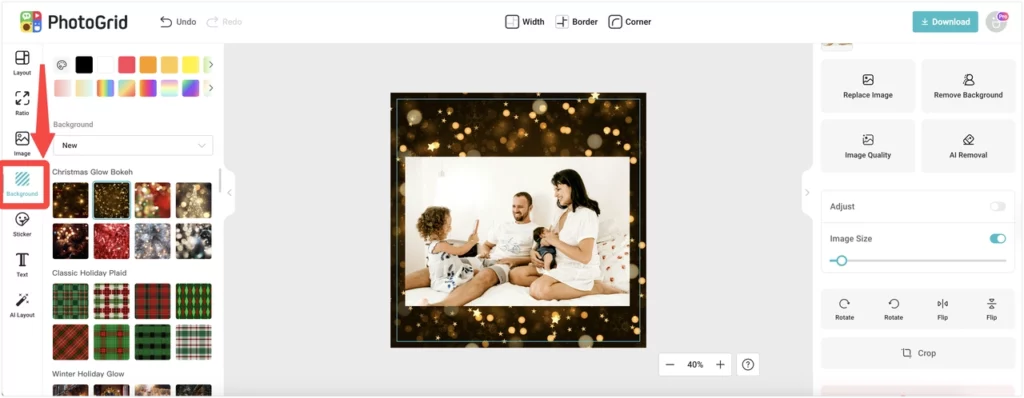
This option is ideal if you only need to edit one or two photos quickly or if you’re working on a shared computer. You can add a Christmas background to a photo in your browser without installing apps or creating accounts.
When to use online vs app:
- Use app if: You want animated formats (GIF, Live Photo) or need to edit multiple photos
- Use online if: You only have one photo or prefer working on a bigger desktop screen
Explore Popular Christmas Background Styles
When you add a Christmas background to a photo, choosing the right style makes all the difference. Here are the most popular background categories and when to use each. Got clutter or unwanted people in your photo? Use PhotoGrid’s object remover to clean up the scene first, then add a Christmas template for a cleaner, more festive result.
Cozy Indoor Christmas Scenes
What it looks like:
- Living room with decorated Christmas tree and fireplace
- Warm golden lighting from fireplace glow
- Stockings hung on mantle, presents under tree
- Soft bokeh lights in background
Color palette: Warm reds, golden yellows, rich browns
Best for:
- Family portraits and couple photos
- Professional-looking Christmas cards for printing
- Creating a “home for the holidays” feeling
- Photos that need warm, inviting atmosphere
Pro tip: This background works best when you match the lighting on your subject—add a warm filter or adjust color temperature to blend naturally.
Snowy Outdoor Winter Wonderland
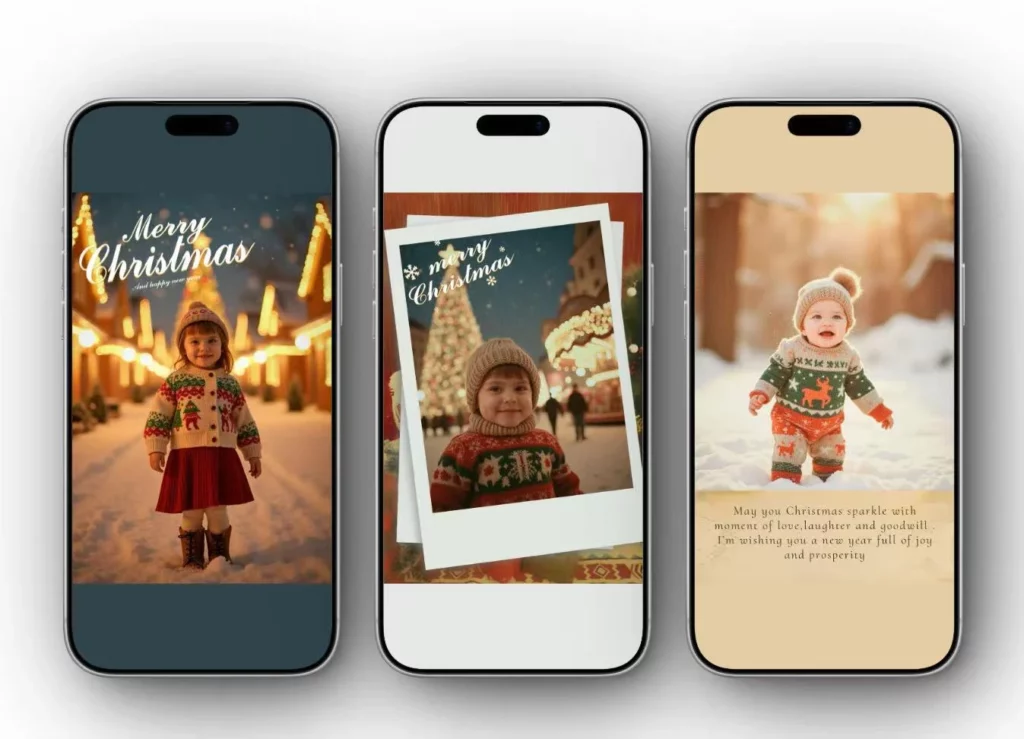
What it looks like:
- Snow-covered landscape with pine trees
- Outdoor cabin with Christmas lights
- Falling snowflakes (animated in GIF format)
- Cool blue-white winter tones
Color palette: Whites, icy blues, silver, evergreen
Best for:
- Playful family photos and kids’ portraits
- Creating magical, fairytale-like atmosphere
- Pet Christmas photos (dogs love snow!)
- Active/outdoor lifestyle aestheti
Real example: “I used the Snowy Forest background for my golden retriever’s photo—the white snow made his golden fur pop beautifully.”
Festive Christmas Party Backgrounds
What it looks like:
- Christmas decorations (baubles, garlands, lights)
- Bokeh effect with colorful lights
- Christmas tree close-up with ornaments
- Glamorous, celebration-focused scenes
Color palette: Bright reds, greens, golds, with sparkle effects
Best for:
- Social media posts (Instagram, Facebook)
- Fun, casual Christmas selfies
- Group photos from actual Christmas parties
- Creating energetic, celebratory mood
When to choose this: If your original photo was taken at a party but the background is messy—replace with a cleaner festive backdrop.
Classic Red & Green Traditional
What it looks like:
- Plaid patterns (tartan, checkered)
- Traditional Christmas colors dominance
- Vintage ornaments and classic decorations
- Nostalgic, timeless aesthetic
Color palette: Deep reds, forest greens, cream/beige
Best for:
- Traditional family Christmas cards
- Grandparents-approved aesthetic
- Printed photo albums and keepsakes
- Users who want classic over trendy
Style note: This background style photographs well and prints beautifully—safest choice for physical Christmas cards.
Minimalist Modern Christmas (Christmas Background Aesthetic)
What it looks like:
- Clean, simple backgrounds with few elements
- Pastel Christmas colors (blush pink, mint green, soft gold)
- Lots of negative space
- Scandinavian/Nordic aesthetic
Color palette: Whites, pastels, subtle metallics
Best for:
- Instagram aesthetic feeds
- Modern, stylish Christmas content
- Professional headshots with festive touch
- Users who want a Christmas background aesthetic that’s clean and contemporary
Why it works: Clean backgrounds make your photo the focal point—perfect if you have a beautiful outfit or professional styling.
🎨 Special Effect: AI Christmas Background Free (Snow Globe & Lantern Globe)
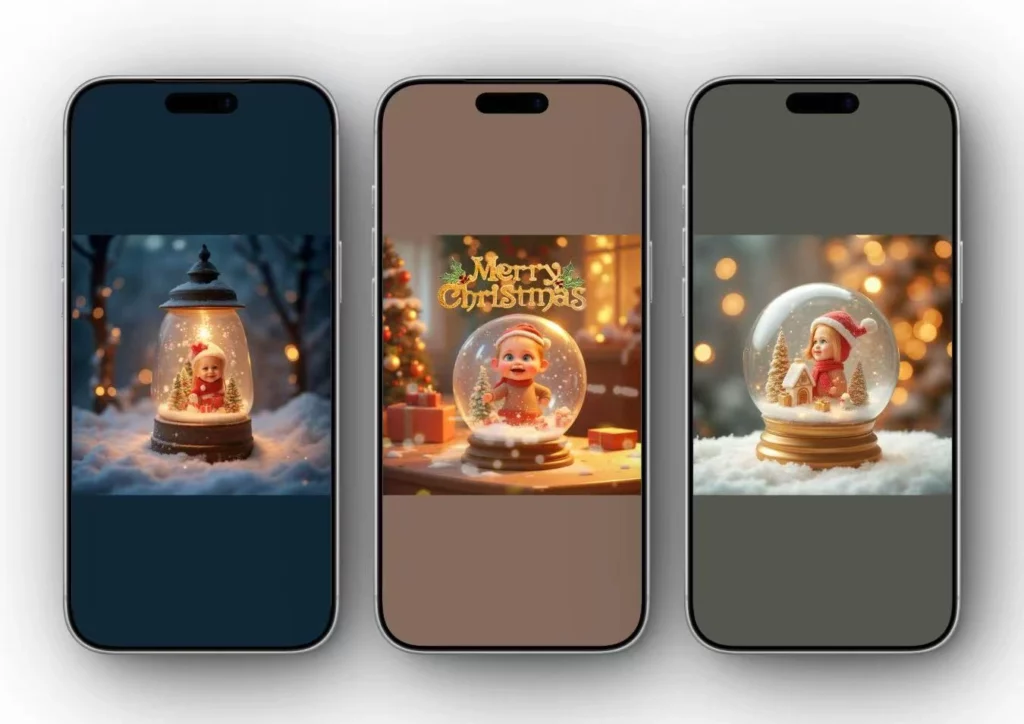
What it is: A unique AI Christmas background free feature where your photo is placed inside a Christmas snow globe or lantern. Although the globe frame is visible, it still replaces your original background with a new Christmas scene.
How it looks:
- Your photo appears inside a transparent globe
- Animated snowflakes drift around your image
- 3D depth effect with globe frame visible
- Magical, whimsical presentation
Best for:
- Kids’ photos (they love the “inside a snow globe” effect)
- Creative Instagram posts
- Unique Christmas gift prints
- Standing out from typical flat backgrounds
PhotoGrid’s AI Globe feature: Automatically detects faces and positions them inside the globe—you don’t need to manually place anything.
Real example: “My 5-year-old was amazed to see himself ‘trapped’ in a snow globe. We printed it as a 5×7 and grandparents loved it.”
🔍 How to Choose the Right Background Style
Quick picks:
- Family portraits: Cozy Indoor or Classic Traditional
- Kids & pets: Snowy Outdoor or Snow Globe
- Selfies for Stories: Festive Party or Minimalist Modern
- Formal couple shots: Cozy Indoor or Minimalist Modern
- Group photos: Cozy Indoor or Classic Traditional
- Business promos: Minimalist Modern or Festive Party
💡 Background Color Matching Tips
Match your outfit to background for best results:
- Red outfit → Choose green or white backgrounds (avoid red-on-red)
- Green outfit → Choose red or snowy backgrounds
- White/cream outfit → Any background works, especially darker ones for contrast
- Dark outfit → Bright/light backgrounds (snowy, white Christmas)
- Colorful outfit → Minimalist backgrounds (don’t compete for attention)
Pro technique: If your outfit clashes with available backgrounds, add a subtle desaturation filter to either the subject or background—reduces color conflict.
Why Add a Christmas Background to Your Photos?
When you add a Christmas background to a photo, you’re not just decorating—you’re creating versatile content you can reuse in many creative ways:
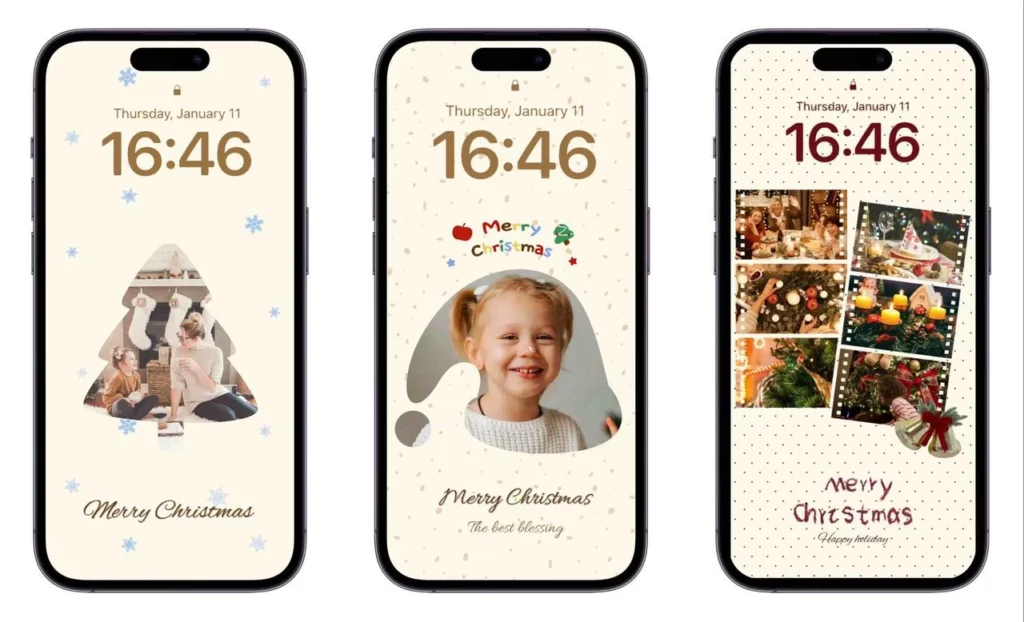
- Christmas Phone Wallpapers Turn your favorite photo into a festive phone wallpaper. With Christmas backgrounds and animated effects, your lock screen and home screen can instantly feel more seasonal. Planning to print your Christmas photos or use them as wallpapers? Enhance details with an image upscaler before saving the final result.
- Share Christmas Photos on Social Media Holiday photos get more engagement when they feel festive. Whether you’re posting on Instagram, Facebook, or messaging apps, Christmas backgrounds help your photos stand out and match the holiday mood.
- Create Family Albums and Memories Christmas moments pass quickly, but edited photos last forever. Adding Christmas backgrounds makes family albums feel more polished and consistent, especially when you save them in different formats.
- Christmas Promotion and Invitation Designs Christmas backgrounds are also useful for business promotions, online shops, and party invitations. Ready-made festive templates save time and help your designs look professional without hiring a designer.
What Makes PhotoGrid the Best Christmas Background App Free?
When you need to add a Christmas background to a photo, PhotoGrid combines several advantages that make it the ideal tool:
| Feature | PhotoGrid | Most Competitors |
| Free & No Watermark | ✅ Unlimited free edits | ⚠️ Watermarks or limited free uses |
| Animated Formats | ✅ GIF, Live Photo, Live Wallpaper | ❌ Static images only |
| Platform Flexibility | ✅ App + Online Browser | ⚠️ App-only or web-only |
| AI Background Placement | ✅ Automatic face detection | ⚠️ Manual positioning needed |
| Template Variety | ✅ 200+ Christmas templates | ⚠️ 20-50 templates typical |
Key strengths:
- Speed: Create Christmas photos in 60-90 seconds from upload to download
- Animation: Only free tool offering GIF and Live Wallpaper exports
- Accessibility: Works on iPhone, Android, desktop browsers—no barriers
When to consider alternatives:
- For pixel-perfect edge quality on complex hair/fur → Try CapCut first
- For batch processing 20+ photos → Use Canva’s duplication workflow
- For professional print work → Use Photoshop for final refinement
Bottom line: PhotoGrid is the best Christmas background app free for 80% of Christmas photo needs—fast, free, and flexible.
Conclusion
Learning how to add a Christmas background to a photo doesn’t have to be complicated or expensive. With PhotoGrid, you can create festive photos for free using either the mobile app or the online editor.
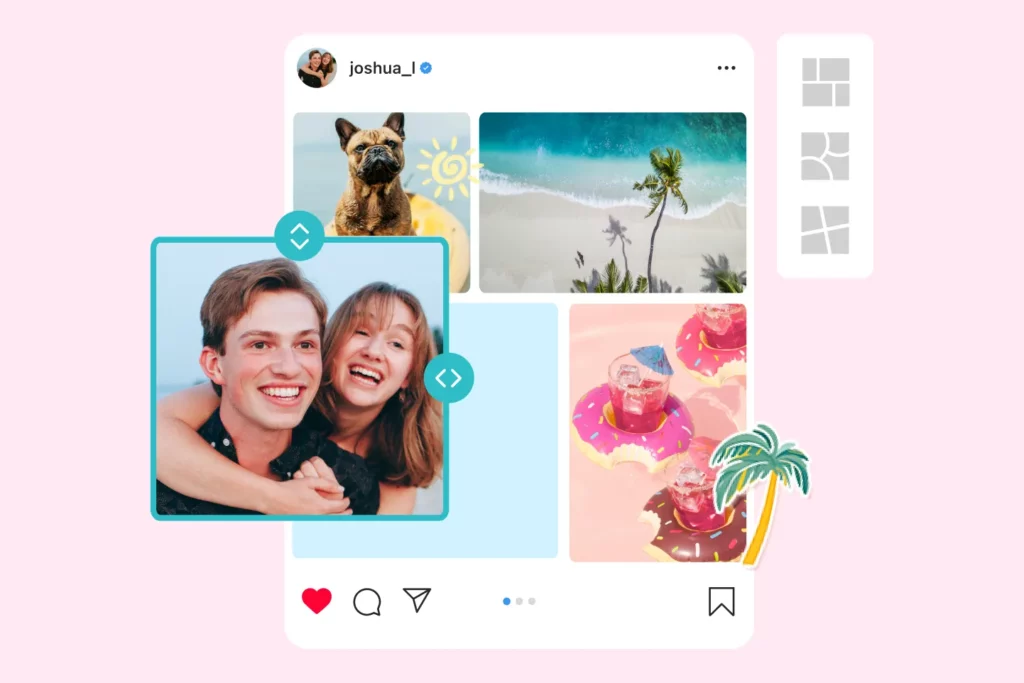
You can explore various Christmas-themed backgrounds for different uses, such as family photos, social media sharing, wallpapers, and promotions.
From classic Christmas scenes to animated snow effects and AI-powered globes, there are plenty of options to match different styles and uses. Whether you’re making family photos, social posts, wallpapers, or holiday cards, you can get polished results in minutes.
Try it out and bring a little extra Christmas spirit to your photos this season. 🎄✨
FAQs
How to add a Christmas background to a photo for free?
You can add a Christmas background to a photo for free using PhotoGrid. The app offers a wide selection of free Christmas backgrounds, festive templates, and AI-powered effects, with no watermark on saved images.
Is there a free AI Christmas background tool with no watermark?
Yes. PhotoGrid uses AI to automatically detect your photo and place it into Christmas backgrounds, helping you create natural-looking results without manual cutouts. Free exports do not add watermarks. It’s one of the best AI Christmas background free tools available.
How to add a Christmas background to a photo online free without downloading an app?
You can add a Christmas background to a photo online free. Simply open the PhotoGrid’s website in your browser, upload your photo, choose from free Christmas scenes like Christmas Scenes or Gift Box, and download your image without installing any software.
What’s the best app to add Christmas background to photo on iPhone and Android?
PhotoGrid is one of the best Christmas background app free options available. It works on both iPhone and Android and lets you add Christmas backgrounds, animated snow effects, and festive elements in just a few taps.
Can I save my Christmas photo as a GIF, Live Photo, or animated wallpaper?
Yes. One advantage of using the PhotoGrid app is that you can save your Christmas photos not only as images, but also as GIFs, live photos, or live wallpapers, which is perfect for mobile users who want animated holiday effects.
Are my photos safe when I upload them to add a Christmas background?
Yes. PhotoGrid values user privacy. Uploaded photos are used only for editing purposes and are not publicly shared. This allows you to create Christmas photos with confidence, whether you are editing family pictures or personal images.
Can PhotoGrid do collages or Christmas cards too?
Yes. Beyond background replacement, PhotoGrid allows you to create Christmas photo collages, greeting cards, and festive layouts using free templates. You can personalize them with text and decorations, then save or share them easily.