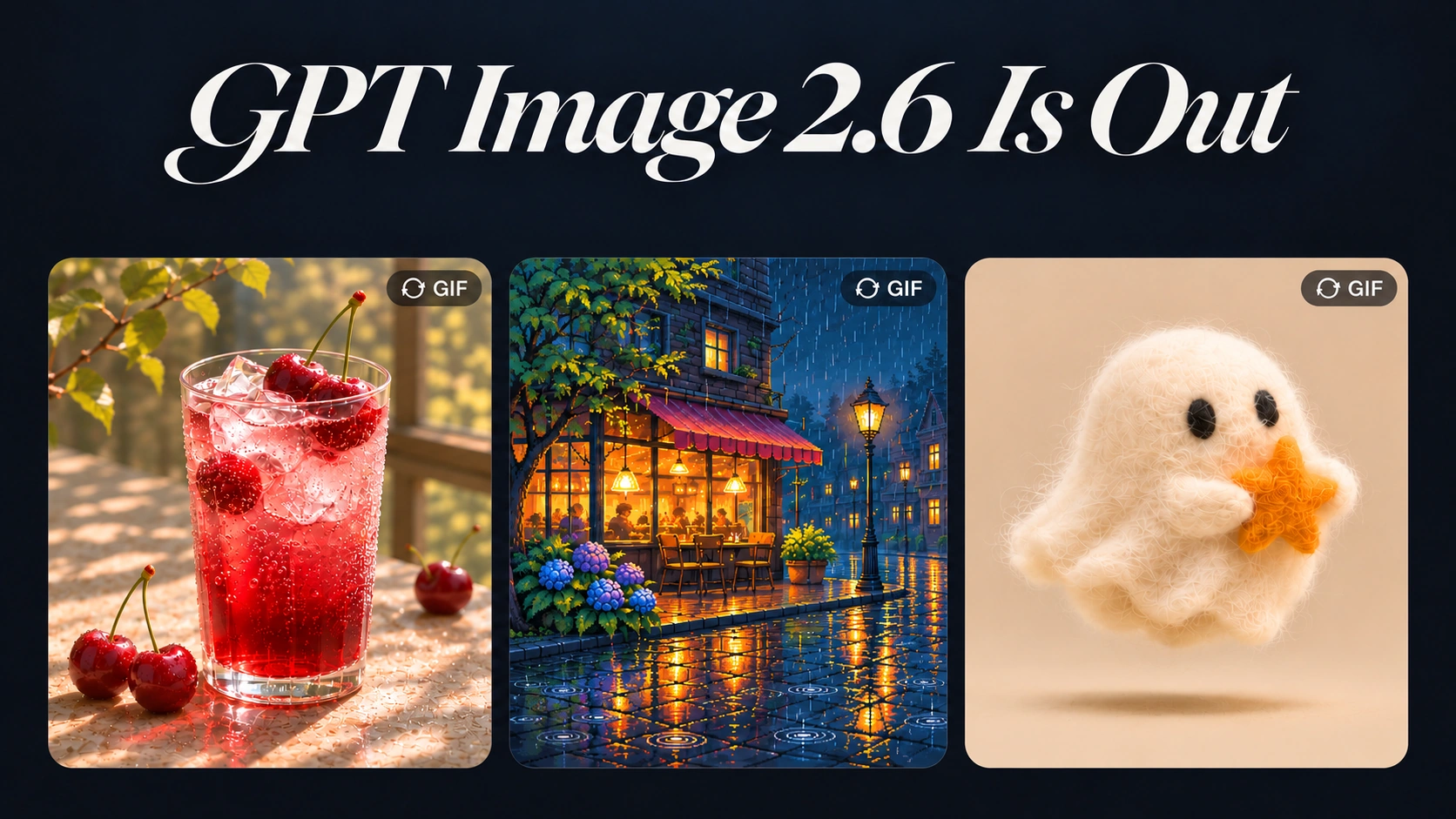
I’ve wanted to make my own GIFs for ages! So when I heard the news, I jumped right in. From a sleepy little character to a blinking cat, I couldn’t wait to see what it could do.
According to OpenAI, image generation is now 50% faster, with better consistency across edits. Here’s what’s new, how it compares to the previous version, and the GIF prompts I tried myself.
Key Takeaways
- Released November 4, 2026: GPT Image 2.6 is available in ChatGPT, Codex, and the API.
- 50% faster generation: OpenAI says the new version creates images 50% faster than before, with better consistency across edits.
- Native GIF creation: Turn text prompts or uploaded photos into animated GIFs. Review the motion and ask for changes if needed.
What Is GPT Image 2.6?
GPT Image 2.6 is OpenAI’s latest image generation model, released on November 4, 2026. Inside ChatGPT, the updated experience is called Images 2.6.
Like earlier versions, it can create realistic photos, illustrations, posters, and product images from text prompts. You can also upload an existing picture and ask ChatGPT to change specific details.
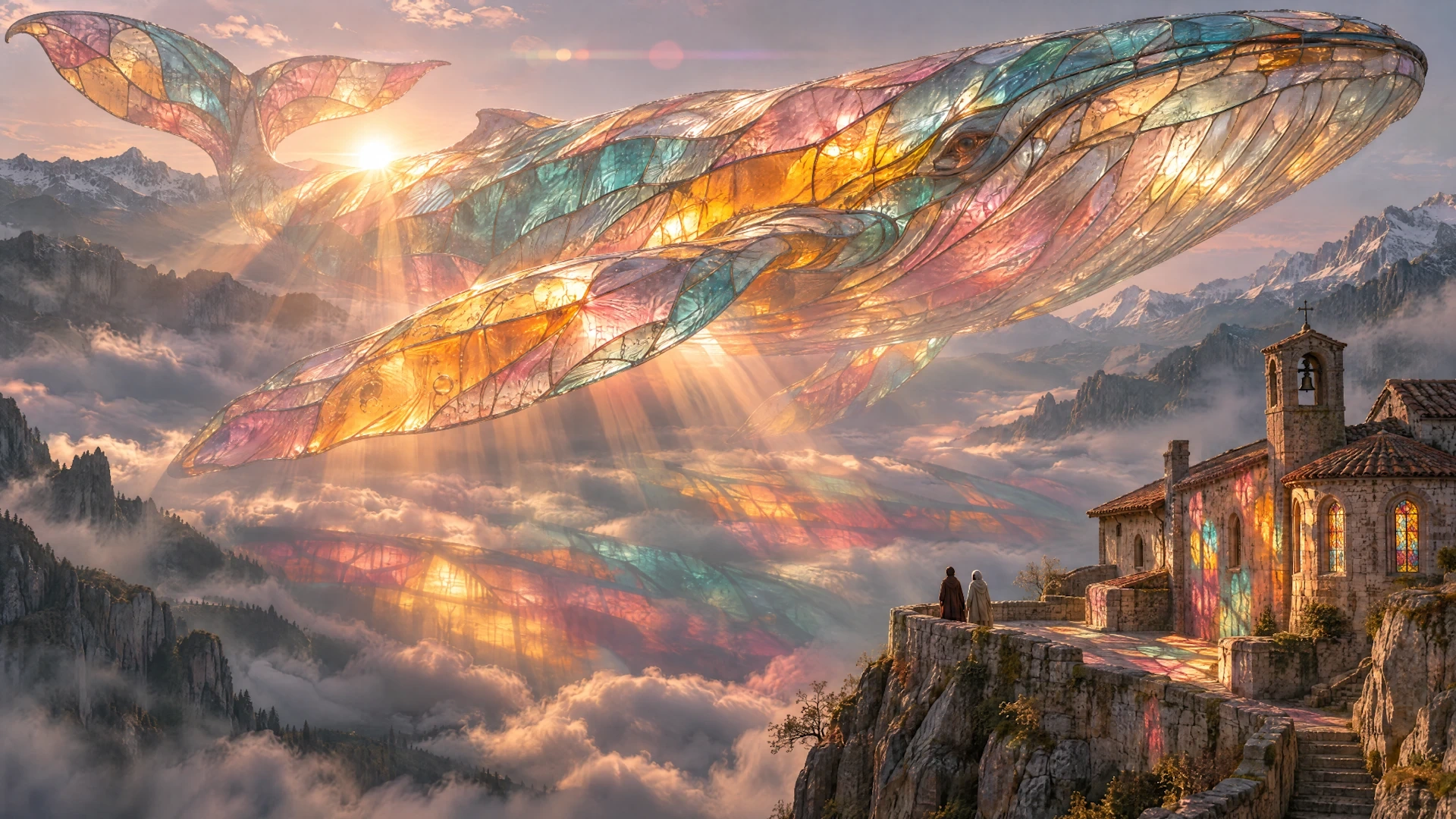
What makes this release different is its focus on speed, consistency, and motion.
Instead of generating a still image and moving to another tool to animate it, you can now create short GIF animations within ChatGPT.
The update is available worldwide across ChatGPT’s subscription tiers, including Free, with usage limits that vary by plan.
What’s New in GPT Image 2.6?
OpenAI announced several upgrades. Three stand out for everyday users.
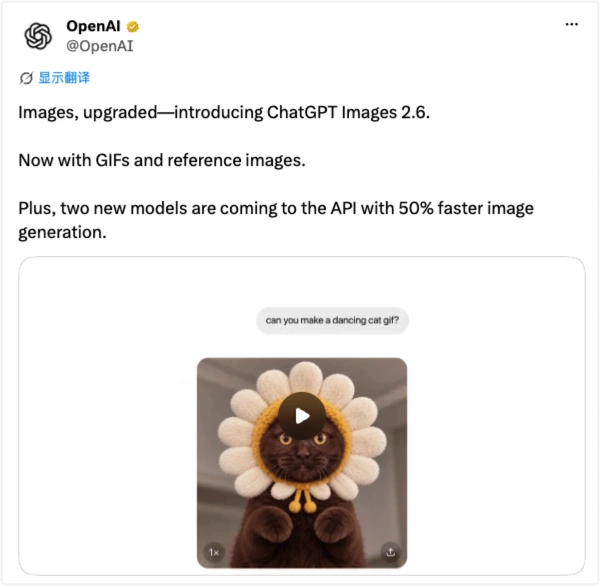
1. Image Generation Is 50% Faster
Waiting for an AI image to appear can slow down the creative process, especially when you need several versions.
OpenAI says GPT Image 2.6 generates images 50% faster than before.
This means less time between trying a prompt and seeing the result. Creators can test different styles, compositions, and visual ideas more quickly.
For developers, the GPT-Image-2.6 Flare model can generate an image in as little as six seconds when quality is set to low. That is a best-case figure, not a guaranteed generation time for every image.
2. Create Animated GIFs from Text or Photos
This is one of the most exciting additions. With GPT Image 2.6, ChatGPT can create animated GIFs from a written description or an uploaded image.
You can use it to make:
- Funny reaction GIFs for chats and social media.
- Animated birthday greetings and celebration cards.
- Moving characters, pets, and custom stickers.
- Short loops for product promotions and brand content.
You can ask for changes to the motion and review a new version.
For example, upload a photo of your pet and ask it to blink, tilt its head, or wave a paw. Instead of starting from scratch, the model can use the uploaded image as a visual reference.
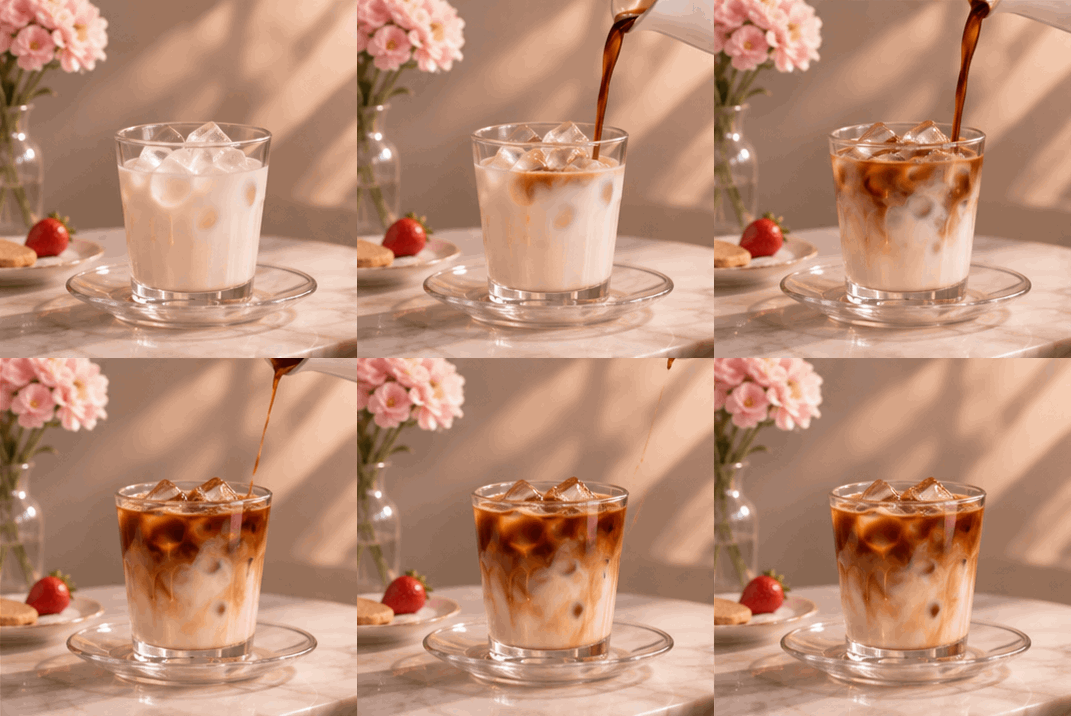
3. Better Consistency Across Image Changes
AI-generated images do not always stay consistent when you ask for changes. A face may look slightly different. A product label may shift. Small details can disappear between versions.
OpenAI says GPT Image 2.6 improves consistency across editing rounds, helping people, products, and brand details remain more stable.
This is especially useful when creating several visuals for the same campaign. You can change a background, adjust the lighting, or try a different composition without having to recreate the entire image.
The results are not always perfect, but the update aims to make repeated changes more reliable.
Official example: one knight, three editing rounds
In the Higgsfield example featured by OpenAI, the background changes first, followed by the armor colors. Compare the face, hair, blue cape, sword, and foreground across the three images.
View the original scene prompt
Epic high fantasy anime key visual, mature seinen style like a modern high-budget anime film. A young woman sorceress-knight in her twenties with long crimson hair and sharp golden eyes stands on the edge of a cliff in ornate silver and emerald armor with a flowing royal blue cape, a glowing runic sword planted in front of her, magic sparks around her hands. Behind her a vast fantasy kingdom: floating islands with waterfalls pouring into the clouds, a white castle with spires, a huge ancient dragon flying in the distance, giant blooming sakura and golden autumn forests in the valley below. Sunset sky with vivid orange, magenta, turquoise and violet clouds, god rays, glowing magic particles in the air. Extremely vibrant saturated colors, dramatic rim lighting, cel shading with detailed painted backgrounds, crisp clean line art, depth and atmosphere, dynamic low camera angle, wide cinematic composition. Adult, elegant, serious heroic mood, not childish, no chibi, no sci-fi, no neon, no text, no watermark.
Edit 1: Change the Landscape
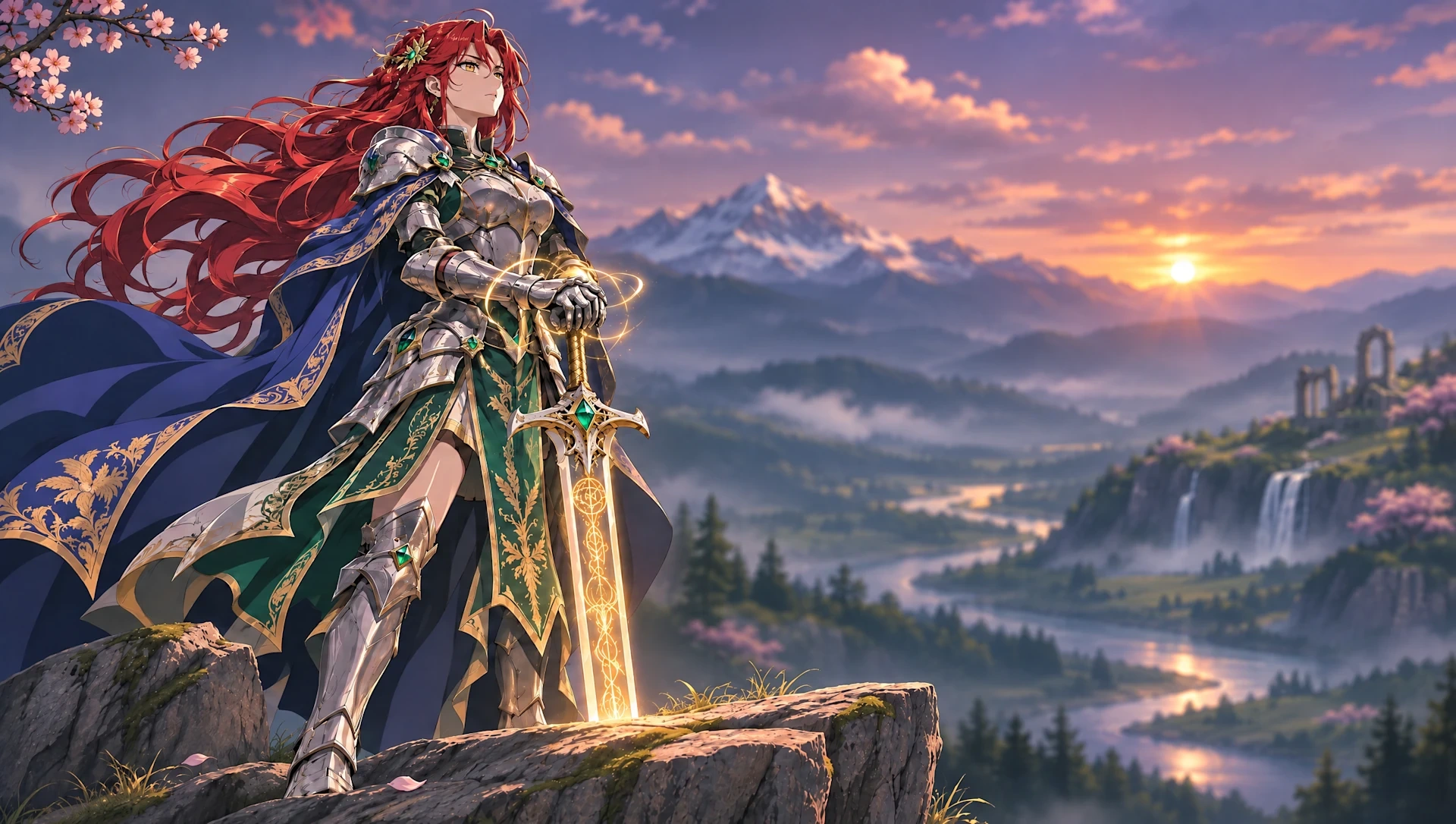
Edit prompt: Replace the moonlit landscape with a golden sunset over a misty mountain valley, winding river, waterfalls and ancient ruins. Keep the background softly blurred and the knight, armor, sword, rock and composition unchanged.
Edit 2: Add a Floating Castle
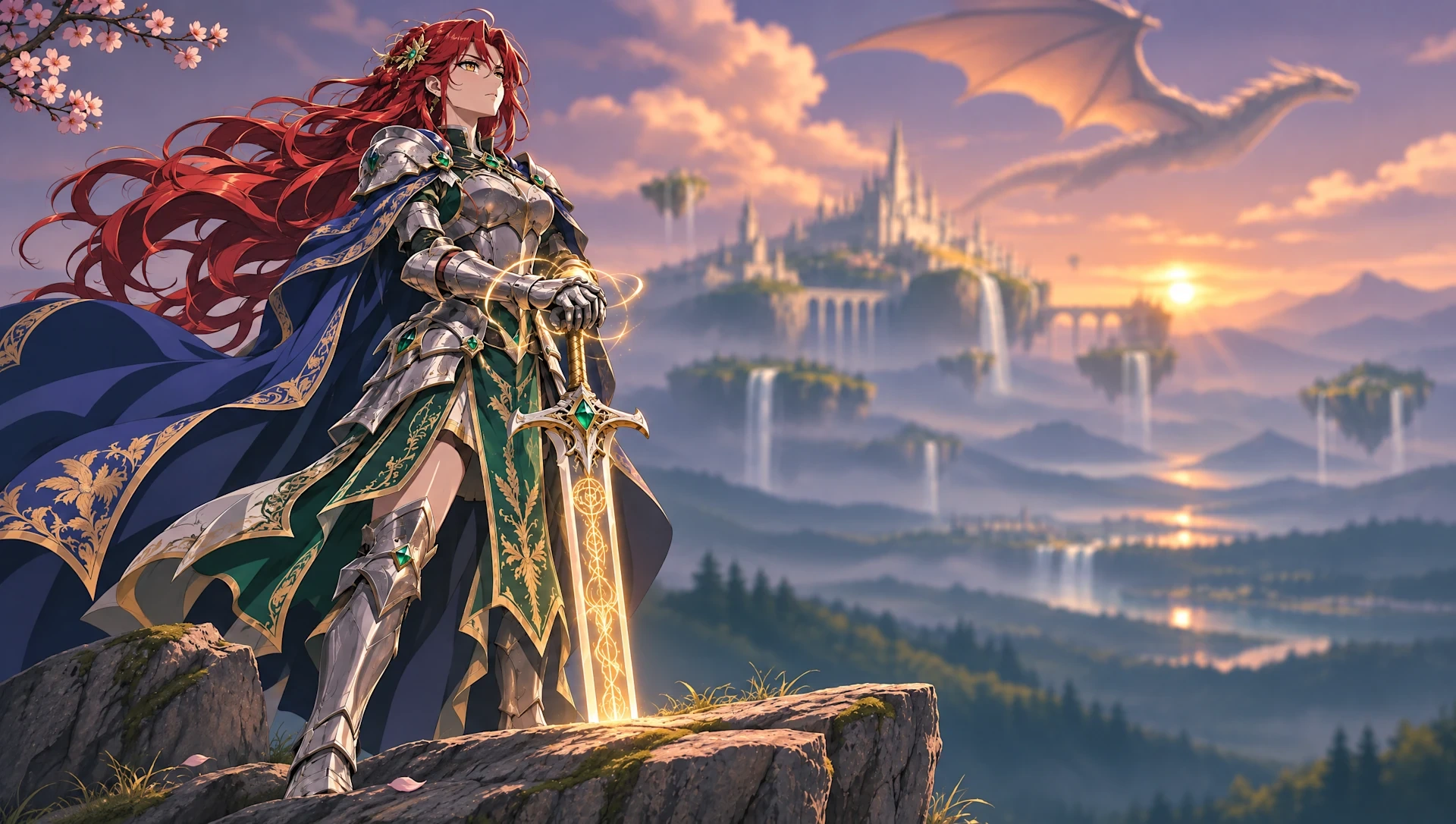
Edit prompt: Replace the background with a majestic floating castle, smaller floating islands, cascading waterfalls and a dragon flying overhead. Preserve the warm sunset, atmospheric haze and shallow depth of field. Keep the knight and foreground unchanged.
Edit 3: Recolor the Armor
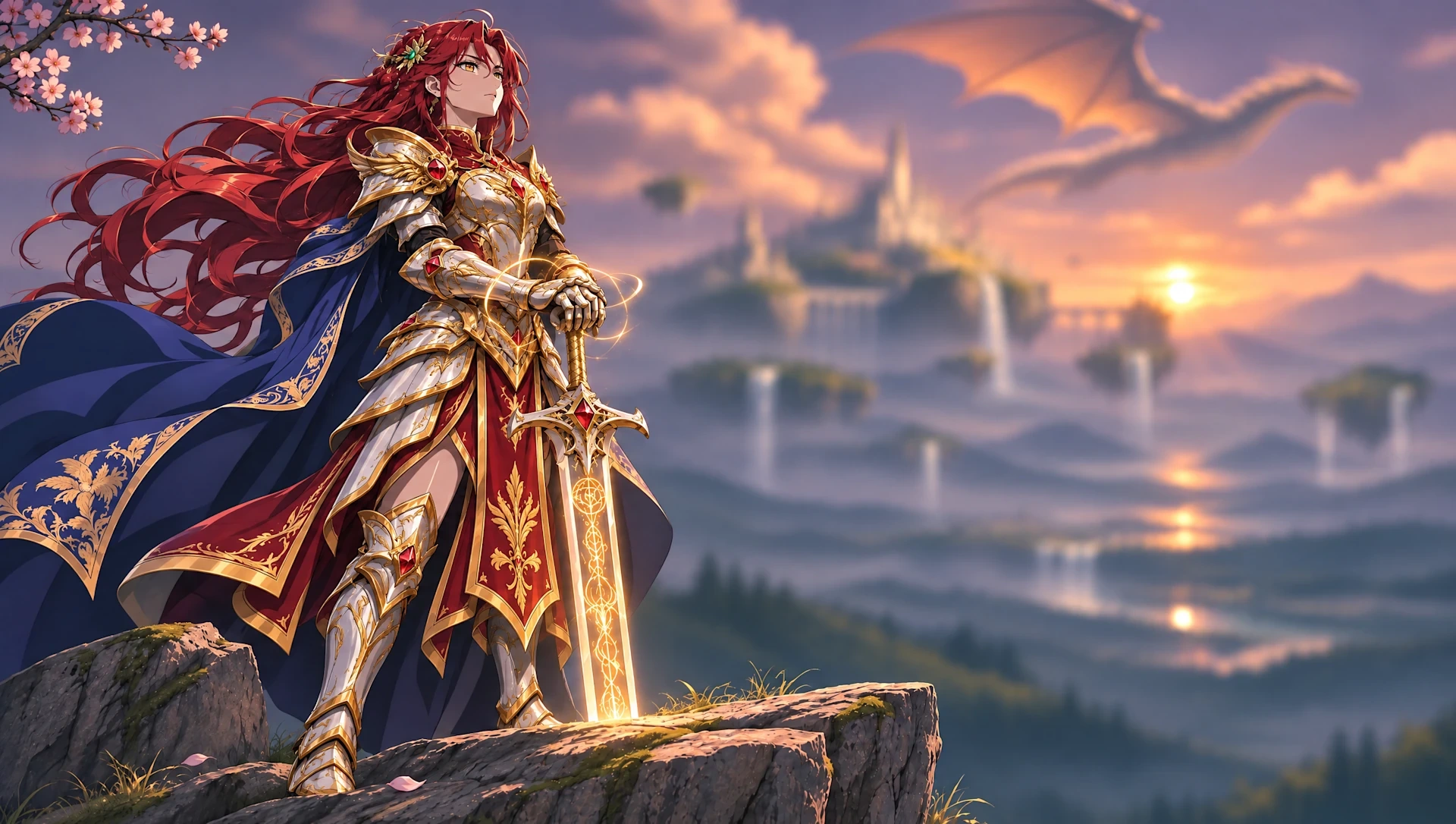
Edit prompt: Recolor the armor to ivory white with rich gold trim, replace emerald gemstones with rubies, and change green fabric panels to deep crimson. Preserve the armor design, blue cape, red hair, golden sword glow, pose and background.
Images and prompts: Higgsfield, featured in OpenAI’s Images 2.6 announcement.
How to Make GIFs with GPT Image 2.6
Want to try the new ChatGPT GIF generator? You can start with a text prompt or upload a photo you want to bring to life.
Step 1. Open ChatGPT
Open ChatGPT on your desktop, phone, or web browser. Start a new conversation and describe the GIF you want to create. You can begin with an idea or upload an existing photo.
Step 2. Describe the Motion
Tell ChatGPT what should move and how the animation should look.
For example:
“Turn this photo into a short animated GIF. Make the character blink and wave gently. Keep the background still and create a seamless loop.”
Try to describe one clear action. Simple movements, such as blinking, waving, bouncing, or tilting, are easier to control than several complex actions happening at once.
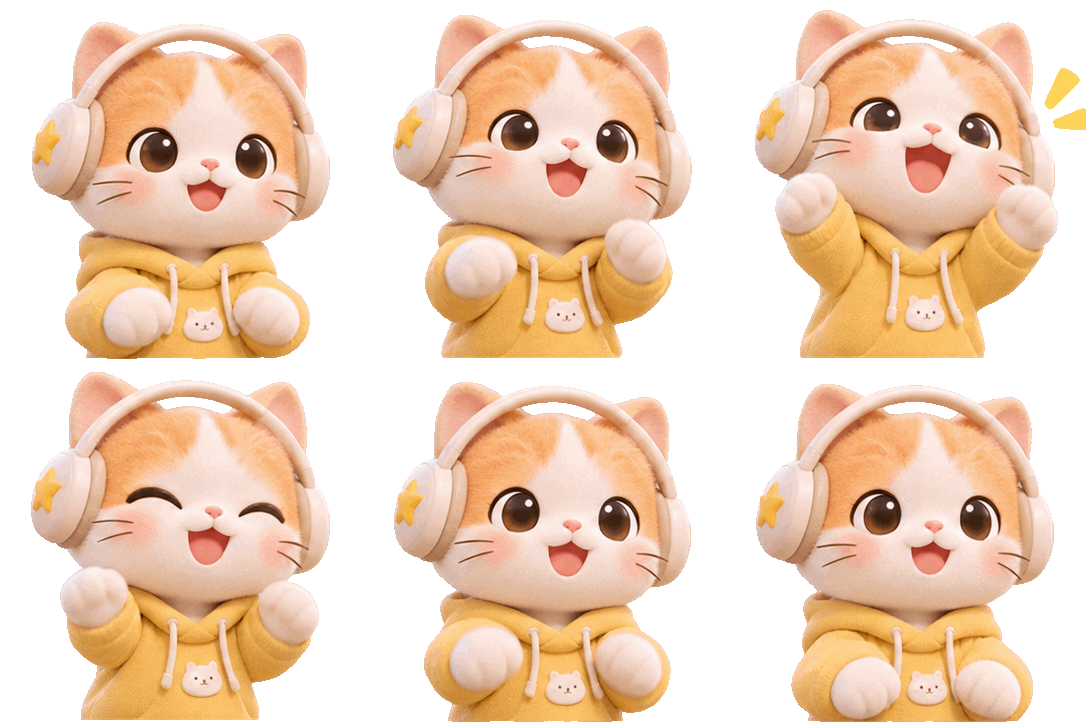
Step 3. Generate and Review Your GIF
Ask ChatGPT to create the animation as a GIF. Once it appears, review the result.
Check whether the character’s face, colors, and important details remain consistent between frames. If something looks wrong, describe the problem and ask for a correction.
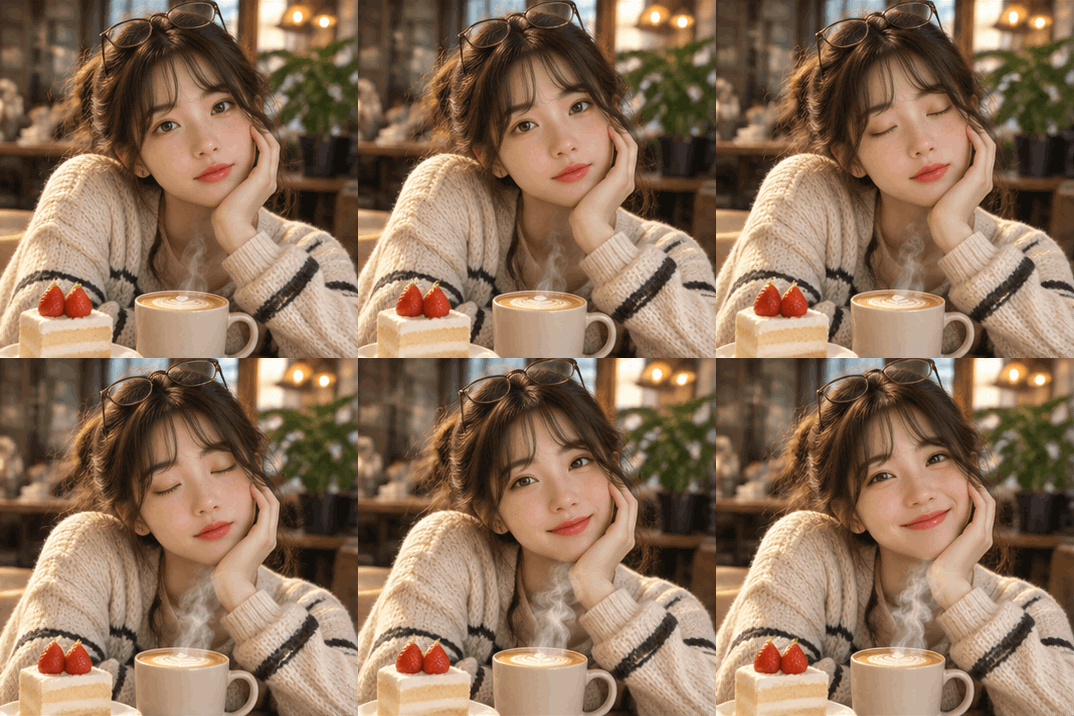
Step 4. Adjust and Save
Describe any motion or visual details you want to change, then review the revised GIF.
When you’re happy with the result, save or share the GIF. Before posting it, check that the downloaded file plays as an animation rather than showing only one still frame.
Tip: For a smoother loop, keep the camera fixed and ask the final frame to transition naturally back to the first.
Step-by-Step Example: A Strawberry-Hat Pixel GIF
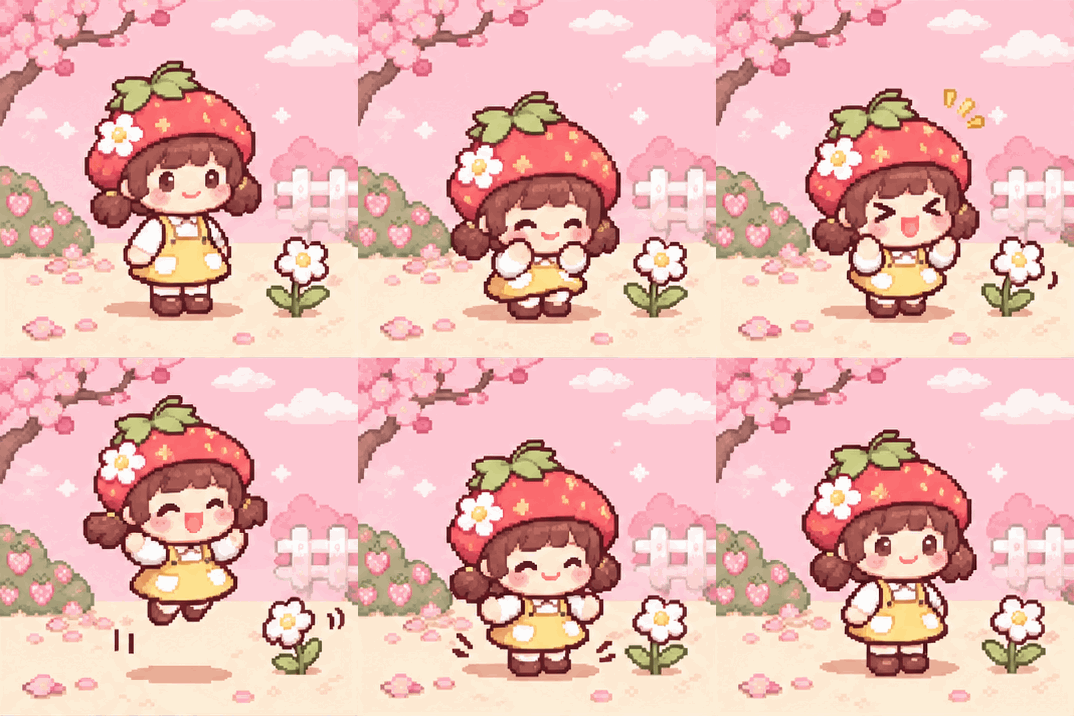
Here is the prompt, the ChatGPT response, and the finished GIF from my strawberry-hat character example.
1. Enter the prompt
Start a new chat and paste the prompt below. It describes the character, garden, motion, style, and loop requirements.
View the full GIF prompt
Create an adorable animated pixel art GIF featuring
an original tiny Japanese kawaii character.Character:
A chubby little pixel girl with rosy cheeks,
a large strawberry-shaped hat, a butter-yellow
pinafore dress, and tiny brown shoes.Scene:
A dreamy pastel pink garden with a small white
flower, soft cream-colored ground, and delicate
pixel decorations.Animation:
The little girl bends her knees, jumps happily
into the air, and lands with a soft bounce.
Her strawberry hat bobs gently, her dress sways,
and the nearby flower wiggles.Style:
Charming Japanese indie-game pixel art,
crisp 16-bit-inspired pixels, pastel colors,
expressive character animation, and cozy
retro-game aesthetics.Create a seamless looping animated GIF,
approximately 2 seconds long.Use 12 distinct animation frames.
Keep the character design consistent.
Fixed camera, square 1:1 composition.No text, no watermark, no realistic textures.
Deliver an actual animated GIF.
2. Review the generated animation
When the preview appears, watch the jump and landing. Check that the strawberry hat, yellow dress, and character stay consistent as the flower moves.
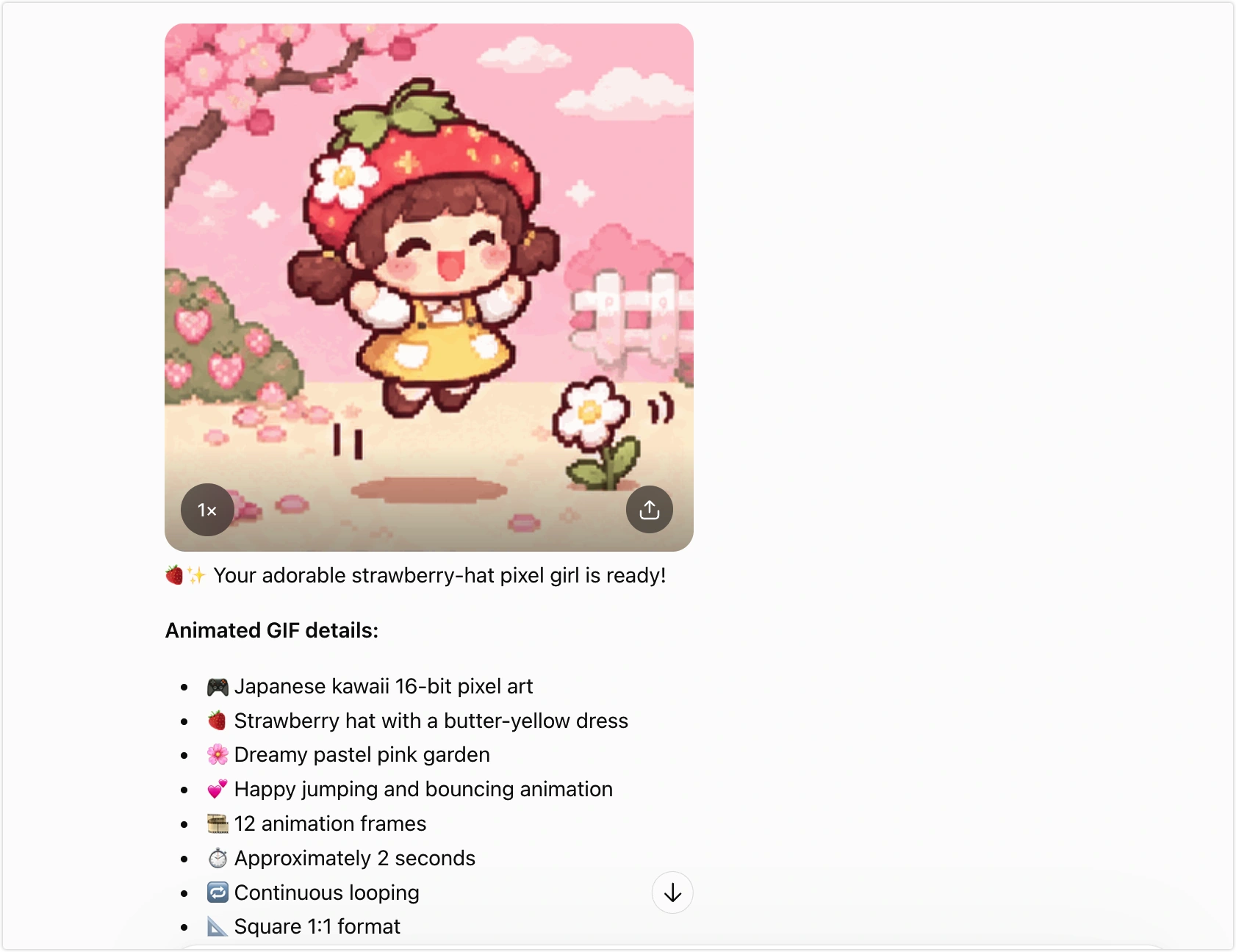
3. Download and check the loop
Save the GIF and open the downloaded file to check that it animates and repeats. This finished file contains 12 frames and loops in about 2 seconds.
4 GIF Ideas to Try with GPT Image 2.6
Not sure what to create first? Reaction memes, cute animals, animated greetings, and brand logos are great places to start.
Here are four GIF ideas to try, including three prompts you can copy and customize.
1. OMG Reaction GIF
Best for: Funny reactions, group chats, and social media comments.
Imagine a stylish young woman in a bright cobalt-blue sweater reading an unexpected message on her phone. Her eyes widen. She slowly raises one hand to cover her mouth, then freezes in disbelief.
View the reaction GIF prompt
Create a short, seamless looping reaction GIF of a stylish young woman with shoulder-length dark brown hair, wearing a cobalt-blue sweater against a soft peach studio background.
She looks at her phone, raises her eyebrows in surprise, opens her eyes wide, and gently covers her mouth with one hand.
Make the expression funny but natural. Keep her face, hairstyle, clothes, and background consistent.
Use a fixed camera and smooth facial movements. End with a natural transition back to the starting pose. Export as an animated GIF.
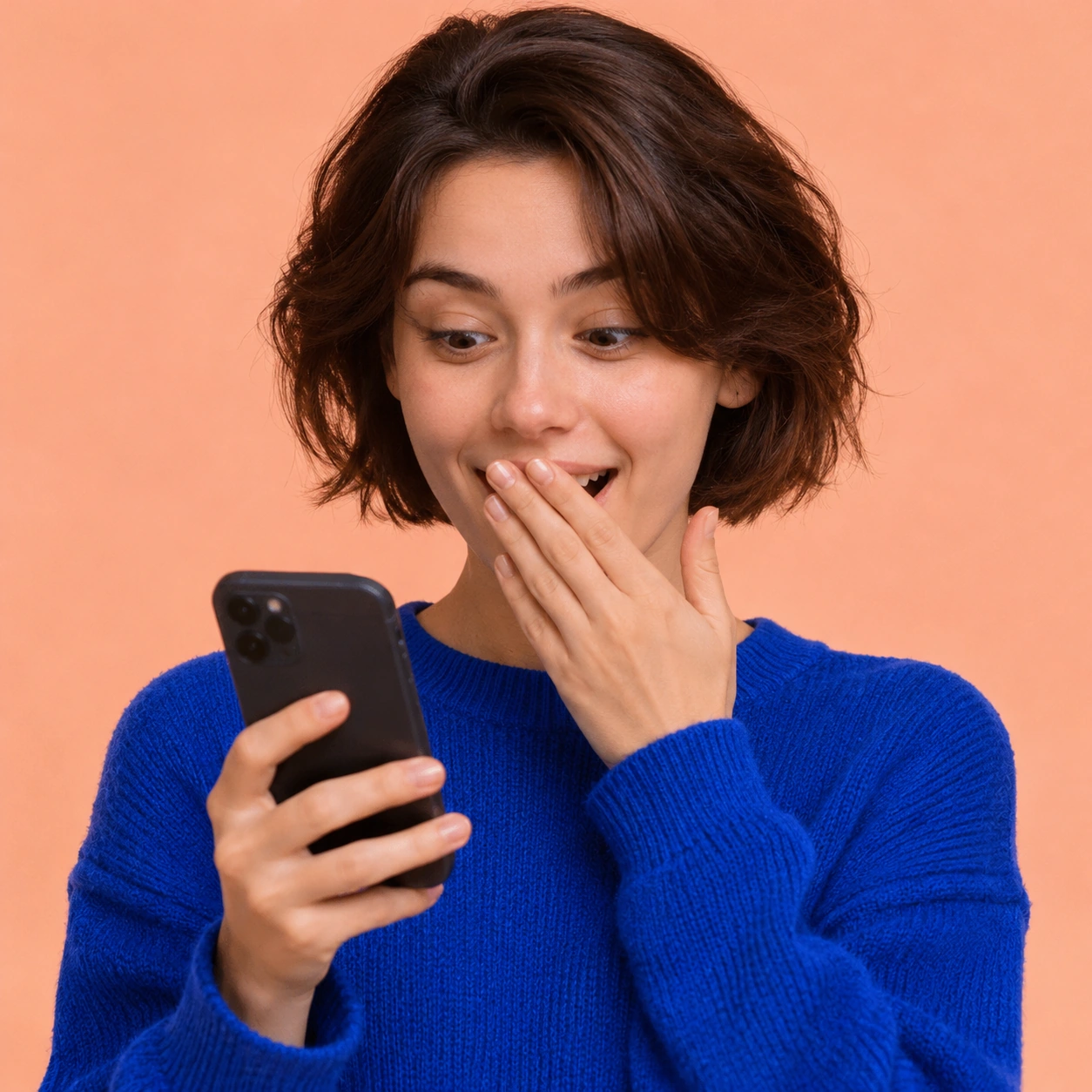

A reaction GIF works best when the expression is easy to recognize, even without sound or captions.
2. Cute Cat Meme GIF
Best for: Funny messages, pet lovers, and meme sharing.
A fluffy orange cat sits beside a small cookie on a kitchen table. It slowly reaches out with one paw, taps the cookie, and watches it slide off the edge. Then the cat freezes as if nothing happened.
View the cat GIF prompt
Create a funny, seamless looping GIF of a fluffy, round-faced orange tabby cat sitting at a pale wooden kitchen table.
A small cookie rests near the table’s edge. The cat slowly reaches out with one paw and gently pushes the cookie until it falls.
The cat suddenly freezes, opens its eyes wide, and looks straight at the camera with an innocent expression.
Use soft morning light, realistic fur texture, and a cozy pastel kitchen background.
Keep the cat’s face and body consistent. Use a fixed camera, smooth paw movement, and a natural looping transition. Export as a GIF.
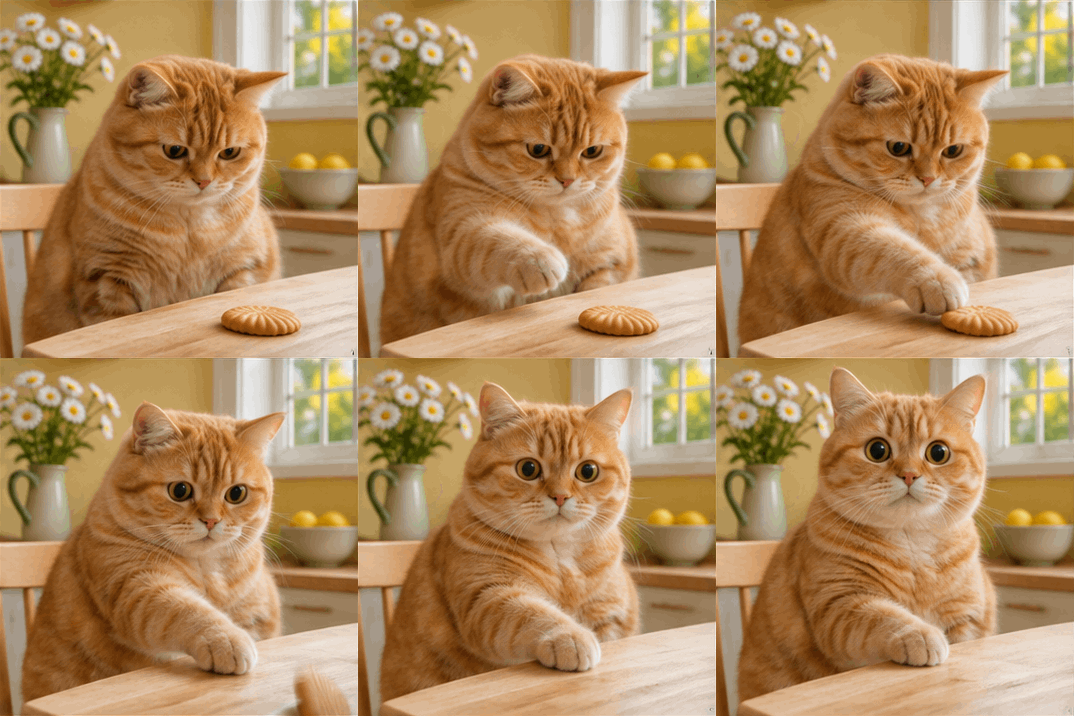
The humor comes from the pause after the cookie falls. Keep the action simple so viewers can understand the joke immediately.
3. Happy Birthday GIF
Best for: Birthday wishes, Instagram Stories, and digital greeting cards.
Picture a beautiful pink birthday cake on a cream-colored table. The candles glow softly as gold confetti falls around the cake. A few pastel balloons float in the background.
View the birthday GIF prompt
Create a beautiful, seamless looping birthday GIF featuring a pastel pink cake with delicate buttercream flowers, small glowing candles, and elegant gold details.
Place the cake on a cream-colored table against a soft blush-pink background, with champagne-gold and pale pink balloons.
Animate gentle candle flames, slowly falling gold confetti, and subtle balloon movement.
Keep the cake perfectly still and preserve its shape and decorations throughout the animation.
Use soft studio lighting and a dreamy celebration style. Make the movement smooth, elegant, and suitable for a looping birthday greeting. Export as an animated GIF.
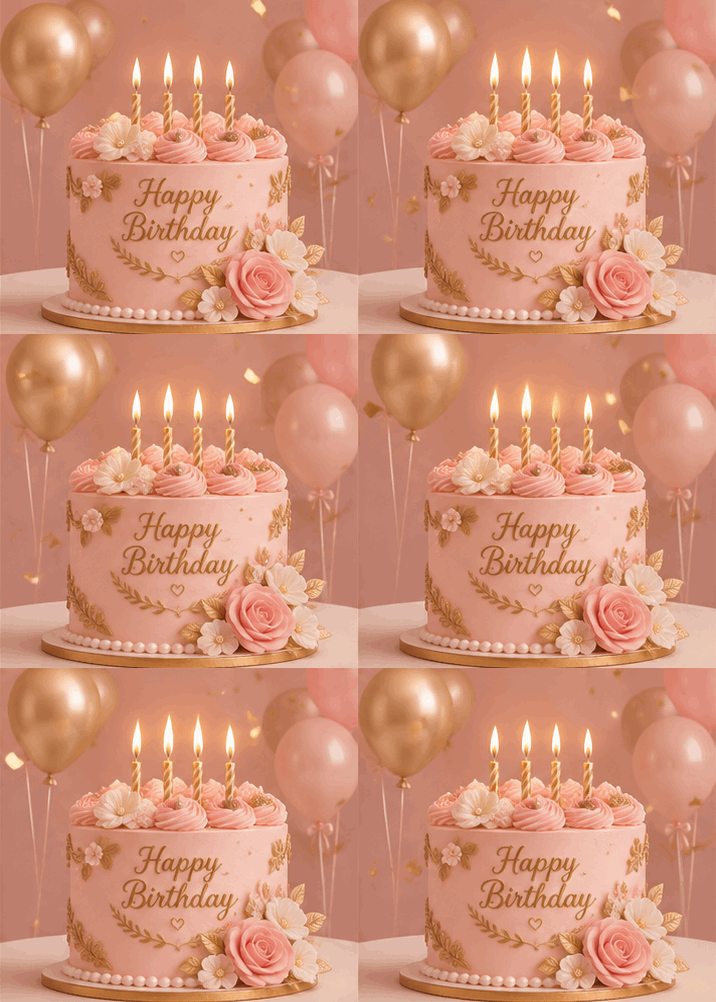
This style works well when you want a birthday message that feels more personal than a standard sticker. You can also change the cake colors, decorations, and background to match someone’s favorite style.
4. Animate a Brand Logo
A small movement can give a familiar logo a playful personality. We used the PhotoGrid icon as a reference and created a 12-frame animation sequence.
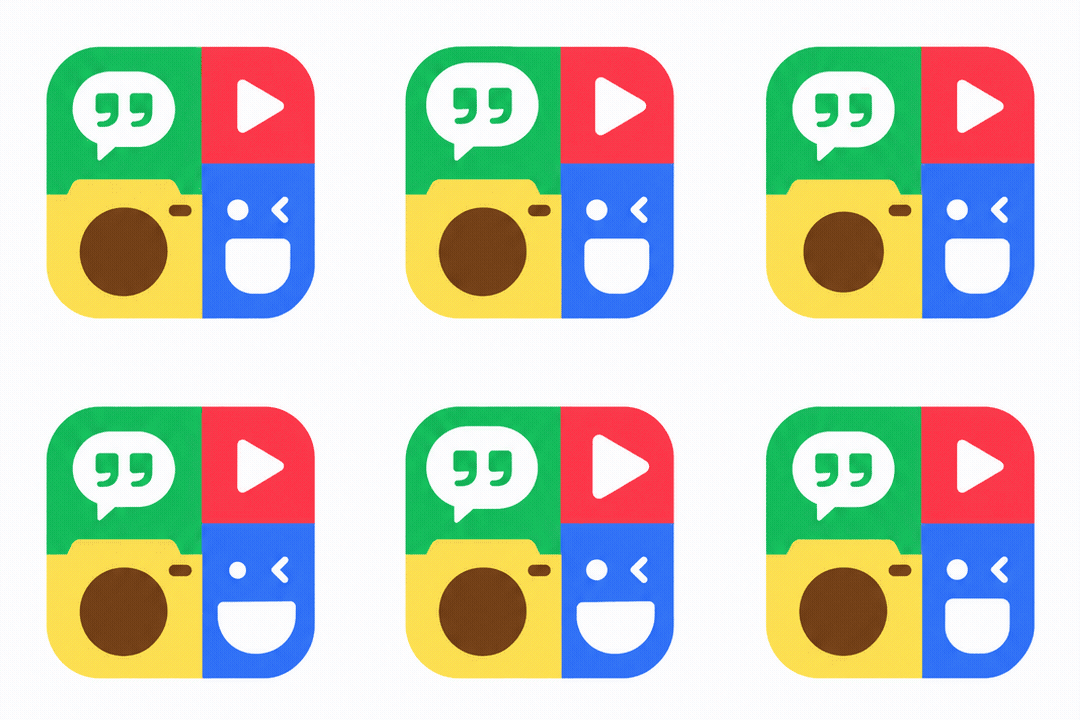
The speech bubble bounces, the play button pulses, the camera lens contracts, and the smiling face winks. The four colored sections stay connected, keeping the icon recognizable throughout.
We then assembled the frames into a looping GIF and smoothed the transitions.
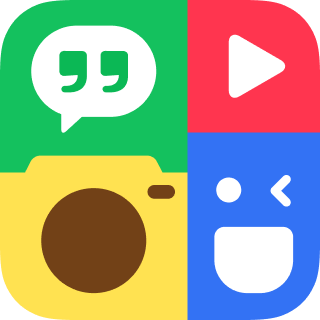
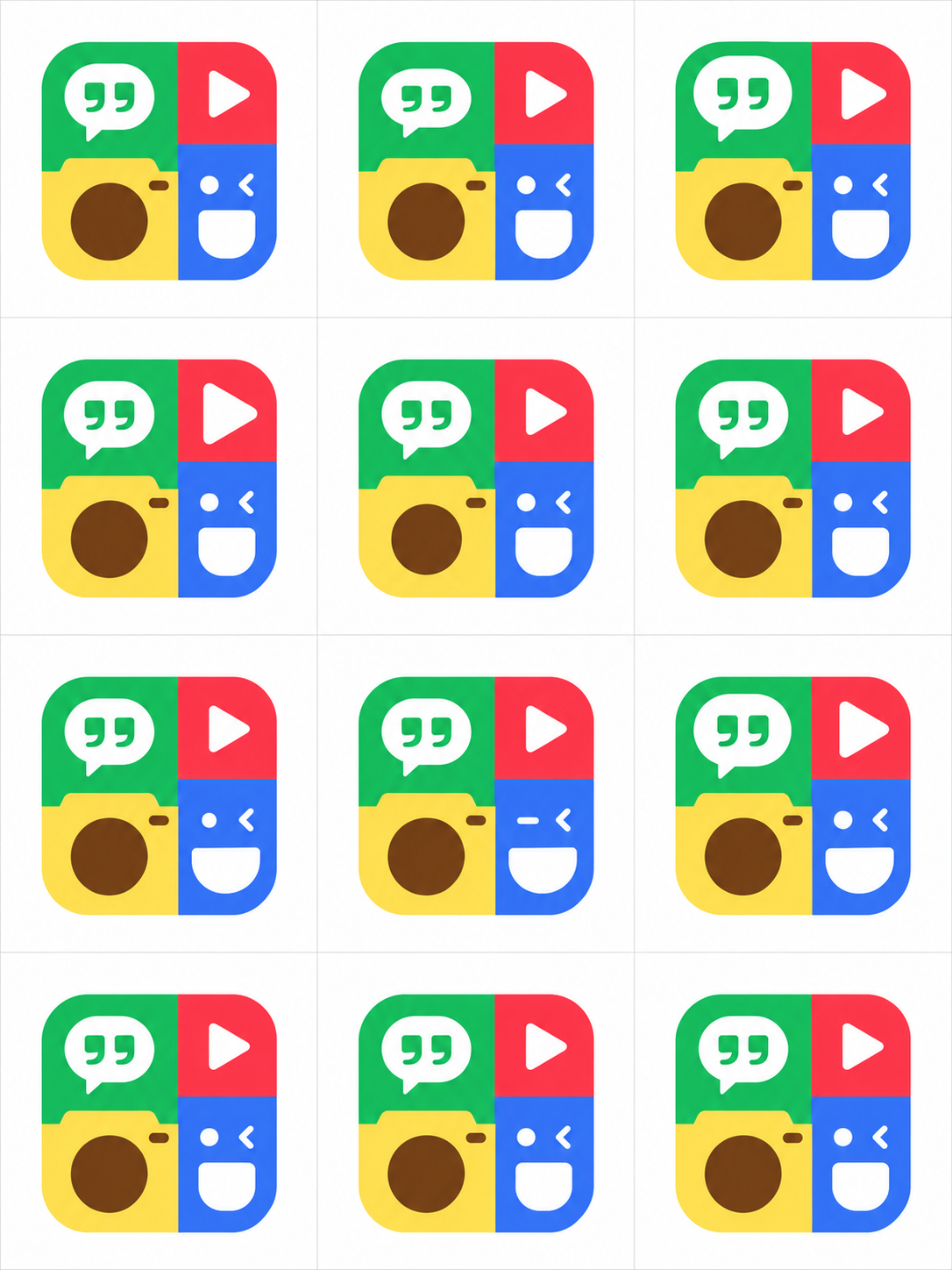
From a static logo to a looping GIF: reference image, generated animation frames, and the finished result.
Try it with your own logo
Upload a clear logo image. Describe which elements should move and which should stay fixed. Keep the action short and return to the starting pose for a cleaner loop.
GPT Image 2.6 vs. 2.5: What’s Different?
OpenAI introduced GPT Image 2.5 on September 8, 2026. That update already improved image quality, generation speed, and the ability to make precise changes.
GPT Image 2.6 builds on those improvements while adding native GIF generation and new tools for developers.
| Feature | GPT Image 2.5 | GPT Image 2.6 |
|---|---|---|
| Release Date | September 8, 2026 | November 4, 2026 |
| Text to Image | Supported | Supported |
| Image to Image | Supported | Supported |
| Animated GIFs | No native GIF generation feature announced | Native GIF generation |
| Generation Speed | Faster than earlier models | OpenAI reports another 50% improvement |
| Character Consistency | Improved | Further improved |
| Precise Image Changes | Supported | More consistent across edits |
| Flare and Sunburst | Available | Updated to 2.6 |
| SVG Output | Not announced as a 2.5 launch feature | Available through the 2.6 API |
The biggest difference for everyday users is motion.
GPT Image 2.5 focused on generating and improving still images. GPT Image 2.6 adds an easier way to turn those ideas into short animated GIFs.
For developers, the new release also expands control over image creation and export.
GPT Image 2.6 Flare vs. Sunburst
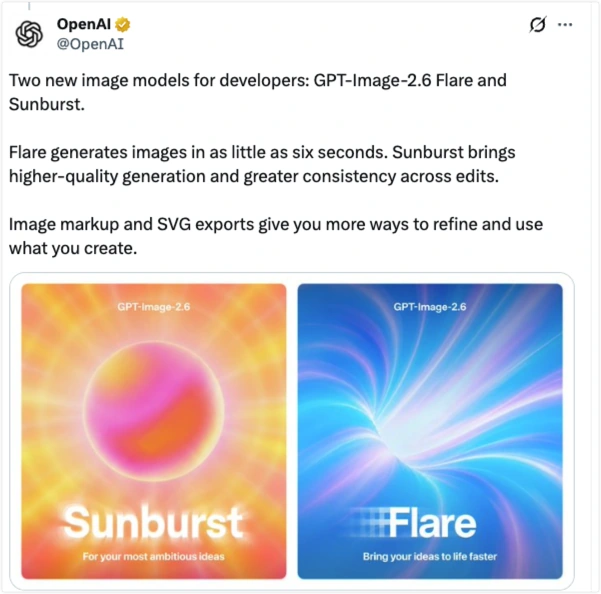
Alongside the ChatGPT update, OpenAI released two models for developers: GPT-Image-2.6 Flare and GPT-Image-2.6 Sunburst.
These are updated versions of the Flare and Sunburst models introduced with GPT Image 2.5.
Both can generate and modify images, but they serve different needs.
| Feature | GPT-Image-2.6 Flare | GPT-Image-2.6 Sunburst |
|---|---|---|
| Best For | Fast image generation | Detailed creative work |
| Main Focus | Speed and quick changes | Image quality and precision |
| Recommended Quality | Low for maximum speed | Medium or High for detailed results |
| GIF Generation | Supported | Supported |
| SVG Output | Supported | Supported |
| API Model ID | gpt-image-2.6-flare | gpt-image-2.6-sunburst |
Choose Flare when speed matters. It’s useful for testing visual ideas, creating drafts, or trying several prompt variations.
Choose Sunburst when details matter more. It’s designed for work that requires greater precision, such as complex product images, detailed compositions, and visual changes across multiple rounds.
Both models have the same published image output token rate, although actual costs depend on token usage.
For regular ChatGPT users, there’s no need to choose between these API model IDs to start making images or GIFs.
How to Try GPT Image 2.6 for Free
GPT Image 2.6 is available through ChatGPT, including its Free tier.
Here’s how to get started.
1. Open ChatGPT
Visit ChatGPT on your browser or mobile device and sign in.
2. Enter an Image Prompt
Describe what you want to create.
You can ask for a realistic portrait, an illustrated character, a product image, or an animated GIF.
3. Upload a Reference Image
If you want to modify an existing picture, upload it and explain what should change.
For a GIF, describe the movement you want to see.
4. Generate and Refine
Review the result, request changes if needed, and save the finished image or GIF.
Free users can access image generation, but usage limits apply. Paid plans may offer higher limits.
Developers can also access GPT-Image-2.6 Flare and Sunburst through the OpenAI API, which is billed separately.
What GPT Image 2.6 Still Gets Wrong
The update brings faster generation and better control, but it doesn’t make every image perfect.
Here are a few things to watch for.
| Area | What to watch for |
|---|---|
| Text inside images | AI can still make spelling mistakes or place words incorrectly, especially in designs with several text elements. |
| Character consistency | A person or pet may change slightly between separate generations. Small details such as facial features, clothing, or accessories can shift. |
| Complex layouts | Images with many objects or strict placement rules can still contain mistakes. |
| Animation continuity | GIFs may contain uneven motion or unexpected changes between frames. Check how the animation looks when it repeats. |
| Generation time | Complex images can still take longer to create, even with the speed improvements. |
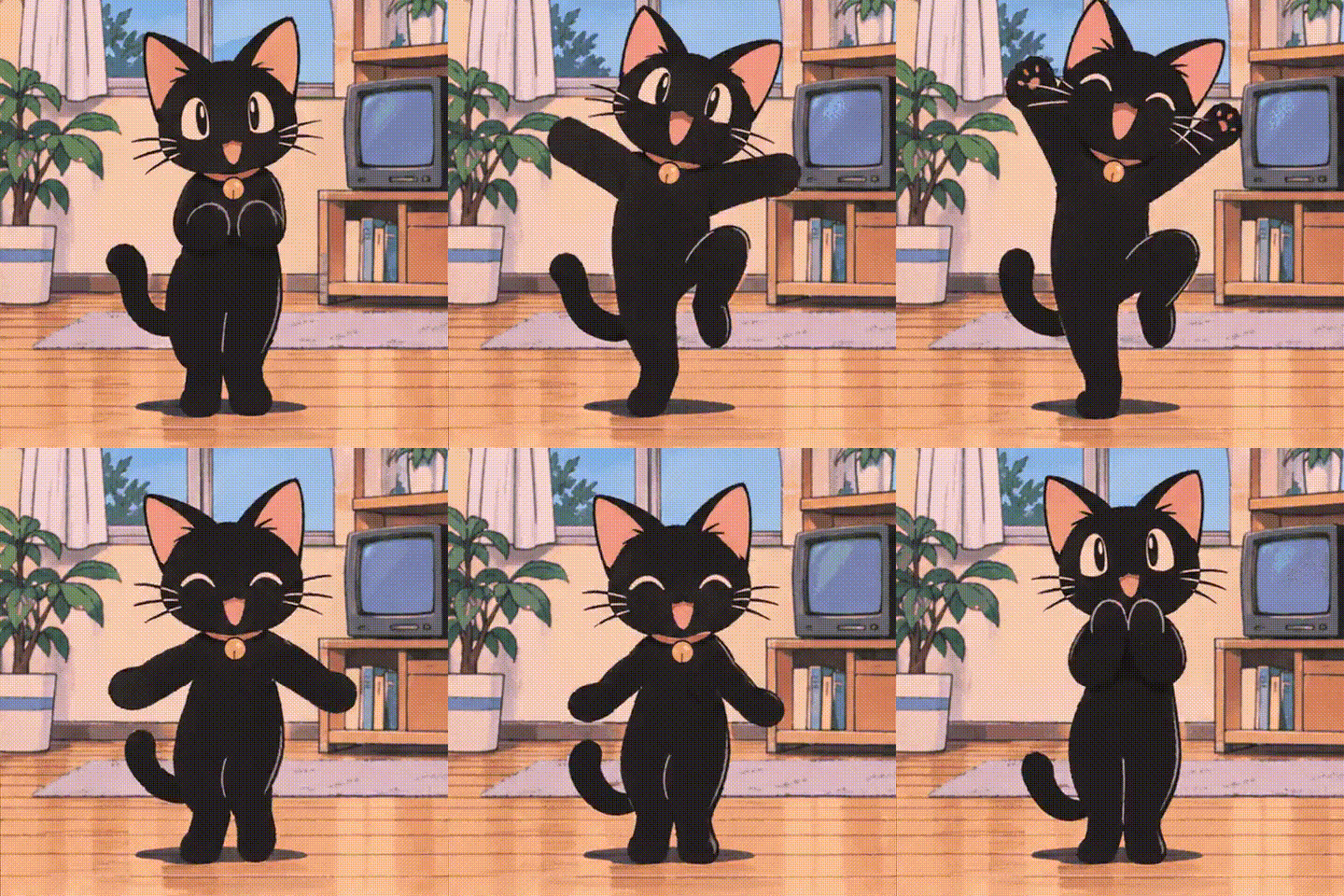
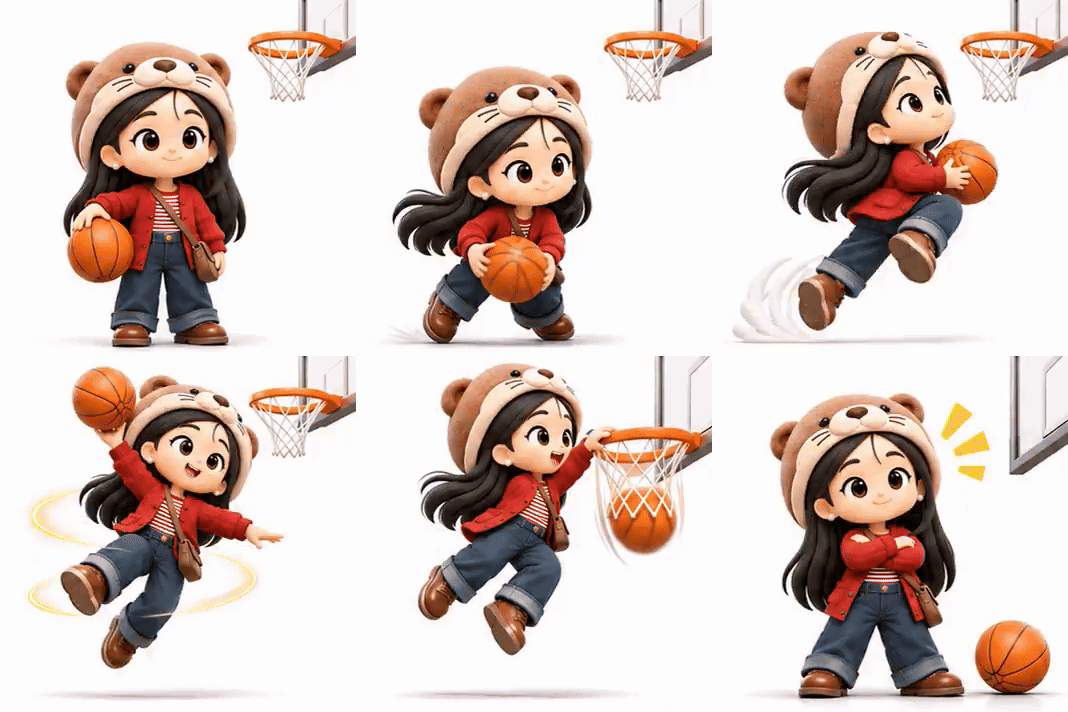
For the best results, review your images carefully before using them in public posts or marketing materials.
Create AI Images with PhotoGrid
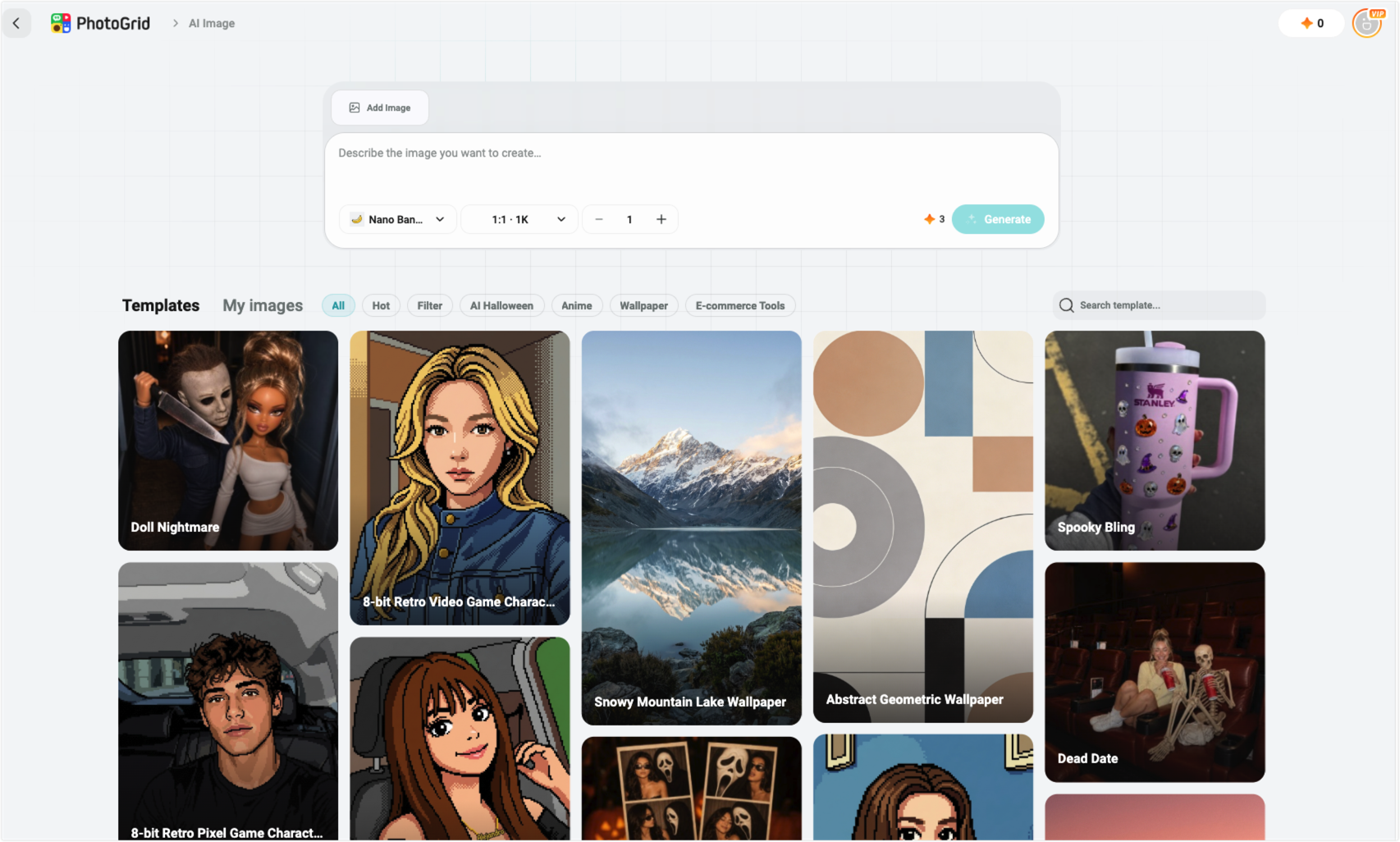
GPT Image 2.6 brings new ways to create and animate visual ideas. But you don’t need to work with an API to start creating AI images.
With PhotoGrid’s AI image generator, you can turn text descriptions and reference photos into new visuals right in your browser.
Turn Text into AI Images
Describe the scene, subject, or style you want. Create portraits, product mockups, illustrations, and social media images from a simple prompt.
Transform Your Photos with AI
Upload a reference photo and explore different styles. You can change the visual mood, create new backgrounds, or turn an everyday picture into a fresh AI-generated image.
Create Visuals for Social Media
Make images for Instagram posts, TikTok covers, Pinterest, and other platforms. Choose the aspect ratio that works for your content and download your finished image.
Whether you’re exploring a new AI art style or preparing visuals for your next post, PhotoGrid makes image creation easy to start.
GPT Image 2.6 FAQ
Is GPT Image 2.6 free?
Yes. GPT Image 2.6 is available through ChatGPT’s Free tier, although usage limits apply. Developers using the API pay based on usage.
Can GPT Image 2.6 turn photos into GIFs?
Yes. You can upload a photo to ChatGPT and describe how you want it to move. For example, you can ask a pet to blink, a character to wave, or an illustrated object to bounce.
How much does GPT Image 2.6 cost?
ChatGPT access depends on your subscription plan and usage limits.
For developers, both GPT-Image-2.6 Flare and Sunburst have an image output rate of $30 per million tokens. The total cost depends on the image size, quality, and number of tokens used.
Can GPT Image 2.6 generate videos?
GPT Image 2.6 can create animated GIFs, but GIF creation is not the same as generating a full video with synchronized audio.
It is better suited to short animations, reactions, stickers, and repeating visual effects.
What’s the difference between GPT Image 2.6 and GPT 2.6?
GPT Image 2.6 is an image generation model. It is not a general-purpose ChatGPT text model.
Can I use GPT Image 2.6 without an API key?
Yes. You can create images and GIFs directly in ChatGPT without setting up an API key.
If you only need to create still images, PhotoGrid also offers a browser-based AI image generator.
Final Thoughts
GPT Image 2.6 is more than a routine image quality update.
With 50% faster image generation, better consistency, and native animated GIFs, OpenAI is making it easier to move from a simple idea to a finished visual.
For everyday users, GIF creation is the feature worth trying first. A quick reaction, a funny pet moment, or a birthday greeting can now begin with a single prompt.
For developers, Flare and Sunburst offer different ways to balance speed and precision, along with more control over image changes and output formats.
The results may still need a few adjustments, but GPT Image 2.6 gives creators another way to bring their ideas to life.