Key Takeaways
Key Takeaways
- Match the filter to the framing. Close-up selfies suit face-focused looks like vampire and skeleton makeup, while wider portraits leave room for witch, gothic, and dark fantasy scenes.
- Pick cute or scary based on how much you want to change. Cute ghost and pumpkin styles keep the original photo recognizable, while zombie and skeleton looks need a clear, well-lit face to transform well.
- Start with a photo you already have. You don’t need Snapchat or TikTok, since an AI filter can turn a saved photo into a Halloween look that you can finish with stickers or a new background.
Every October, the same thing happens to my camera roll. I save a dozen Halloween filter ideas, apply one to a random selfie, and end up with something that looks more “costume shop” than “spooky.”
After testing a lot of looks on a lot of different photos, I noticed that the filter itself matters less than the photo you pair it with. A tight selfie can carry vampire makeup beautifully, but that same selfie falls flat with a full witch costume and a haunted forest behind it.
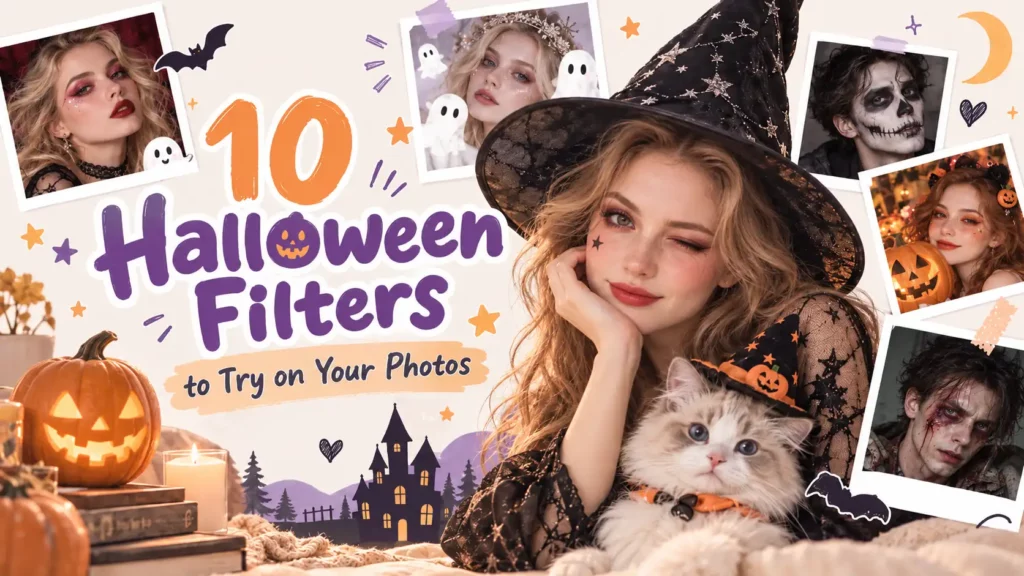
So instead of a random list, I sorted these 10 Halloween filters by the kind of photo they suit best, from cute and playful to scary and dark aesthetic.
Cute & Playful Halloween Filters
Want something seasonal without turning your photo into full horror? Start with these lighter Halloween looks.
1. Cute Ghost
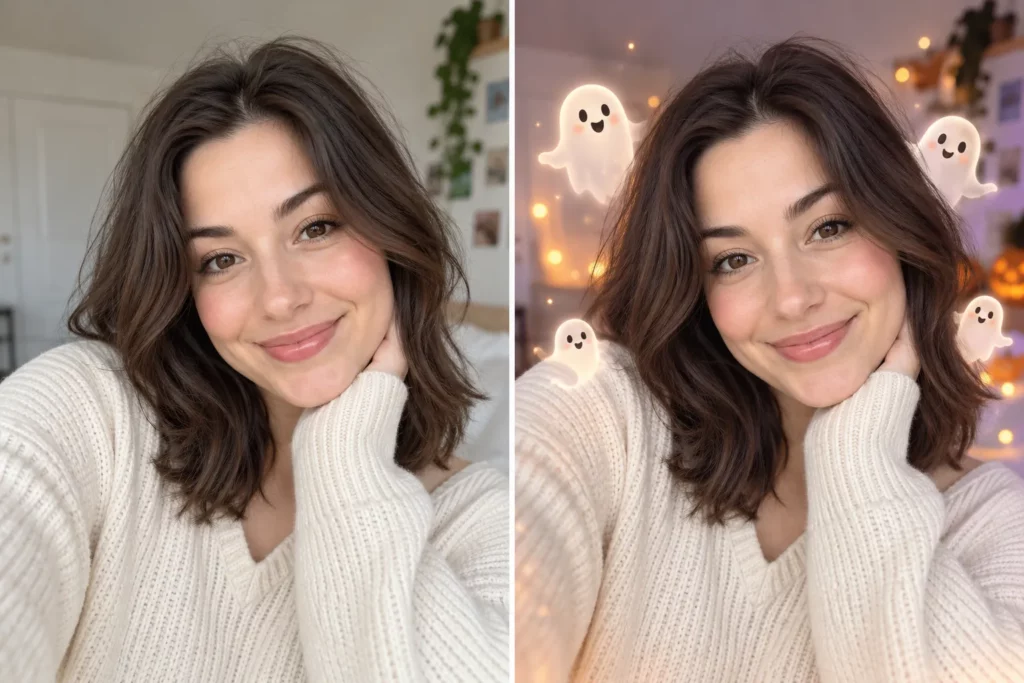
A cute ghost filter adds Halloween mood without overpowering the original photo.
Start with a casual selfie or bright portrait. Keep the face recognizable, then bring in small ghost details, pale highlights, soft spooky elements, or a playful Halloween background.
Best for: selfies, profile photos, friends.
Try this if: you want a Halloween post that still feels light and cute.
2. Pumpkin Halloween
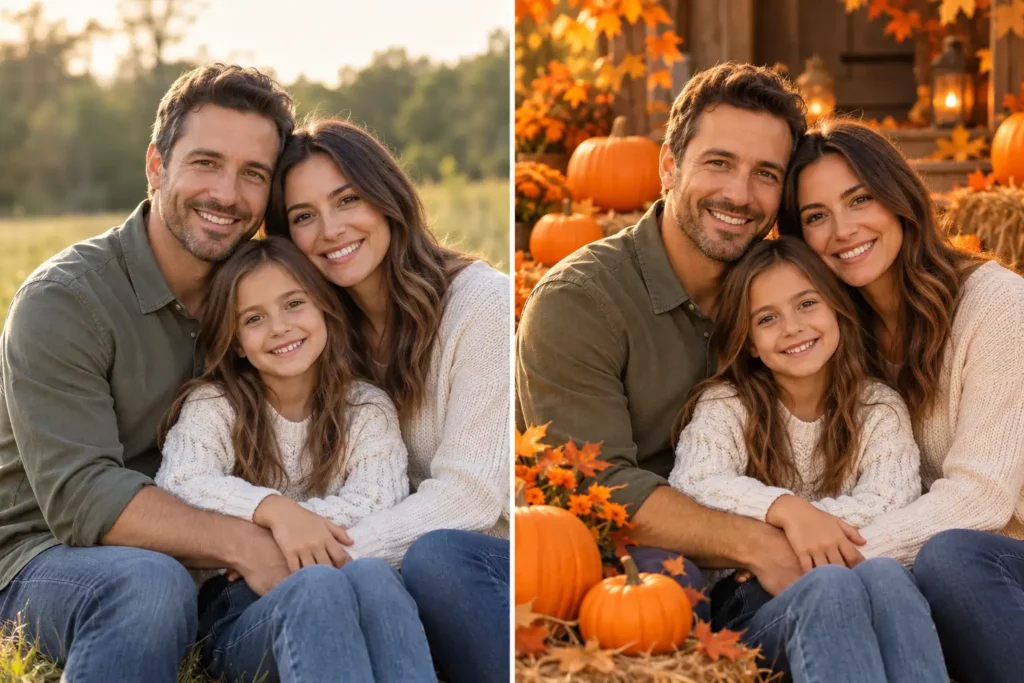
Pumpkin styling is one of the easiest Halloween looks to use across different photos.
Instead of changing the face dramatically, let orange lighting, jack-o’-lanterns, autumn leaves, or a seasonal background create the mood. It works especially well when a scary transformation would feel too heavy.
Best for: portraits, family photos, autumn posts.
Try this if: you want something festive rather than frightening.
3. Pet Halloween
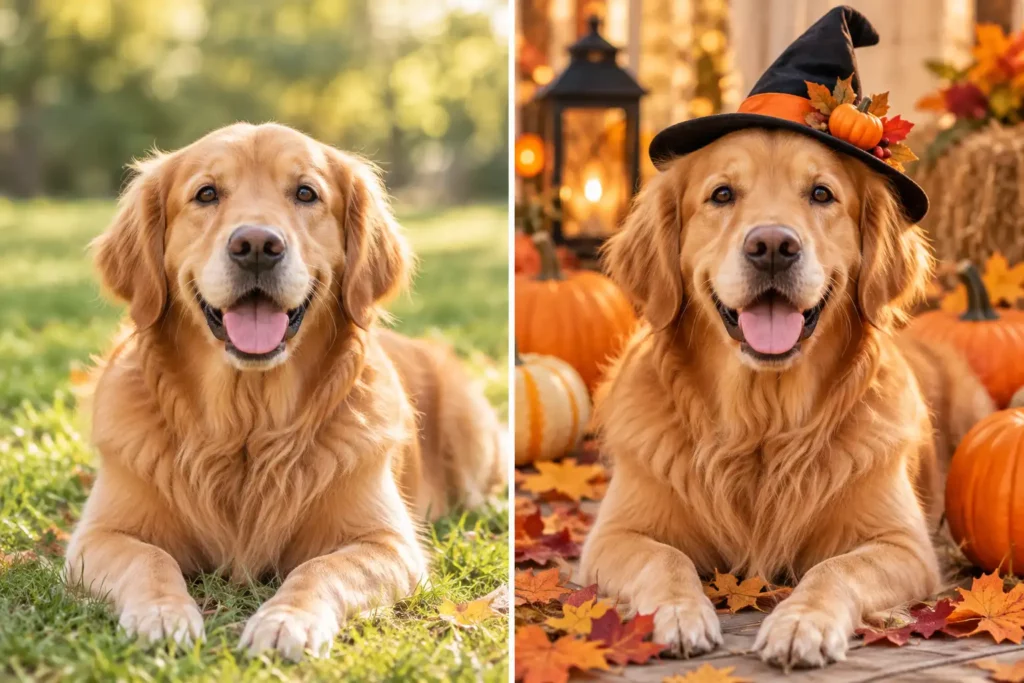
Halloween AI filters are not limited to human portraits.
PhotoGrid’s AI Filter also works with pet photos. In the editor, you can see a cat transformed with the Skeleton Halloween look. A clear cat or dog photo gives the effect more room to work while keeping the pet recognizable.
Best for: cats, dogs, and pet social posts.
Try this if: you want a stronger transformation than a witch hat or pumpkin sticker over the photo.
Scary Halloween Filters
For a bigger before-and-after transformation, use a look that changes the face, skin, lighting, or overall atmosphere.
4. Vampire Glam
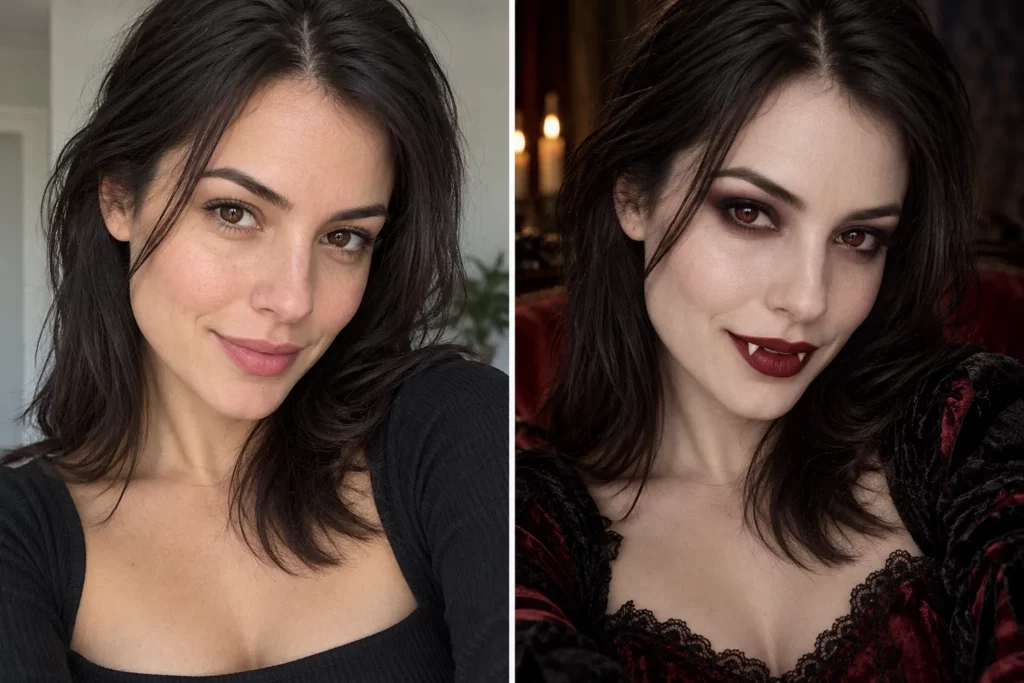
A vampire look works well when you want Halloween to feel dark but still polished.
Start with a close-up portrait where the face is easy to see. Pale skin, darker eye makeup, deep red accents, subtle fangs, and low-key lighting can shift the entire mood without hiding the person behind the effect.
Best for: selfies, profile pictures, fashion portraits.
Try this if: you want something scary enough for Halloween but still polished enough for social media.
5. Skeleton Makeup
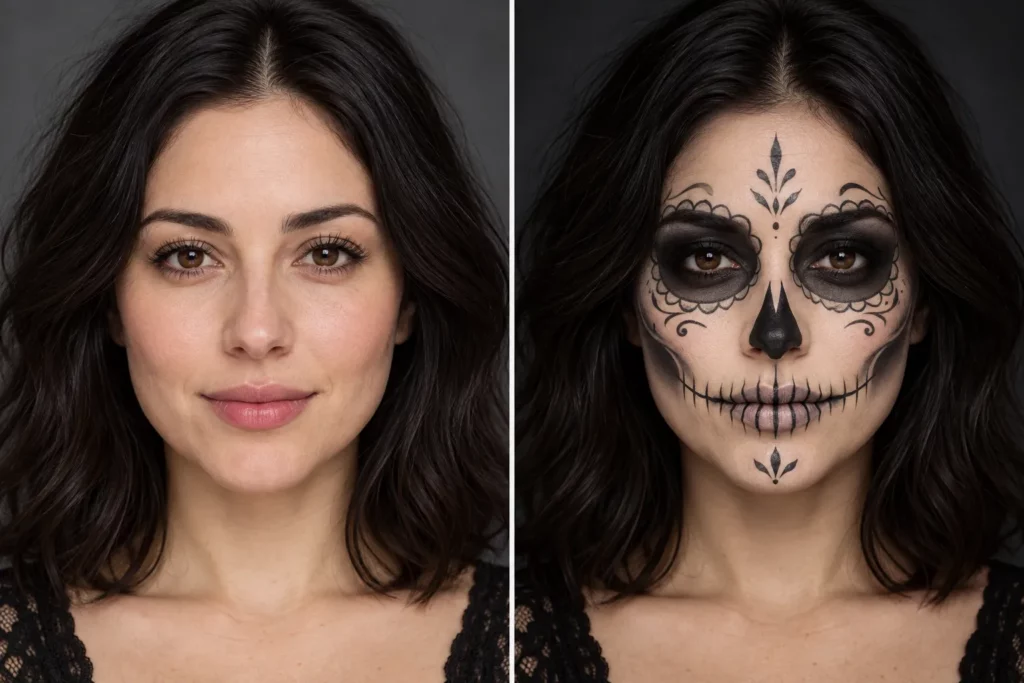
Skeleton makeup works especially well on a centered, front-facing portrait.
The effect can emphasize the eyes, cheekbones, teeth, and skull-like contours while keeping the original expression and pose visible. Most of the transformation happens directly on the face, which makes it one of the easiest styles to read in a before-and-after comparison.
Painting the look for a real party works too, and these halloween makeup ideas cover easy, cute, and scary looks you can recreate yourself.
Best for: close selfies and front-facing portraits.
Try this if: you want the face itself to carry the Halloween transformation.
6. Zombie Transformation
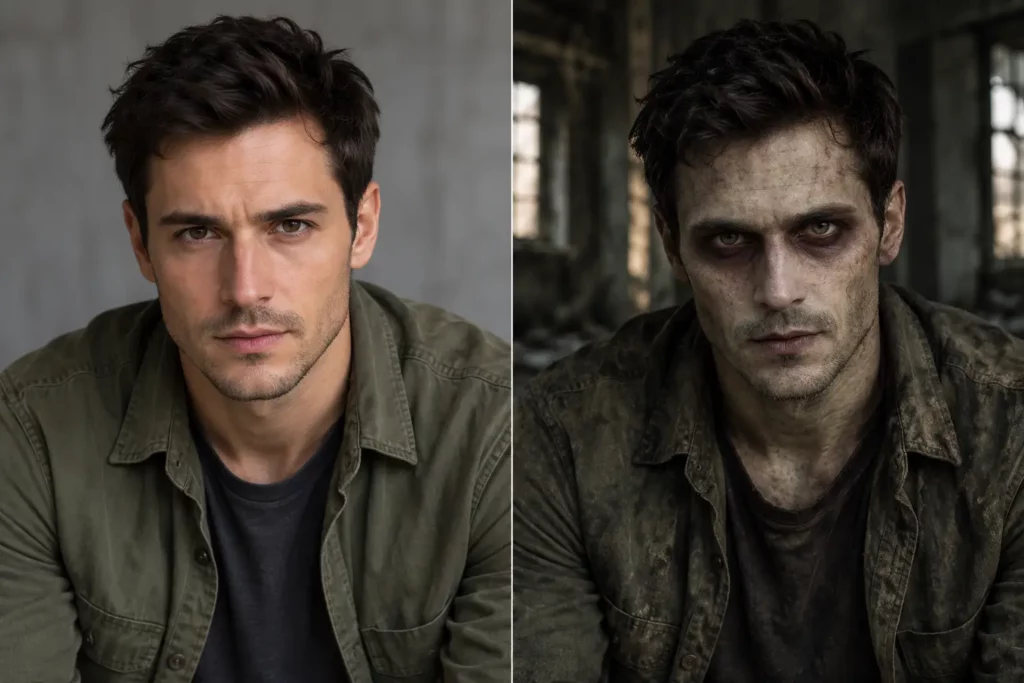
Zombie styling creates a much stronger change.
Think hollow eyes, distressed skin, colder tones, damaged clothing, and darker surroundings. A clear, well-lit face gives the transformation a stronger starting point, so avoid source photos that are already heavily blurred or extremely dark.
Best for: dramatic portraits and horror posts.
Try this if: you want the finished image to look dramatically different from the original.
Aesthetic & Fantasy Halloween Filters
Halloween does not have to look cute or gruesome. These styles focus more on mood, fashion, lighting, and atmosphere.
7. Classic Witch
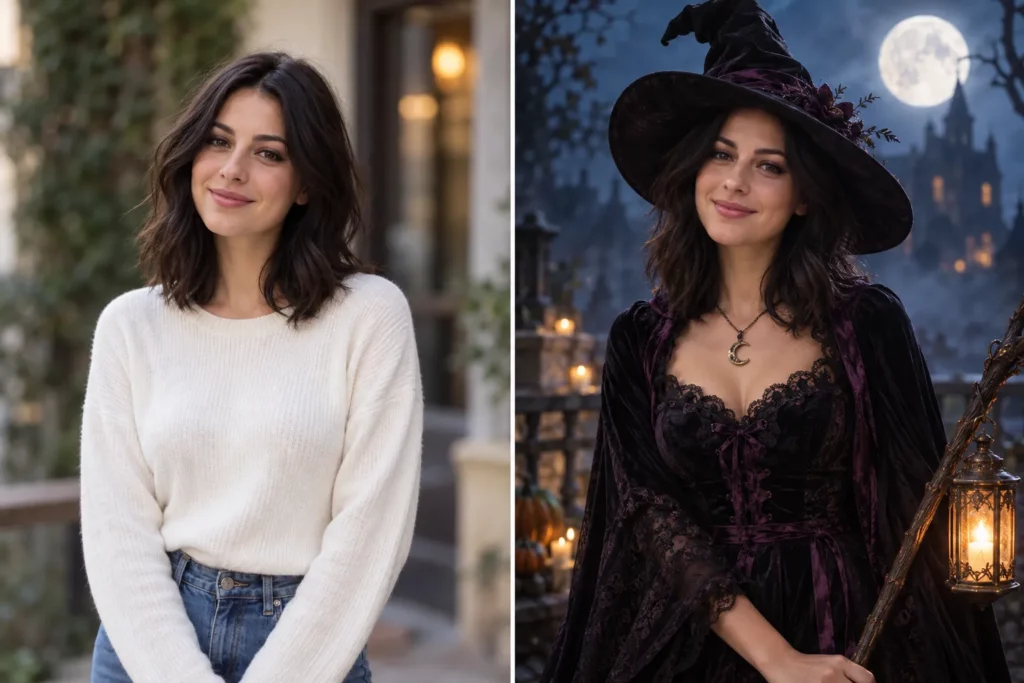
A witch-inspired look works particularly well with a half-body or full-body portrait.
The wider frame gives the effect room for dark clothing, a witch hat, moonlight, mist, magical details, or a more dramatic setting.
Best for: portraits and costume-style photos.
Try this if: you want an instantly recognizable Halloween theme with a fantasy feel.
8. Gothic Portrait
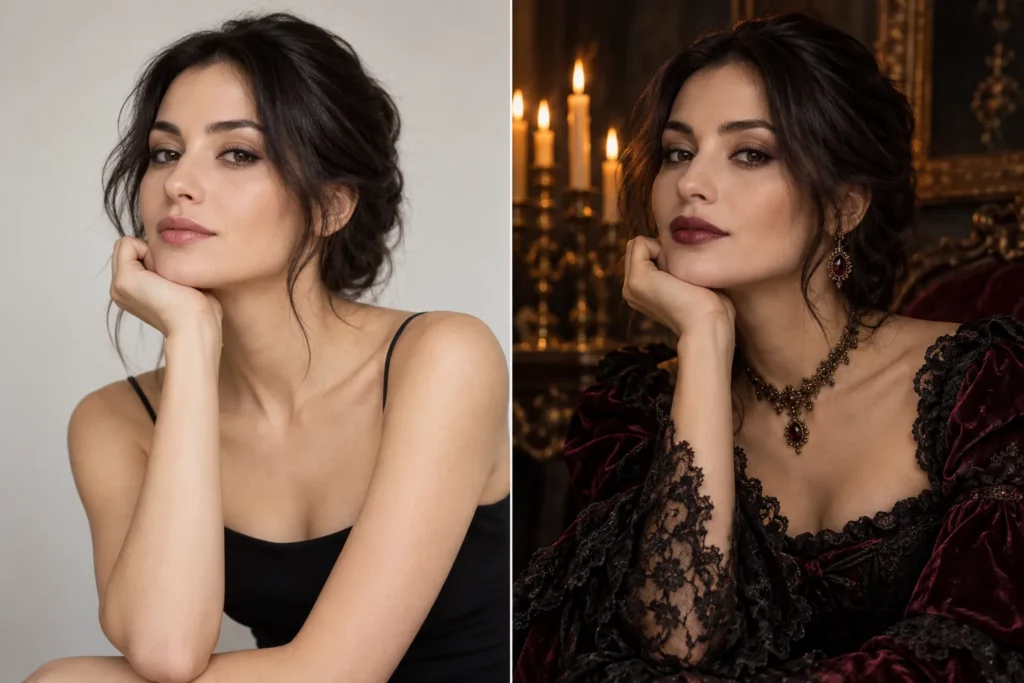
A gothic Halloween filter can feel closer to an editorial photo shoot than a novelty effect.
Think deep shadows, dark clothing, candlelight, muted skin tones, and a restrained dramatic background. The person should still feel like the focus of the image.
Best for: fashion portraits, profile photos, aesthetic social posts.
Try this if: you prefer a polished dark mood over cartoon Halloween props.
9. Dark Fantasy
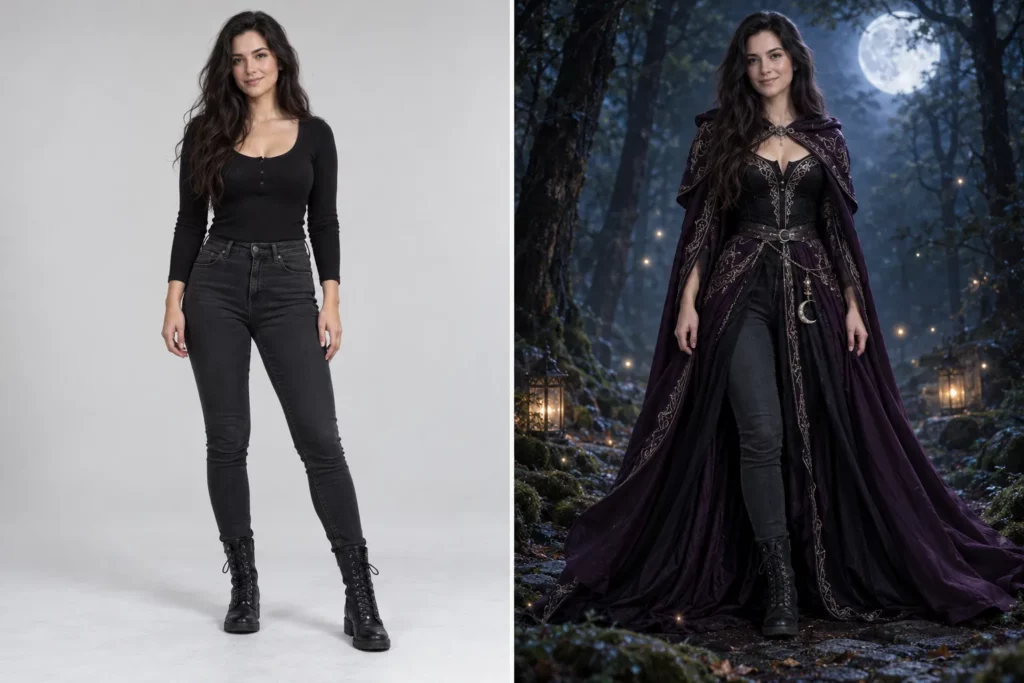
Dark fantasy gives the filter more room to transform the entire scene.
A normal portrait can move toward a haunted forest, moonlit fantasy world, mysterious costume, or cinematic supernatural setting. Half-body and full-body photos usually work better here because the scene matters almost as much as the face.
Best for: creative portraits and full-body photos.
Try this if: you care more about atmosphere and world-building than realistic Halloween makeup.
10. Halloween Couple
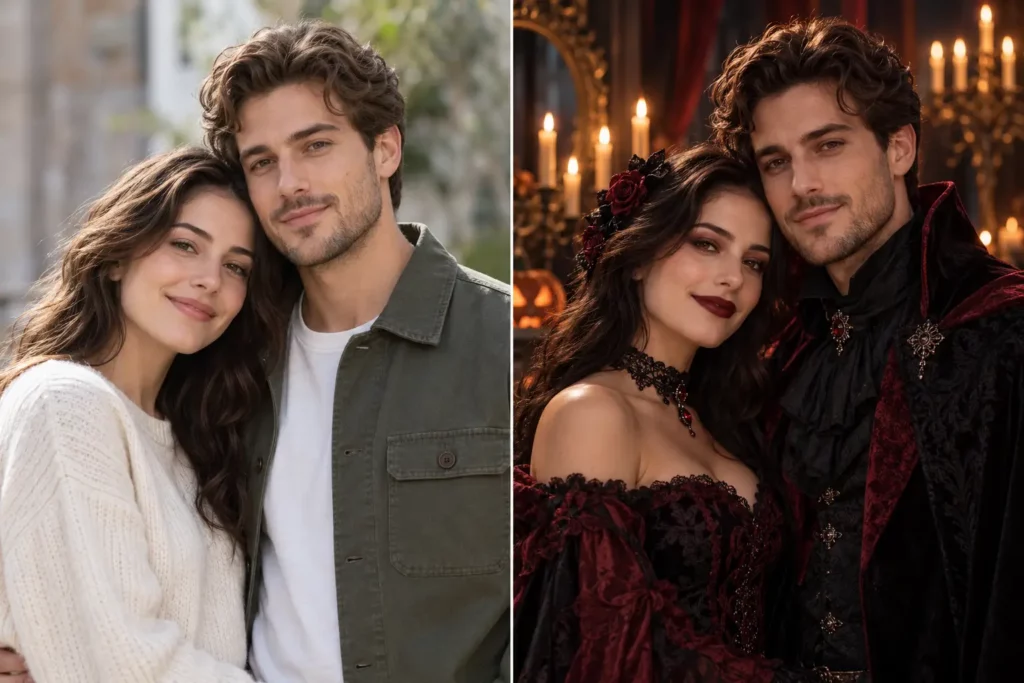
A couple photo usually looks stronger when both people share one Halloween concept.
Instead of placing two unrelated effects on two faces, keep the costumes, lighting, colors, and background consistent. Matching gothic styling, vampire-inspired outfits, dark fantasy costumes, or a shared Halloween setting all work well.
A couple AI image generator takes this further by combining two people into one fully coordinated scene.
Best for: couples and best-friend photos.
Try this if: you want both people to feel like part of the same Halloween shoot.
Which Halloween Filter Fits Your Photo?
A good Halloween filter starts with the photo you already have. Cute filters keep more of the original image, scary filters create a stronger transformation, and aesthetic filters focus more on mood, lighting, costume, and scenery.
| Your Photo | Try This Look | Why It Fits |
|---|---|---|
| Casual selfie | Cute Ghost | Adds Halloween mood without overpowering the face |
| Family or autumn photo | Pumpkin Halloween | Keeps the image warm and festive |
| Cat or dog photo | Pet Halloween | Creates a seasonal transformation around the pet |
| Close-up selfie | Vampire Glam | Facial details carry the effect |
| Front-facing portrait | Skeleton Makeup | Makeup details remain easy to see |
| Clear dramatic portrait | Zombie Transformation | A strong face supports a heavier transformation |
| Half-body portrait | Classic Witch | More room for costume and magical details |
| Fashion portrait | Gothic Portrait | Existing poses and styling support the mood |
| Full-body portrait | Dark Fantasy | The scene has space to change |
| Couple photo | Halloween Couple | One visual direction connects both people |
The simplest rule: the tighter the crop, the more face-focused the Halloween filter should be. Wider photos leave more room for costumes, scenery, props, and atmosphere.
How to Add a Halloween Filter to a Photo?
PhotoGrid’s AI Filter takes a photo you already have, applies the Halloween style you pick, and gives you a finished look in a few taps, with no need to reshoot inside a social camera app.
Step 1: Choose a Clear Photo
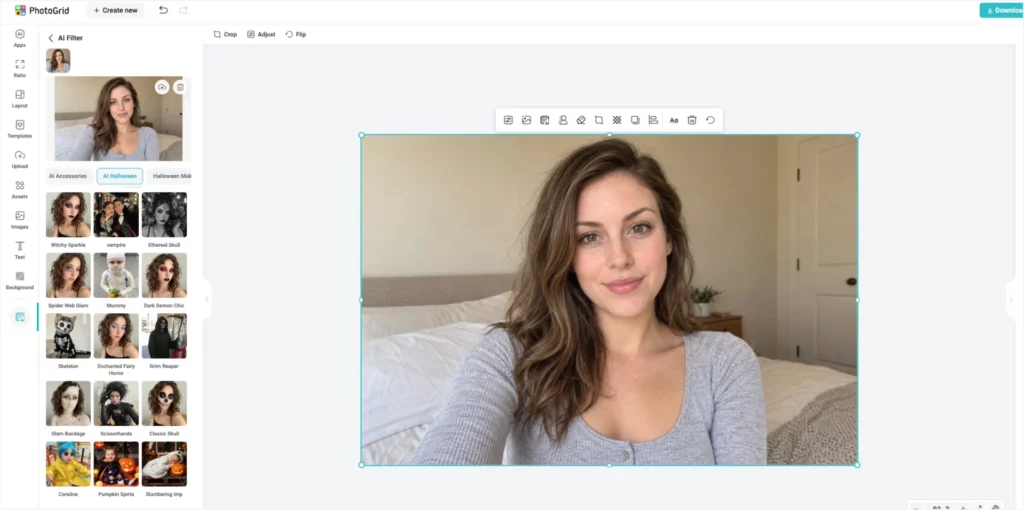
Pick an image where the main subject is easy to see. For skeleton, vampire, and other face-heavy looks, a front-facing portrait gives the effect more facial detail to work with. For witch, gothic, or dark fantasy ideas, choose a wider photo with some space around the person.
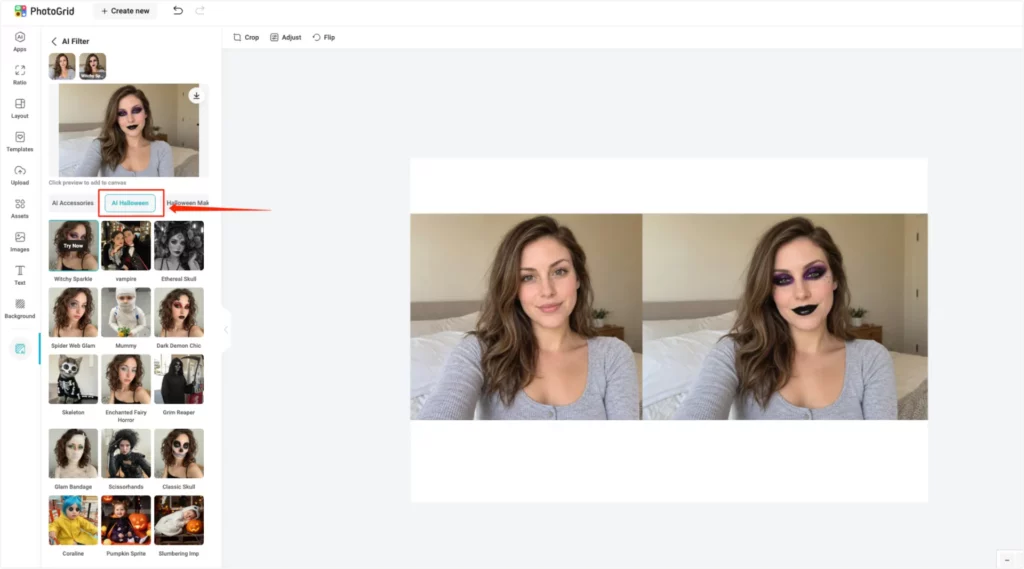
Step 2: Open the AI Halloween Filters
Upload your image to the AI filter and browse the AI Halloween category. Pick a style that suits your photo, and test a few on the same source image before deciding.
Step 3: Compare the Results
Don’t stop at the first version. A single portrait could work as a vampire, skeleton, witch, or gothic image, so generate a few directions and compare how each one fits the framing, pose, and expression. For a pet photo, the Skeleton look is a good place to start.
Step 4: Add the Final Halloween Details
The AI transformation doesn’t have to be the last step. Once the main look is finished, you can add stickers to photos like bats, pumpkins, cobwebs, or ghosts to fill empty areas without changing the main subject again.
A short caption like “Happy Halloween” or a spooky pun can finish the post. Keep these additions secondary so the main transformation is still the first thing people notice.
Create a Custom Halloween Look With a Prompt
Presets are fast, but sometimes I want a very specific costume or scene that no filter quite matches. That’s when I switch to image-to-image editing and describe the look myself.
The AI image generator puts top models like GPT Image 2.5 and Nano Banana 2 in one place, so you can upload your photo, write a prompt, and compare results. The key is telling the model what to keep, not just what to change.
Last October, grainy Y2K-style flash photos with a mysterious figure lurking in the background took over TikTok and Instagram, and nostalgic horror is still one of the most popular Halloween AI looks this year. I mixed that trend with a few classic ideas below, so you can pick whatever fits your photo.
Y2K horror flash portrait (trending)
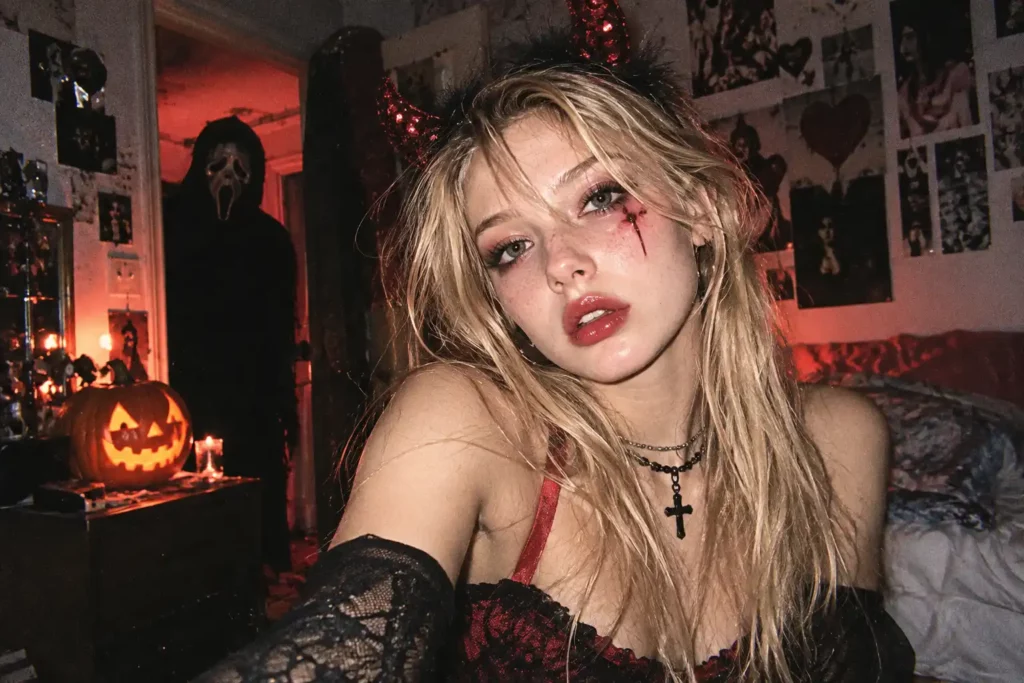
Turn this photo into a grainy Y2K horror portrait taken in a 90s bedroom at night. Keep my face, hair, and expression unchanged. Add direct on-camera flash, film grain, moody red lighting, and a subtle masked figure in a dark hooded costume standing in the doorway behind me.
70s Halloween party snapshot (nostalgic)
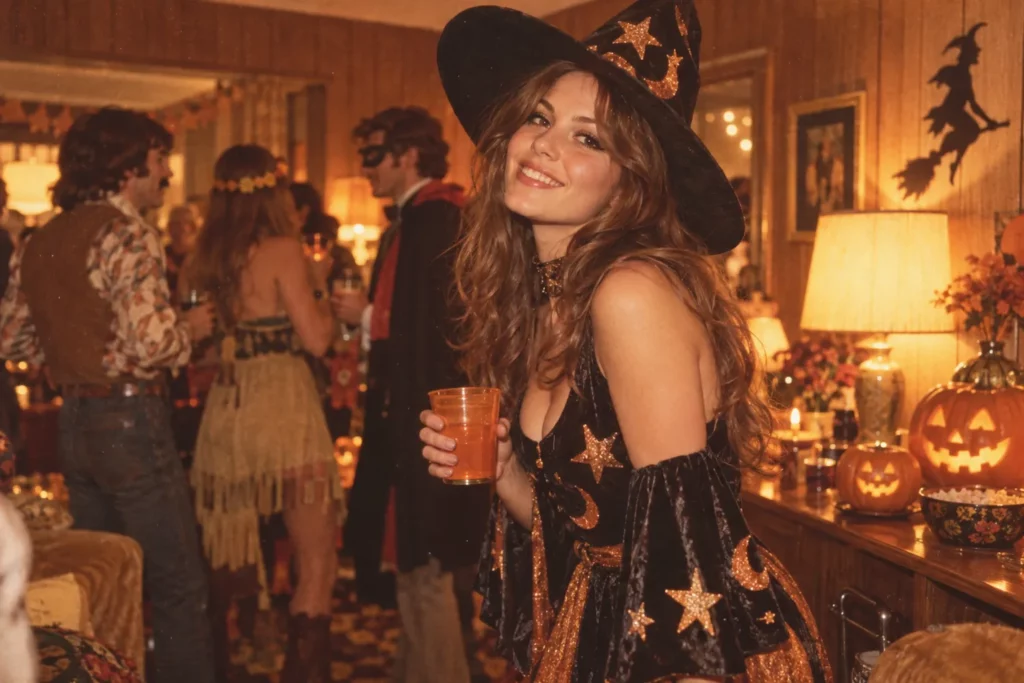
Turn this photo into a 1970s Halloween party snapshot. Keep my face and pose the same. Add a homemade retro costume, warm faded film colors, wood-paneled walls, and glowing jack-o’-lanterns on the table.
Pet witch costume (cute)
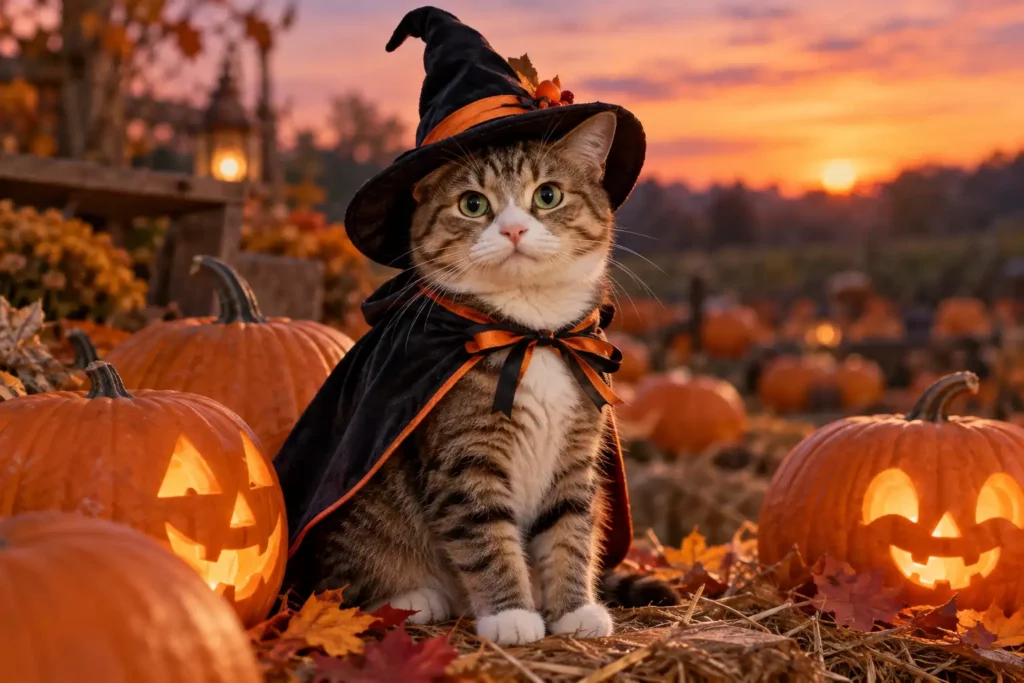
Dress this cat in a tiny witch costume with a pointed hat, sitting in a pumpkin patch at dusk. Keep the cat’s fur color, markings, and face unchanged.
Matching gothic couple (classic)
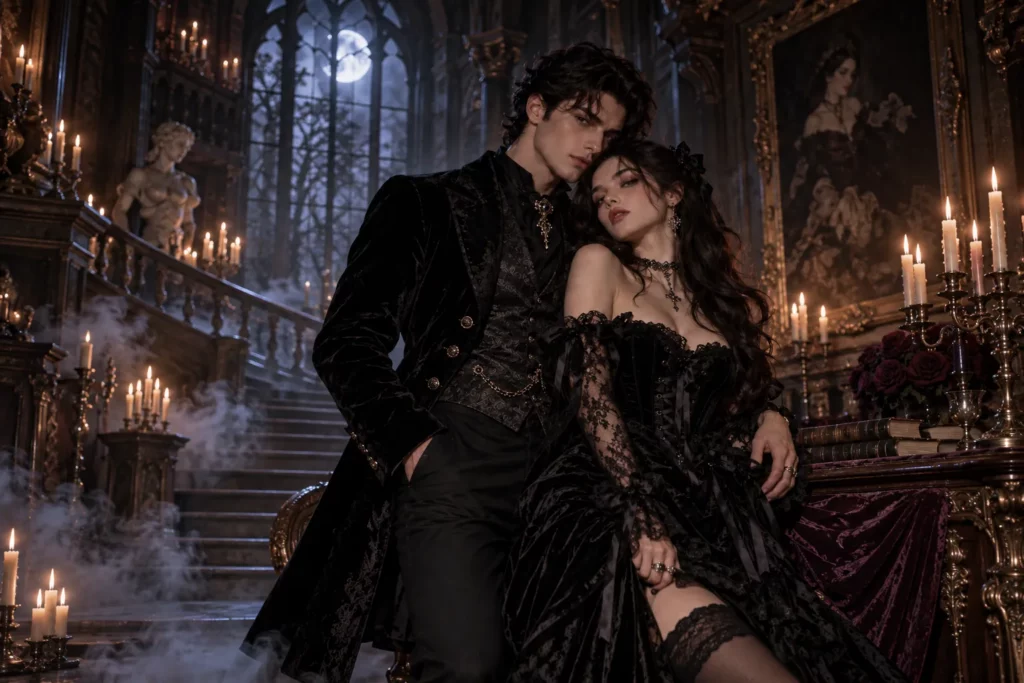
Restyle this couple as a matching gothic pair in a moonlit haunted mansion. Keep both faces recognizable and their pose together unchanged. Dress them in coordinated black lace and velvet outfits with soft moonlight and light fog.
Each prompt works best when you keep one clear subject and one clear setting. Once you like the result, you can still add stickers or swap the background afterward.
How to Make Your Halloween Filter Look Better?
A Halloween effect can be dramatic, but the source photo still matters.
Start With a Clear Face
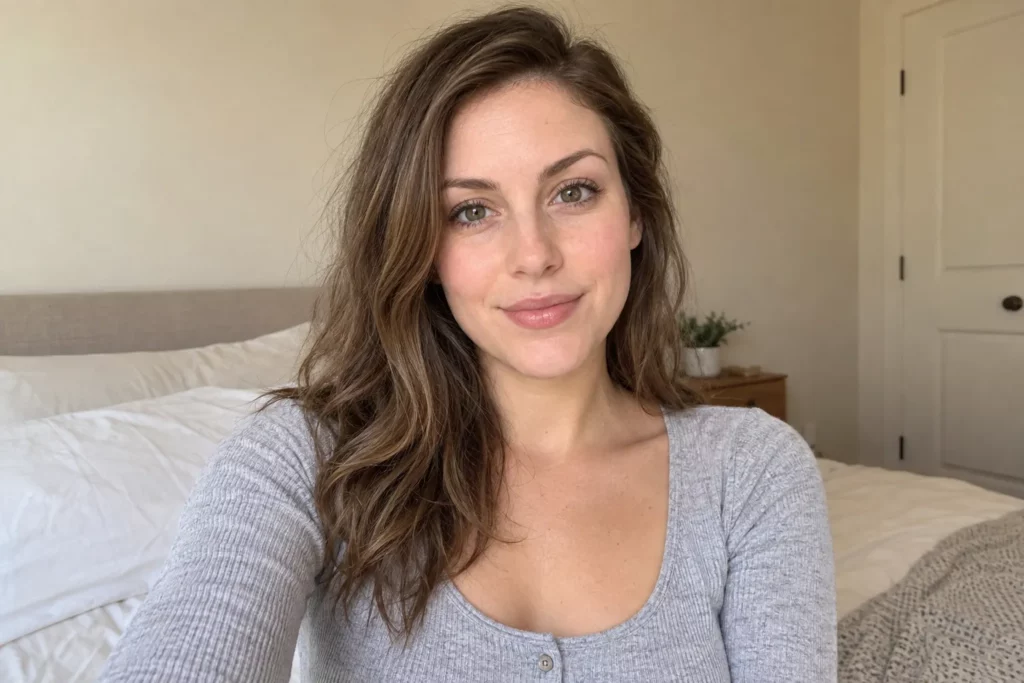
Vampire, skeleton, zombie, and makeup-heavy effects depend on facial details. Avoid images where the face is tiny, hidden, strongly blurred, or covered by large sunglasses.
A slightly soft or low-resolution photo gets a sharper starting point from the image enhancer, which gives makeup-heavy filters more facial detail to work with.
Match the Effect to the Framing
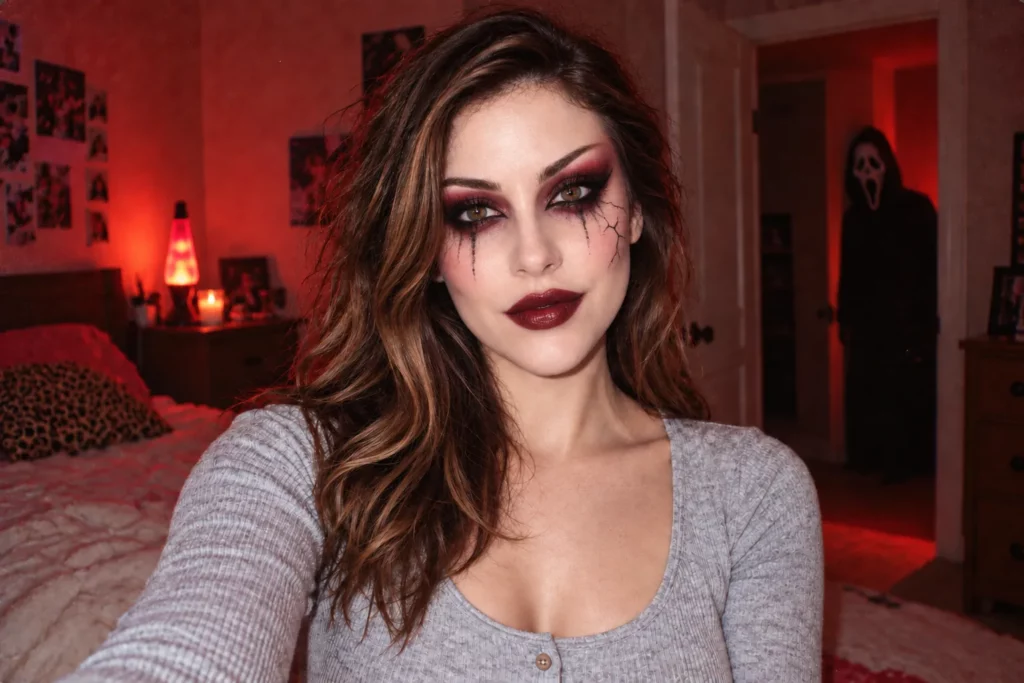
A tight selfie gives you very little room for a costume or detailed fantasy setting. Use it for:
- vampire looks
- skeleton makeup
- face-focused horror
A wider portrait gives you room for:
- witch costumes
- dark fantasy
- gothic styling
- dramatic scenery
Fix a Distracting Background
A convincing Halloween transformation can still feel unfinished when an office, bedroom, or cluttered living room remains behind the subject. A background remover clears that setting so you can place the subject against a cleaner, darker, or more seasonal background.
Compare Cute and Scary Versions
The same source photo can produce very different moods. I usually try one playful direction and one darker version. A casual portrait might work as both Cute Ghost and Vampire Glam, and a pet photo could work with a Skeleton transformation or a softer pumpkin scene. Seeing the versions side by side makes the final choice easier.
There is no single Halloween filter that works best for every photo, so start with the framing. Use face-focused effects for close-ups, give costumes and fantasy scenes more room, and keep family, casual, and pet photos lighter so they stay recognizable even when the styling gets spooky.
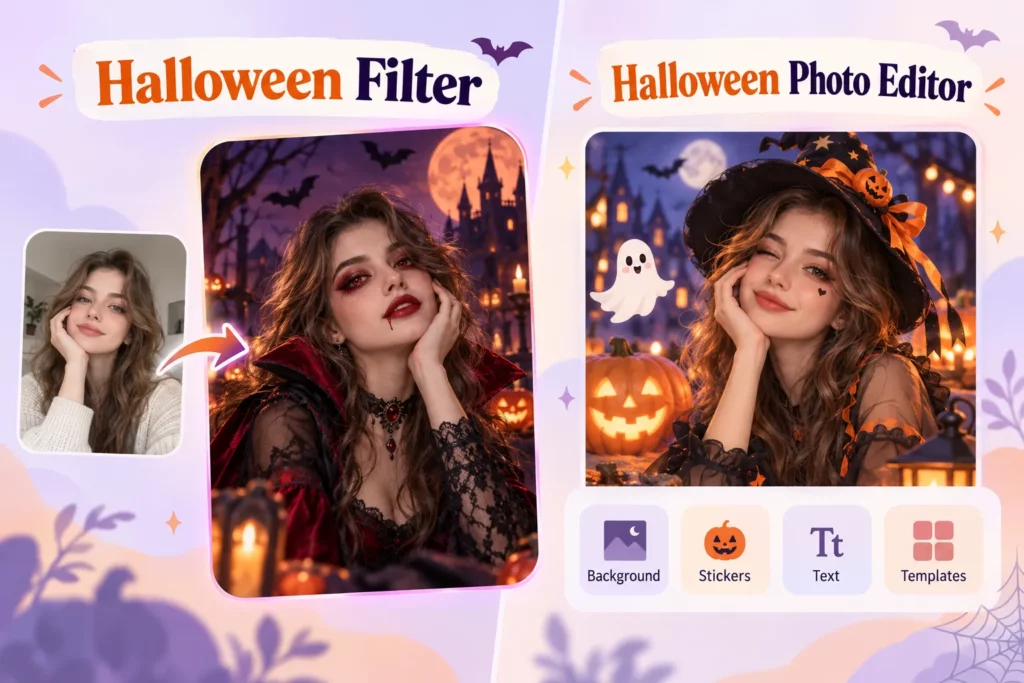
Halloween Filter vs. Halloween Photo Editor
A Halloween filter and a Halloween photo editor solve slightly different problems.
A Halloween filter changes the photo quickly as one complete look, including the face, clothing, lighting, or overall atmosphere at the same time. Use it when your goal is:
Make this photo look Halloween.
A Halloween photo editor gives you more control over individual design elements like backgrounds, stickers, text, and templates. Use it when your goal is:
I want to build the Halloween design piece by piece.
You can also combine both approaches by starting with an AI filter and finishing the image with smaller Halloween details in an AI photo editor.
Halloween Filters FAQ
What are Halloween filters?
Halloween filters are photo effects built around seasonal looks such as ghosts, witches, vampires, skeletons, pumpkins, zombies, and dark fantasy themes. Some mainly change the face, while others change the clothing, mood, background, or overall scene.
Can I add a Halloween filter to an existing photo?
You can add a Halloween filter to an existing photo by uploading it to an AI photo editor instead of taking a new picture inside a social camera app. This works well for selfies, portraits, pet photos, and other images already saved in your camera roll.
Can I use Halloween filters without Snapchat or TikTok?
You can use Halloween filters without Snapchat or TikTok by editing a saved photo in a standalone photo editor. This is useful when you want to keep the finished image, continue editing it, or share the same Halloween photo across several platforms.
Which Halloween filter works best for selfies?
Face-focused Halloween filters usually work best for selfies. Vampire, skeleton, zombie, and gothic styles all benefit from a clear face that fills a large part of the frame, while a cute ghost look gives a softer result.
Can I use Halloween filters on pet photos?
Pet photos work well with Halloween filters, and PhotoGrid’s AI Filter includes a Skeleton effect that you can apply directly to a cat or dog photo. Start with a clear photo where the animal is easy to see, then add pumpkins, ghosts, or bats afterward if the image needs more detail.
Should I use a cute or scary Halloween filter?
A cute Halloween filter is the better choice when you want the original photo to stay friendly and recognizable. A scary filter gives a stronger before-and-after transformation, and gothic or dark fantasy looks offer a third option for portraits where styling matters more than horror.