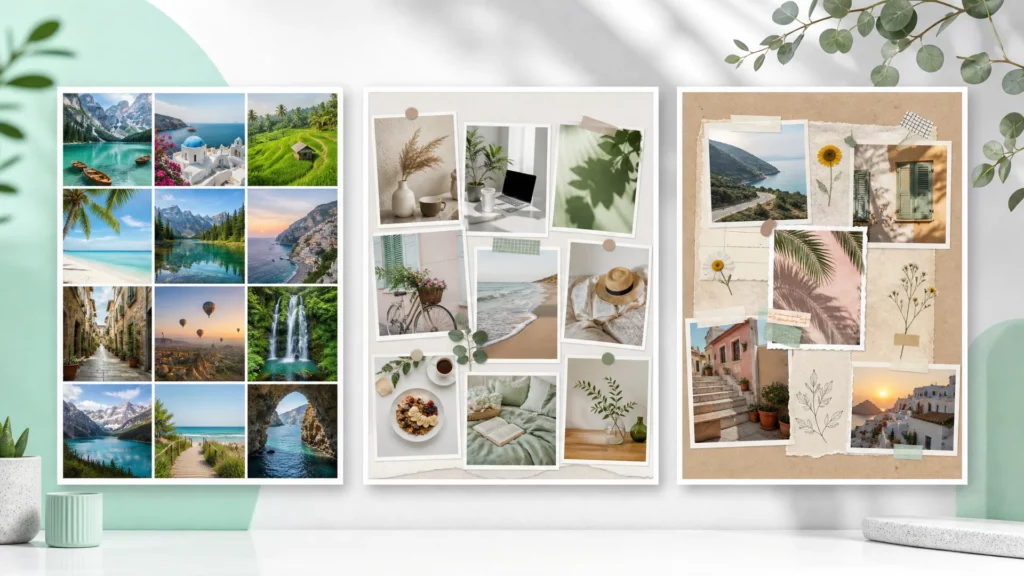
Key Takeaways
📱 Shortcuts is a free, built-in app on your iPhone — no extra downloads needed.
🔧 Customize layout in Shortcuts: vertical, horizontal, or grid in seconds.
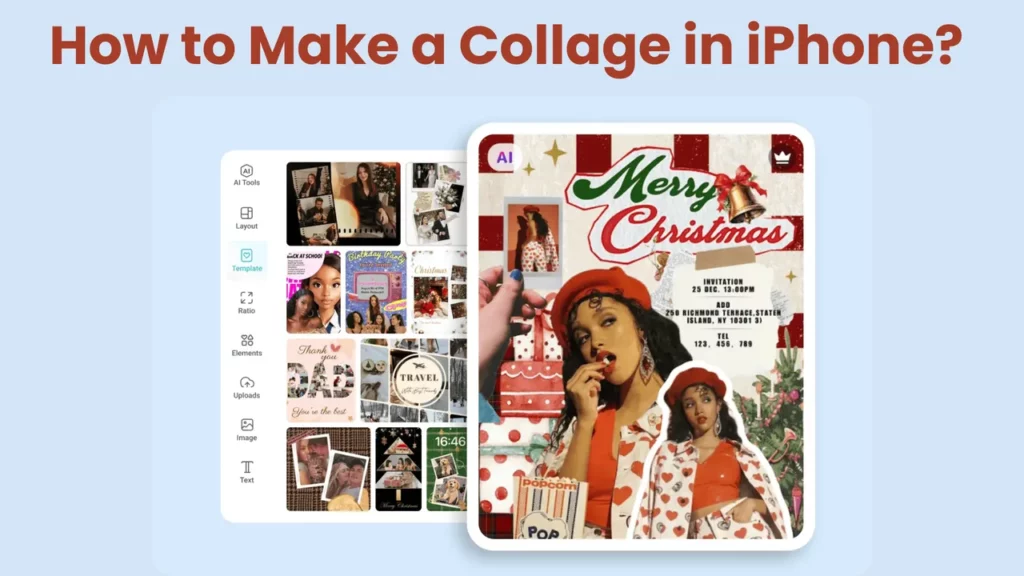
🧩 Or go easier with the PhotoGrid app: 20,000+ trendy collage templates for photos and videos.
Recently, I wanted to make a collage on my iPhone, so I asked GPT for help. It suggested that the Photos app might have a “Create Collage” button in iOS 17 or later.
But when I checked it myself, I realized that’s not true — even in iOS 17.4, the Photos app still doesn’t offer a real collage feature.
So, I searched online for solutions and came across a helpful Reddit discussion where many users recommended using Shortcuts or third-party apps. I downloaded and tested several collage apps myself, trying them out one by one.
In this post, I’ll show you the real easiest ways to create a collage on your iPhone — super easy, quick, and free of charge.
Built-in Option 1: Make Collage Using Shortcuts App
What is the Shortcuts app?
Shortcuts is a free app made by Apple. It’s pre-installed on most iPhones and lets you automate actions.
You can use it to quickly combine photos into a simple collage without downloading anything extra.
✅ Quick Summary:
| Item | Details |
| Name | Shortcuts |
| Who made it | Apple (official) |
| Installed by default? | Yes (on iOS 13 and later) |
| Purpose | Automate tasks like combining photos, sending messages, resizing images, etc. |
| Free? | Yes |
How to Make a Collage Using Shortcuts App (Full Step-by-Step Guide)
If you want to make a collage on your iPhone without downloading extra apps, the Shortcuts app is your best built-in option.
Here’s the detailed guide:
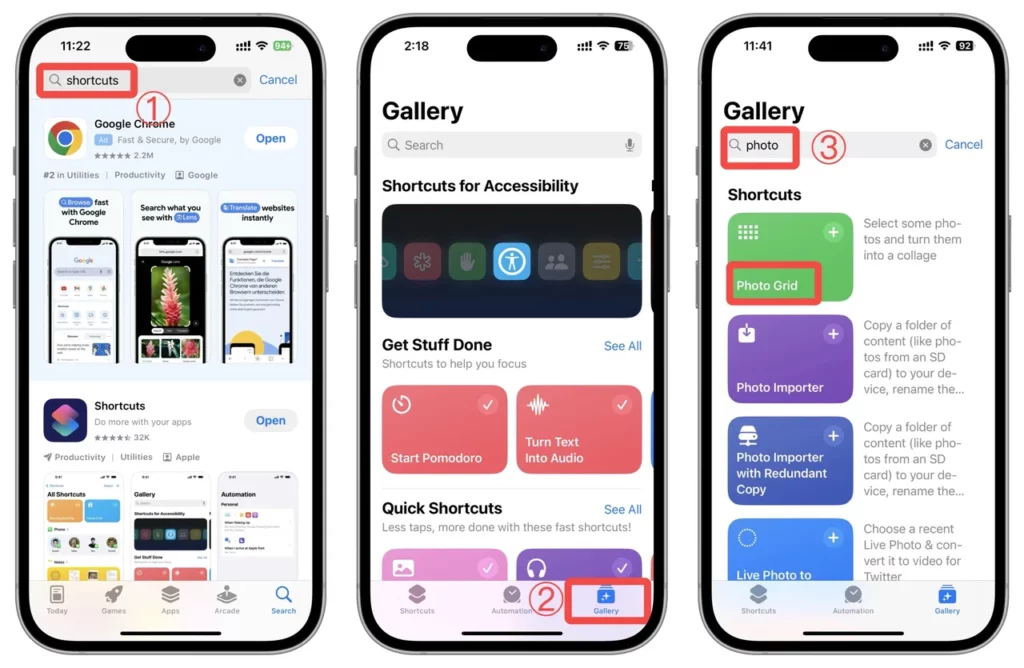
Step 1: Open the Shortcuts App
- Find the Shortcuts app on your iPhone.
- If you can’t find it, swipe down on your Home Screen and type “Shortcuts” in the search bar.
- Tap to open.
Tip: If you accidentally deleted it before, you can reinstall it for free from the App Store.
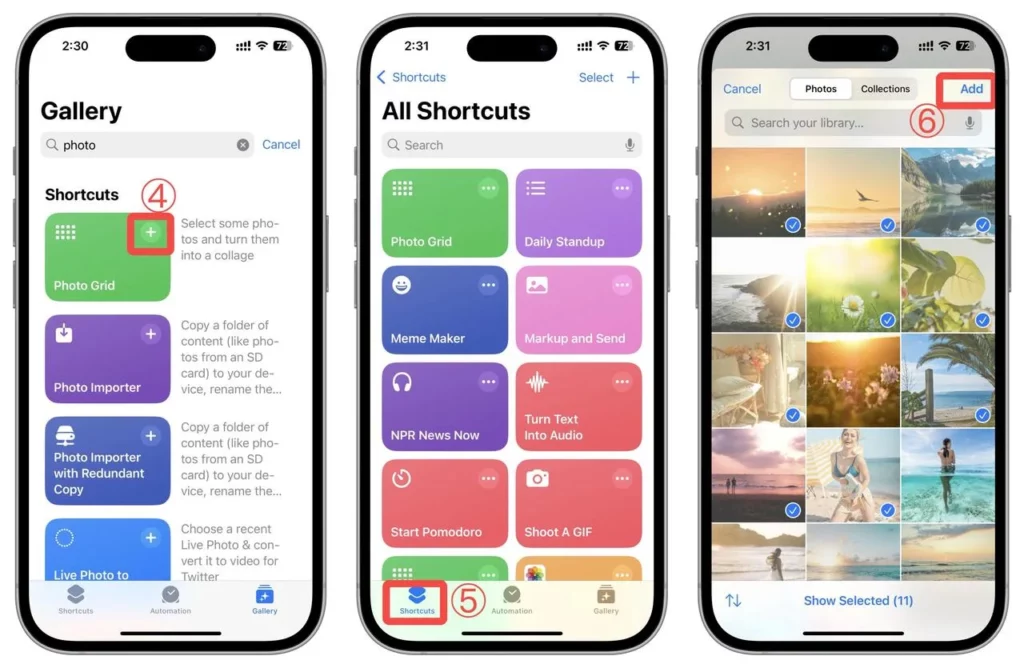
Step 2: Go to the Gallery Tab
- At the bottom of the screen, you will see two tabs: Shortcuts and Gallery.
- Tap Gallery.
The Gallery is where you can find ready-made shortcuts shared by Apple.
Step 3: Search for “Photo Grid”
- In the Gallery, tap the Search bar at the top.
- Type “Photo Grid” and search.
Photo Grid is a ready-made shortcut that automatically combines selected photos into a single collage.
Step 4: Add the “Photo Grid” Shortcut
- Find the Photo Grid shortcut in the results.
- Tap it.
- Then tap Add Shortcut.
This will add the shortcut to your personal library under “My Shortcuts.”
Step 5: Run the Photo Grid Shortcut
- Go back to the Shortcuts tab (bottom left).
- Find the shortcut named Photo Grid.
- Tap on it to start running.
Step 6: Select the Photos You Want for the Collage
- After tapping “Photo Grid,” your photo library will open.
- Select the photos you want to include in the collage.
- You can select two or more photos. (Usually 2–9 photos look best.)
- After selecting, tap Add (usually at the top right).
Step 7: Wait for the Shortcut to Process
- The shortcut will start working automatically.
- You don’t need to do anything — just wait a few seconds.
- It will combine your selected photos into one single image.
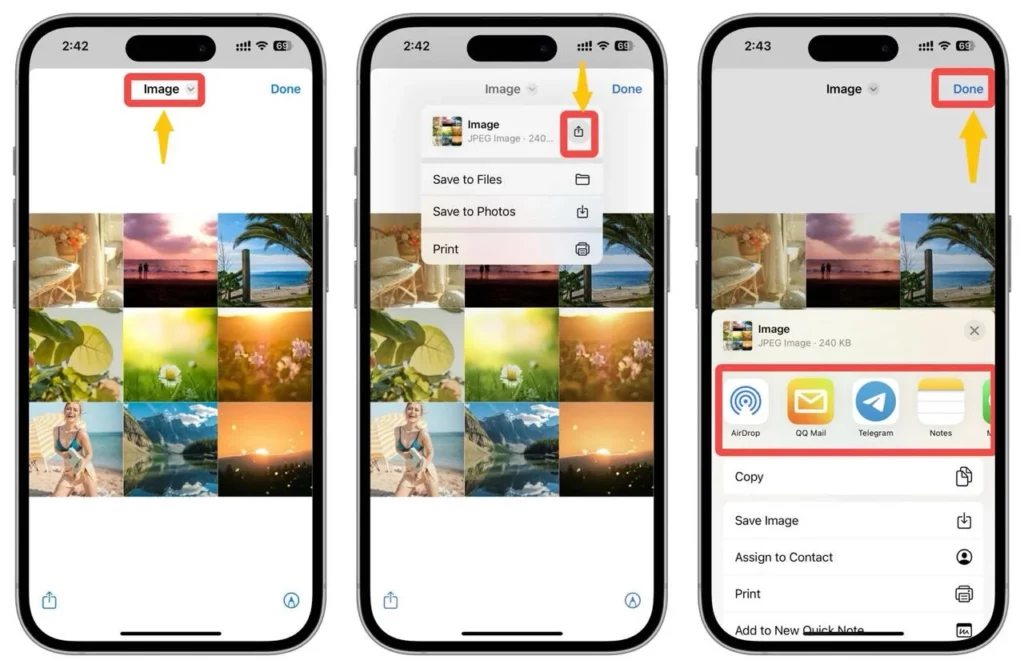
After you run the collage shortcut and it finishes processing your images, your iPhone will show you a preview screen like the one in the screenshot.
Here’s what happens and what you can do:
✅ What You See:
- At the top, there’s a preview of your final collage.
- Below, there’s a menu with options like:
- Save to Files – Save the collage into your iCloud or device folder
- Save to Photos – Save the collage directly to your iPhone Photo Library
- Print – If you want to print it right away
You’ll also see the Share icon (the square with an arrow) in two places:
- One near the collage image info (top right)
- One at the bottom left corner
🔄 What You Can Do from Here:
- Tap “Save to Photos”
➜ This puts your new collage directly into your camera roll. You can find it later in the Photos app.
- Tap the Share Icon (bottom left)
➜ Instantly share your collage via:
- Messages
- AirDrop
- WhatsApp, etc.
- Tap “Done” (top right)
➜ This closes the screen.
- Note: Your collage is not auto-saved unless you tap Save to Photos or Share first!
✅ Summary Table:
| Step | What to Do |
| 1 | Open Shortcuts app |
| 2 | Tap Gallery |
| 3 | Search “Photo Grid” |
| 4 | Add Shortcut |
| 5 | Tap Photo Grid |
| 6 | Select photos |
| 7 | Wait for collage |
| 8 | Save or share |
🚀 How to Quickly Set Photo Grid to Stitch Vertically, Horizontally, or in a Grid (3 Easy Steps)
Want to control how your photos combine — vertical, horizontal, or grid style?
Here’s the fastest way to change your Photo Grid shortcut in just three easy steps!
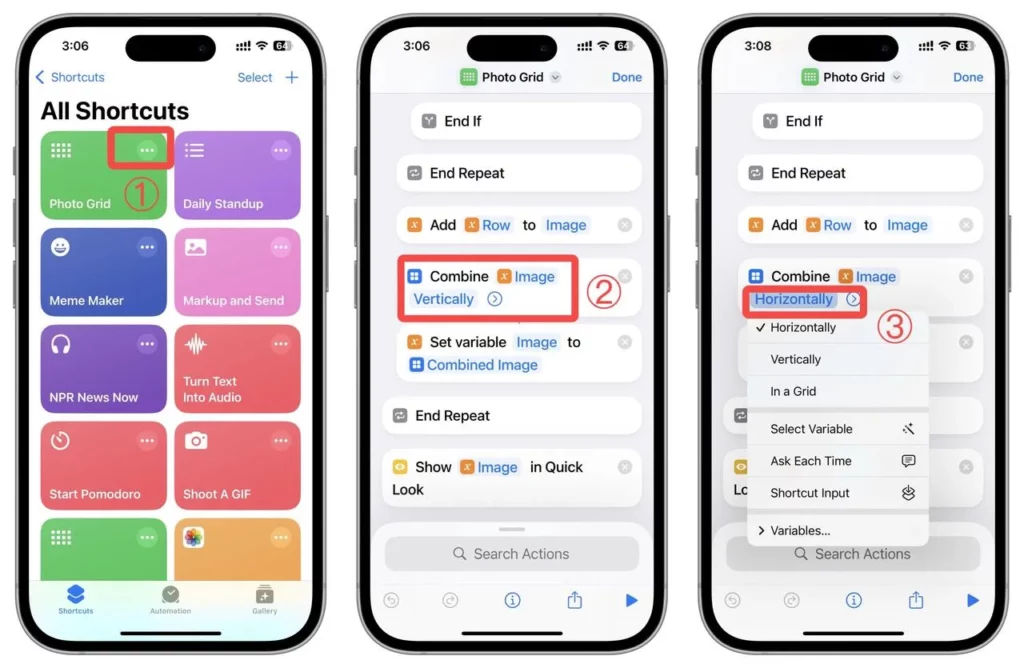
Step 1: Open Photo Grid Shortcut
- Open the Shortcuts app.
- Tap the three dots (•••) on the Photo Grid shortcut.
Step 2: Scroll Down to Find “Combine Images”
- Inside the shortcut editor, scroll down until you see the action:
Combine Images Horizontally
Step 3: Choose How You Want to Stitch
- Tap Horizontally.
- Then pick:
- Vertically — stack photos top to bottom.
- Horizontally — line up side by side.
- In a Grid — arrange in a clean block layout.
- Tap Done to save your setting!
✅ Now you can easily switch between vertical, horizontal, and grid layouts anytime!
✨ Quick Flow:
Open ➔ Scroll ➔ Choose Layout
How to Make a Collage in an iPhone with a Collage App?

Enjoy the best online collage maker with PhotoGrid and easily make a photo collage in seconds.
After seeing what Shortcuts can (and can’t) do, you’ve probably noticed how limited it really is.
Now imagine this: one app where you can combine 16 photos, add videos, and choose from 20,000+ trending templates — that’s what PhotoGrid delivers.
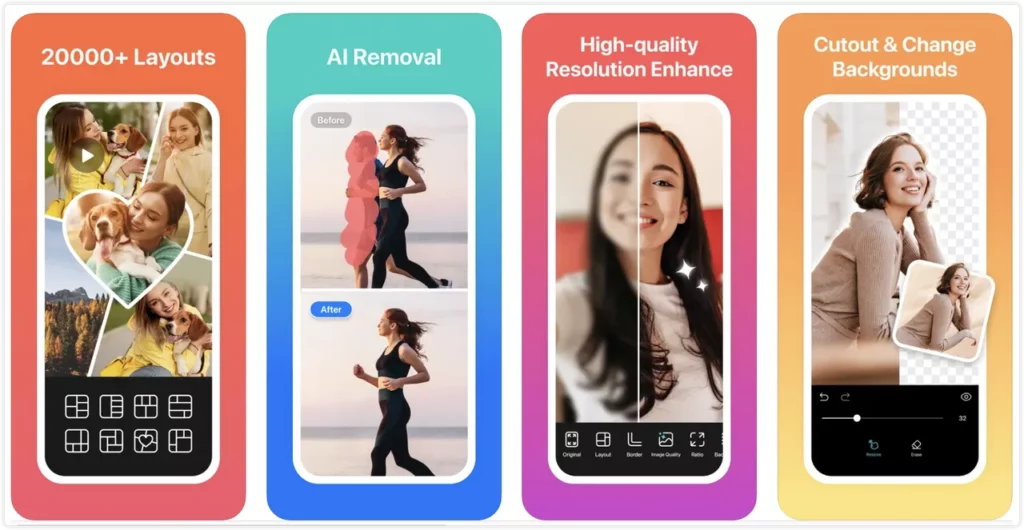
Why PhotoGrid Is the Best Collage App for iPhone?
PhotoGrid isn’t just a collage maker — it’s a complete visual editor that helps you create stunning content, clean up unwanted elements, and enhance photo quality all in one place. Whether you’re working on a TikTok video, a product thumbnail, or a family photo, PhotoGrid gives you control, creativity, and convenience.
Key Features for Stunning Collages
🧩 20,000+ collage templates — from classic grids to filmstrips and scrapbook layouts
🔄 Smart photo replacement — drag to swap or update images without starting over
📐 Pre-sized for social platforms — perfect ratios for Instagram, Facebook, YouTube & more
🎞️ Video collage support — mix up to 9 video clips with auto-aligned sync
🎨 Creative freestyle mode — design photo collages from scratch with full layout control
💼 Add logos & watermarks — brand your collages for business or social use
🚀 AI-powered tools — upscale blurry images, remove object from photo, and multiple AI filters
📤 HD & 4K export with no watermark — even on the free plan
Flexible Layouts: More Than Just Rows and Columns
Forget simple horizontal strips. With PhotoGrid, you can build any layout you want — from classic grids to creative filmstrips and freeform designs. And if your image has distractions, just use the built-in remove background feature to isolate your subject perfectly before adding it to the collage.
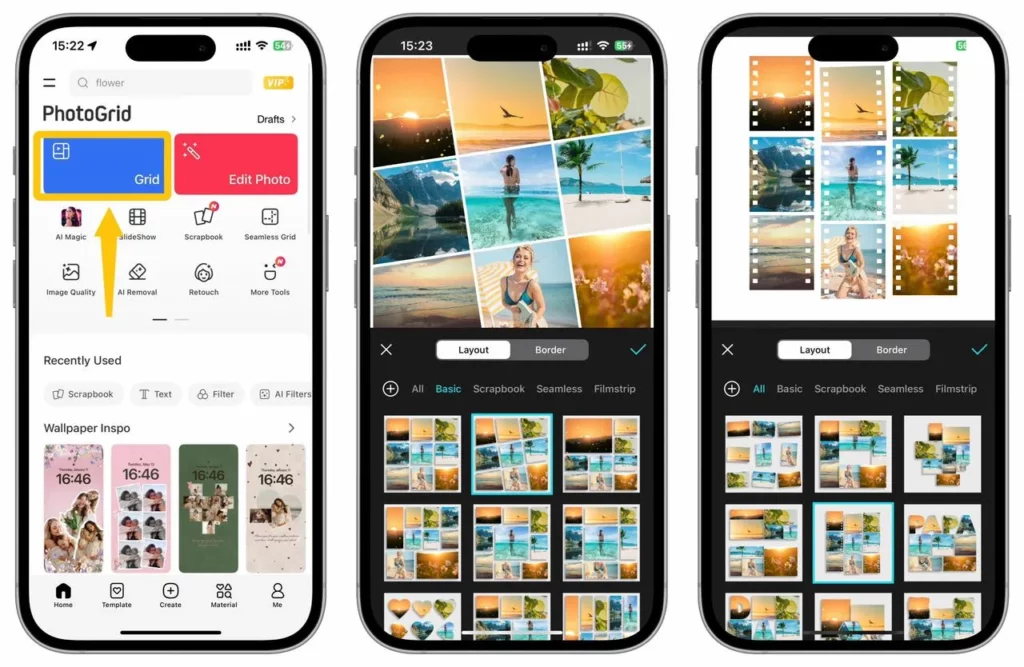
What makes it powerful:
- 🧩 Combine up to 16 photos in one collage
- 📐 Choose from square, vertical, horizontal, freestyle, or Pinterest-style layouts
- 🎨 Customize spacing, borders, and ratios for Instagram, YouTube, or Facebook
- 🖼️ Design mood boards or digital scrapbooks with total freedom
👉 Best for: Creative photo layouts, aesthetic mood boards, customized scrapbooks
Photo & Video Collage in One Place
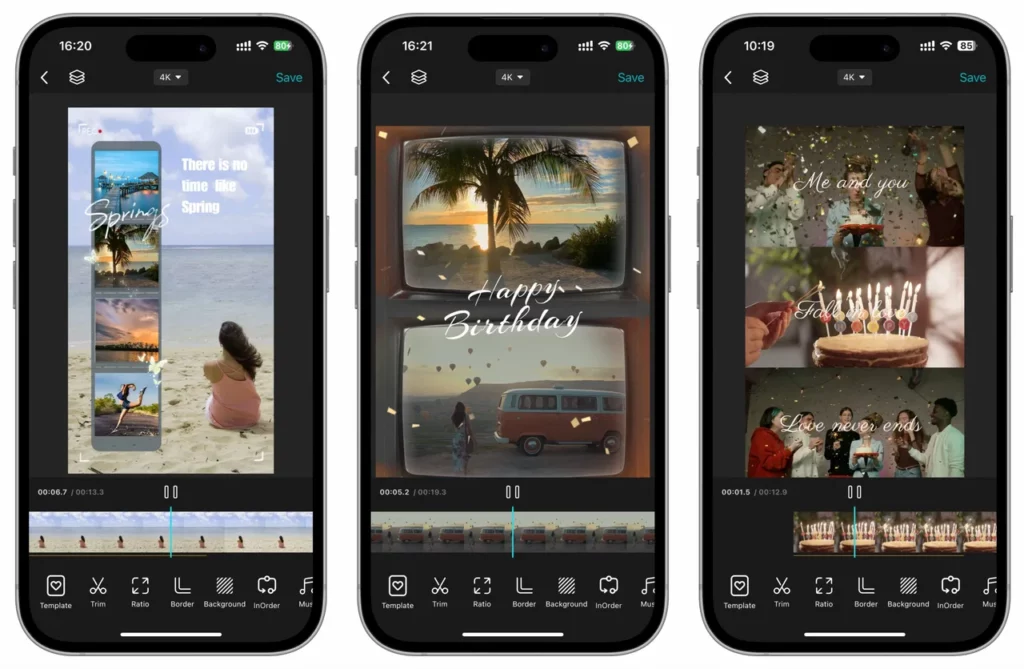
Go beyond still images. PhotoGrid lets you mix videos and photos together in the same layout — perfect for telling stories on social media. You can even remove watermark from video screenshots or imported clips so everything looks clean and professional.
What you can do:
- 🎞️ Add up to 9 videos alongside photos
- ✂️ Trim clips, sync playback, and adjust timing
- 🎶 Add music, transitions, and blurred video backgrounds
- 📱 Export directly for TikTok, Reels, Shorts, and more
👉 Best for: Short-form video creators, Reels/TikTok editors, multi-angle product showcases
20,000+ Templates, Plus Powerful AI Tools
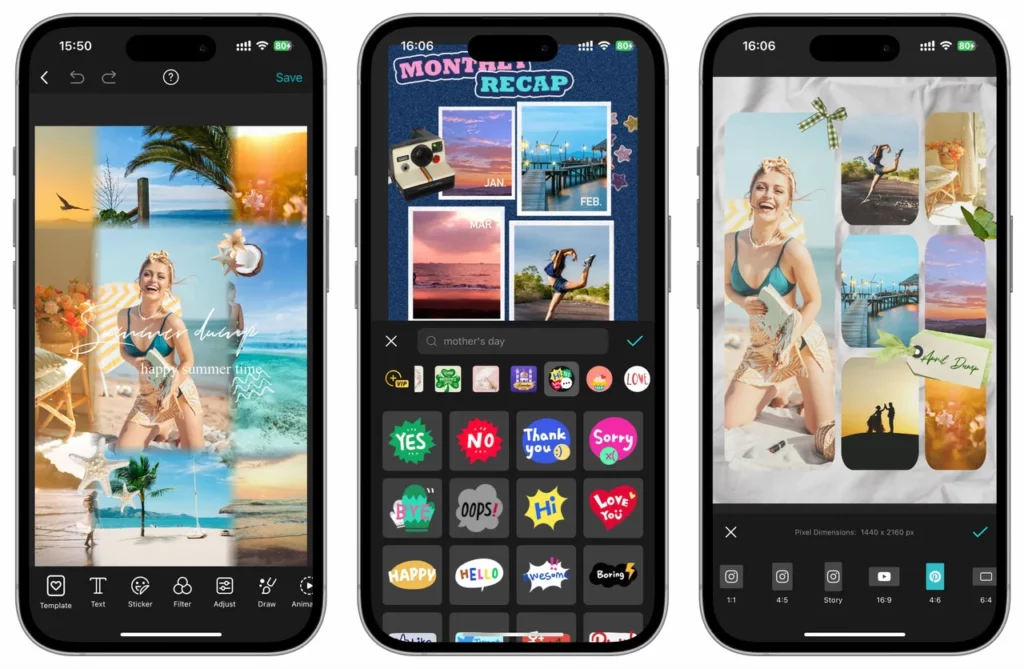
Get inspired fast with a huge library of templates — then level up your visuals using AI-powered editing tools.
What’s included:
- 🖼️ 20,000+ pre-made templates for collages, stories, thumbnails, and posters
- 🧠 Built-in tools to remove background, erase unwanted objects, and delete watermarks in one tap
- ✨ AI-powered photo upscaler to batch increase resolution to 4K – for free!
- 🖋️ Add text, stickers, logos, and resize for any social format
👉 Best for: Fast visual creation, polished brand content, non-designers who want pro results
Conclusion
If you’re after speed and simplicity, the built-in Shortcuts app does the job with no downloads required. But if you want more freedom, stylish layout, and advanced editing tools, PhotoGrid is hands-down the best collage app for iPhone in 2026.
Whether you’re building a scrapbook, sharing a travel moment, or posting a birthday story, these two methods let you create beautiful photo collages in minutes. Prefer skipping the templates? Here are 10 AI collage prompts to copy and paste that work directly in PhotoGrid Agent.