
You filmed a lovely moment, only to discover that the camera had focused on the wall behind everyone.
To unblur a video, first check what caused the blur. Ask for the original file if it became blurry after sharing, try gentle sharpening for slightly soft footage, or use AI restoration for mild focus blur and compression. Severe motion blur and missing details are harder to recover.
Before deleting that clip, see what might still be worth saving.
Why Is Your Video Blurry? Check These Four Causes First
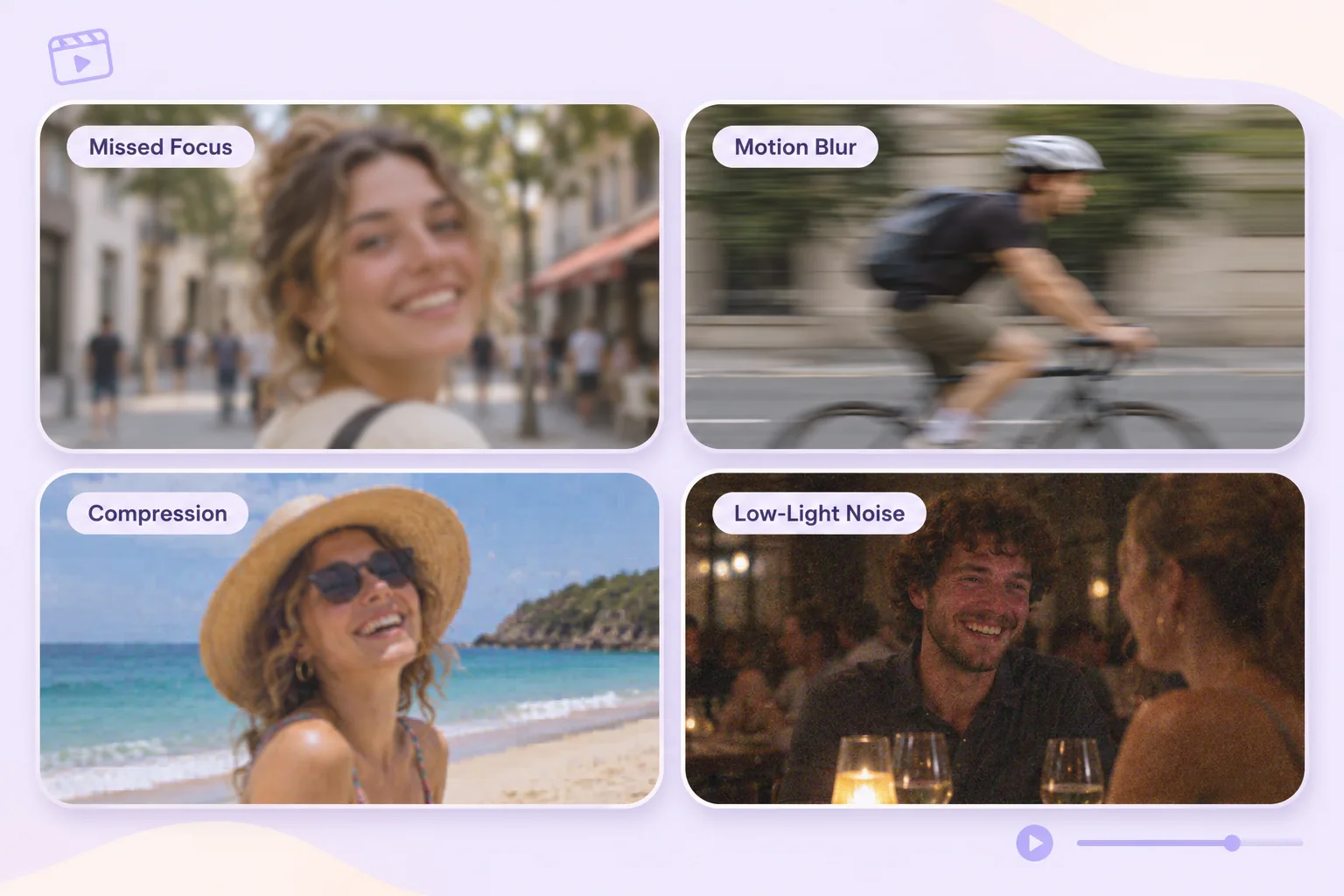
Missed focus, motion blur, compression, and low-light noise are the four main causes of blurry video, and each calls for a different fix. Start by pausing a single frame to check the symptoms: is the person’s face soft while the background looks sharp, does a moving hand leave a streak, or did the clip look fine until someone sent it to you?
| Blur Type | What It Looks Like | What to Try | Recovery Potential |
|---|---|---|---|
| Missed focus | Soft subject, sometimes with a sharp background | AI deblurring | Often improves mild cases |
| Motion blur | Smeared moving objects | Motion deblurring | Often partial |
| Compression | Blocky shadows and fuzzy text | Original file or AI restoration | Often improves moderate cases |
| Low-light noise | Grainy shadows and muddy textures | Gentle noise reduction | Depends on severity |
Missed Focus
You can sometimes spot this in a portrait video: the wall or the trees behind someone look crisp, but their eyes and hair are soft. Even a 4K recording can have this problem.
If the facial features are still recognizable, AI enhancement may bring out some definition. Severe defocus is harder to recover.
Motion Blur and Camera Shake
Think of a dog running past the camera or a handheld clip filmed from a moving car. Pause the video and you may see a trail where the subject should be. Straight lines that bend or wobble can also indicate rolling shutter distortion, a separate issue.
Try stabilization if the whole picture shakes. If individual frames are already smeared, steadying the video won’t remove that blur.
Messaging-App Compression: Recover the Original File First
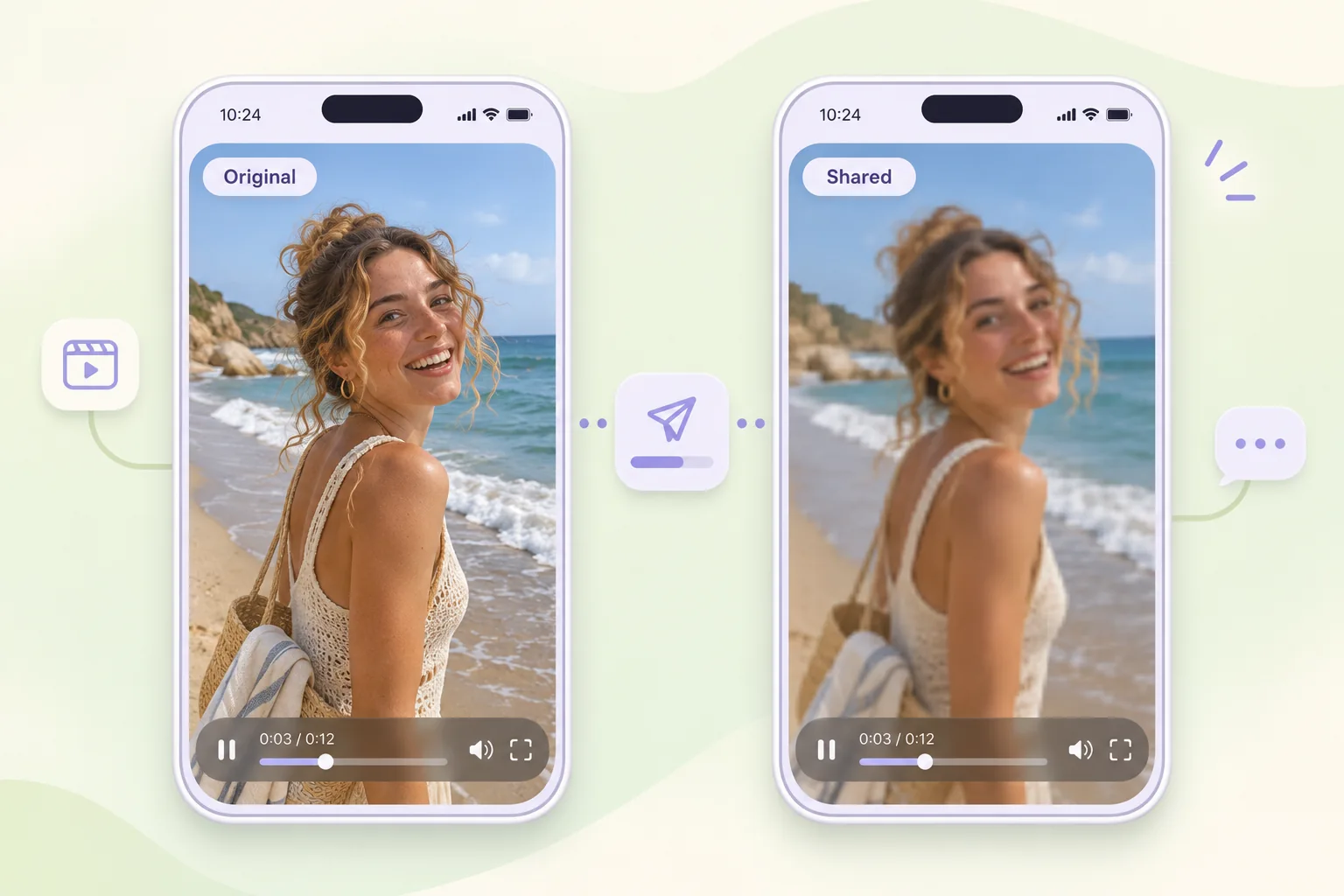
Before opening an editing app, ask the sender to play the video on their phone. If their version looks clear and yours doesn’t, you may be able to solve the problem simply by getting another copy. Messaging apps often reduce resolution or bitrate when sharing videos.
On WhatsApp:
- Ask the sender to check the original recording.
- Select HD quality when sending media.
- For original-file sharing, attach the video as a document rather than sending it through the regular media picker.
- For WhatsApp Status, try a shorter clip and compare a 1080p export against the higher-resolution version.
On iPhone and iMessage:
- Check whether low-quality media or data-saving settings are enabled, where available.
- Make sure the full-resolution video is available from iCloud before sharing.
- In the Photos sharing menu, check Options and select Current format where appropriate.
- Use AirDrop or an original-file cloud link when preserving quality matters.
You might find there’s nothing left to fix.
Low-Light Grain and Noise
Look at the shadows in a dinner or nighttime video. If they’re full of moving speckles and the finer textures look muddy, try gentle noise reduction. Turning up sharpness at this point can make the grain stand out even more.
How to Unblur a Video with AI in 3 Steps
To unblur a video with AI, upload a short clip, run an enhancement pass, and compare the result at normal playback speed before downloading.
PhotoGrid’s browser-based unblur video tool accepts MP4 and MOV clips up to 15 seconds, keeps the original audio, and provides watermark-free MP4 exports. It is free to try, with credit-based processing and a cost estimate displayed before enhancement.
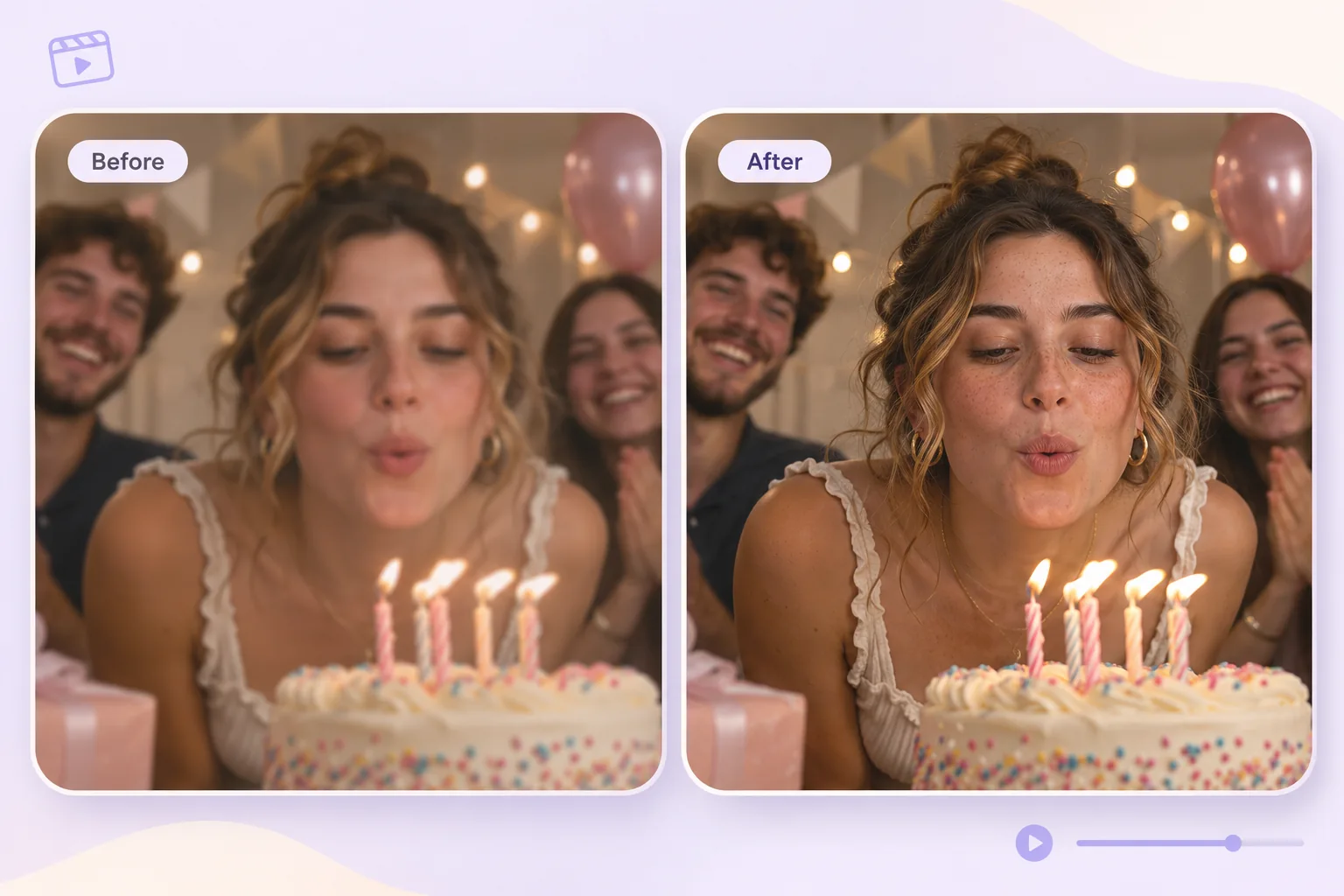
Step 1: Upload Your Clip
For a birthday recording, you might only need the few seconds when someone blows out the candles. Trim a copy to 15 seconds or less, then upload it. Keep the original untouched.
Step 2: Run the AI Unblur Pass
Select your output resolution and frame rate, review the estimated credit cost, and start processing.
If you’re editing a compressed clip for a social post, start with 1080p before trying 4K. Match the original frame rate when possible, especially when mixing clips.
Step 3: Inspect in Looped Playback Before You Download
Pause both versions at the same moment to see what has changed. Then press play. A sharpened face might look great in a screenshot, only for its hair or eyelashes to flicker as the person turns their head.
Watch the enhanced clip a few times at normal speed before deciding which version you prefer.
Pay particular attention to:
- Hair, eyelashes, and facial expressions.
- Subtitles, product labels, and other small text.
- Fine patterns on clothing and moving objects.
- Shadows and smooth background areas.
Watch for temporal flicker, where details appear to change or flash between frames, and unusual movement in areas that should remain still.
Once the result looks natural in motion, download the enhanced MP4.
AI Can Reduce Mild Blur but Cannot Reliably Recover Lost Details
AI video restoration works best when the original footage still contains recognizable features and outlines. Mild focus blur and moderate compression often improve; severe motion blur, heavy noise, and distortion are less predictable. If a detail was never clearly captured, AI may guess what it looked like, and a convincing result can still be wrong.
Blur That Often Improves Well
A product demo with readable but slightly soft packaging is worth trying to enhance, as is a mildly blurred portrait. Check that enhanced lettering still matches the actual label.
Blur That May Only Improve Partially
A pet running toward the camera at dusk is a tougher case. You might get a clearer outline while the legs still leave trails. If the moment matters to you, a modest improvement can be enough.
Blur That AI Cannot Reliably Reverse
- Unreadable license plates: AI may produce plausible-looking letters or numbers that were never clearly captured. These results should not be treated as reliable evidence.
- Mosaics and solid censorship blocks: Deliberately obscured information cannot be reliably reconstructed from pixels that have been overwritten.
- Extreme defocus: When a subject appears as an indistinct patch of color, there may be too little information to recover its actual features.
Before giving up on a clip, check the surrounding one or two seconds. A nearby frame may contain a clearer view of the same subject.
If you only need to examine text in a single frame, export that frame and learn how to unblur text in an image. Remember that enhanced text still needs verification against the original source.
How to Make a Slightly Blurry Video Clearer on Your Phone
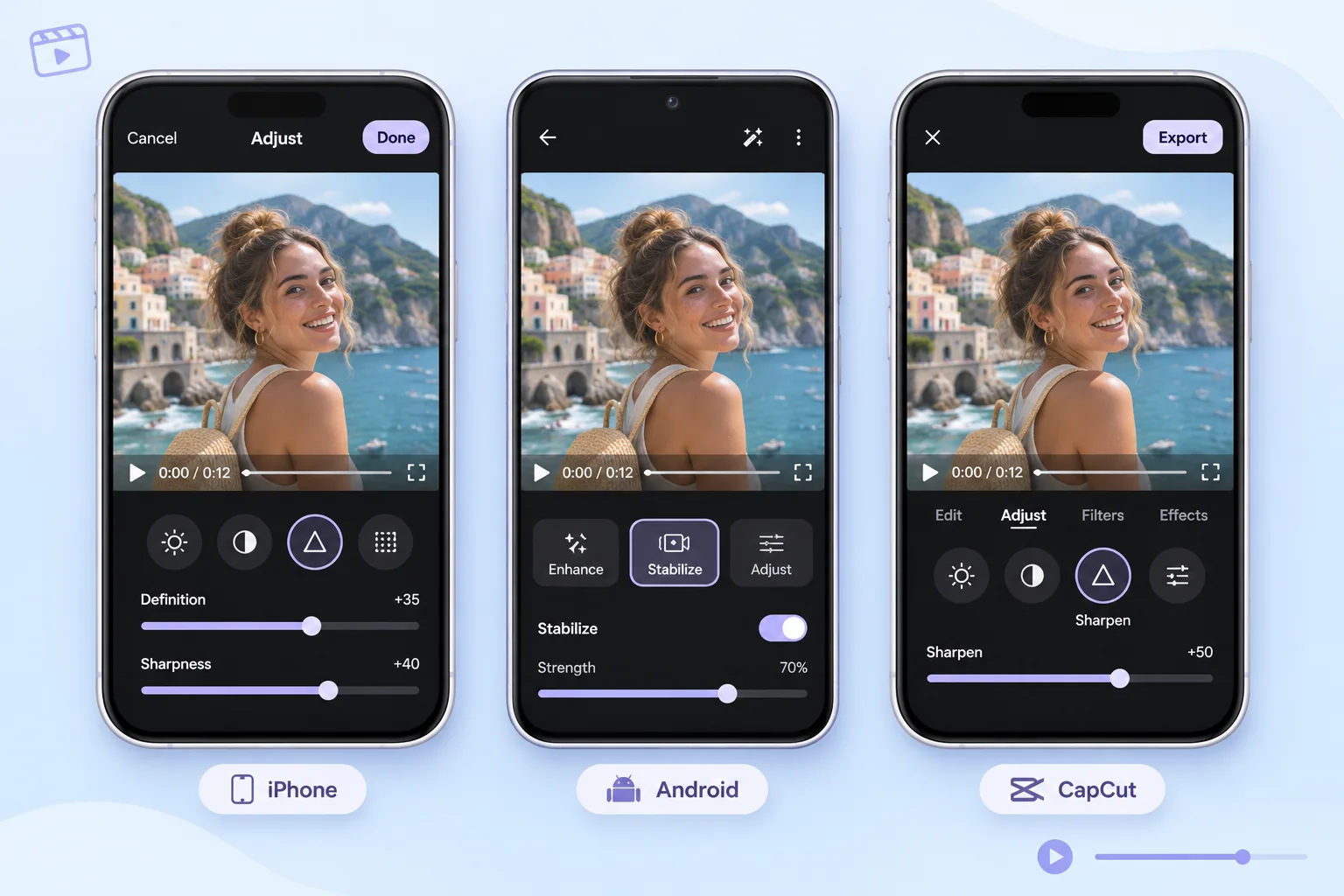
For slightly soft or shaky footage, built-in and mobile editors like iPhone Photos, Google Photos, and CapCut can improve clarity without AI restoration. Small adjustments to sharpness, definition, brightness, or video stabilization often make mildly soft clips look cleaner.
How to Make Videos Clearer on iPhone
Open the video in Photos and tap Edit. In the adjustment controls, try small changes to Sharpness and Definition if available. Compare skin and background textures against the original. See Apple’s video editing guide for the basic editing workflow.
How to Fix Blurry Videos on Android
For shaky footage in Google Photos, open the video and select Auto → Stabilize in the updated editor. For dim footage, try Enhance or adjust brightness and contrast. The Google Photos video editing guide notes that available controls depend on your device. Stabilization reduces camera movement but does not restore detail lost to motion blur within a frame.
How to Unblur a Video in CapCut
Import your clip into CapCut, select it, and look for Sharpen in the adjustment controls. Start with a low setting, increase it gradually, and check faces and textured surfaces before exporting. Keep the original frame rate where appropriate and avoid low export bitrates.
Four Ways to Prevent Blurry Videos
- Keep your camera steady. Use both hands, a stable surface, or a tripod.
- Lock focus on your subject. On supported phones, use AE/AF Lock when the subject stays at a consistent distance.
- Add more light. Good lighting can help reduce noise and unwanted motion blur.
- Avoid excessive digital zoom. Move closer when practical or use an appropriate optical lens.
Sharpening Improves Edge Definition but Cannot Restore Missing Details
Video sharpening increases contrast around existing edges, making slightly soft footage look clearer. It cannot reliably restore missing textures or reverse severe defocus. Too much sharpening can create halos, amplify grain, and make compression artifacts more visible. AI restoration may be more useful when sufficient detail remains in a blurred recording.
Traditional methods such as Unsharp Mask emphasize edges. Turn up Sharpen on a clip of someone holding a coffee cup and its rim may look crisp while their skin starts to look rough.
Excessive Sharpening Creates Halos and Amplifies Noise
As Adobe’s sharpening overview explains for still images, increasing edge contrast can improve definition, while excessive sharpening may create halos and noise. The same edge-enhancement principle applies to video frames.
Check high-contrast boundaries around hair, product packaging, and subtitles. Bright or dark outlines around these features are signs that sharpening has gone too far. If halos or flickering edges become more noticeable during playback, dial back the sharpening.
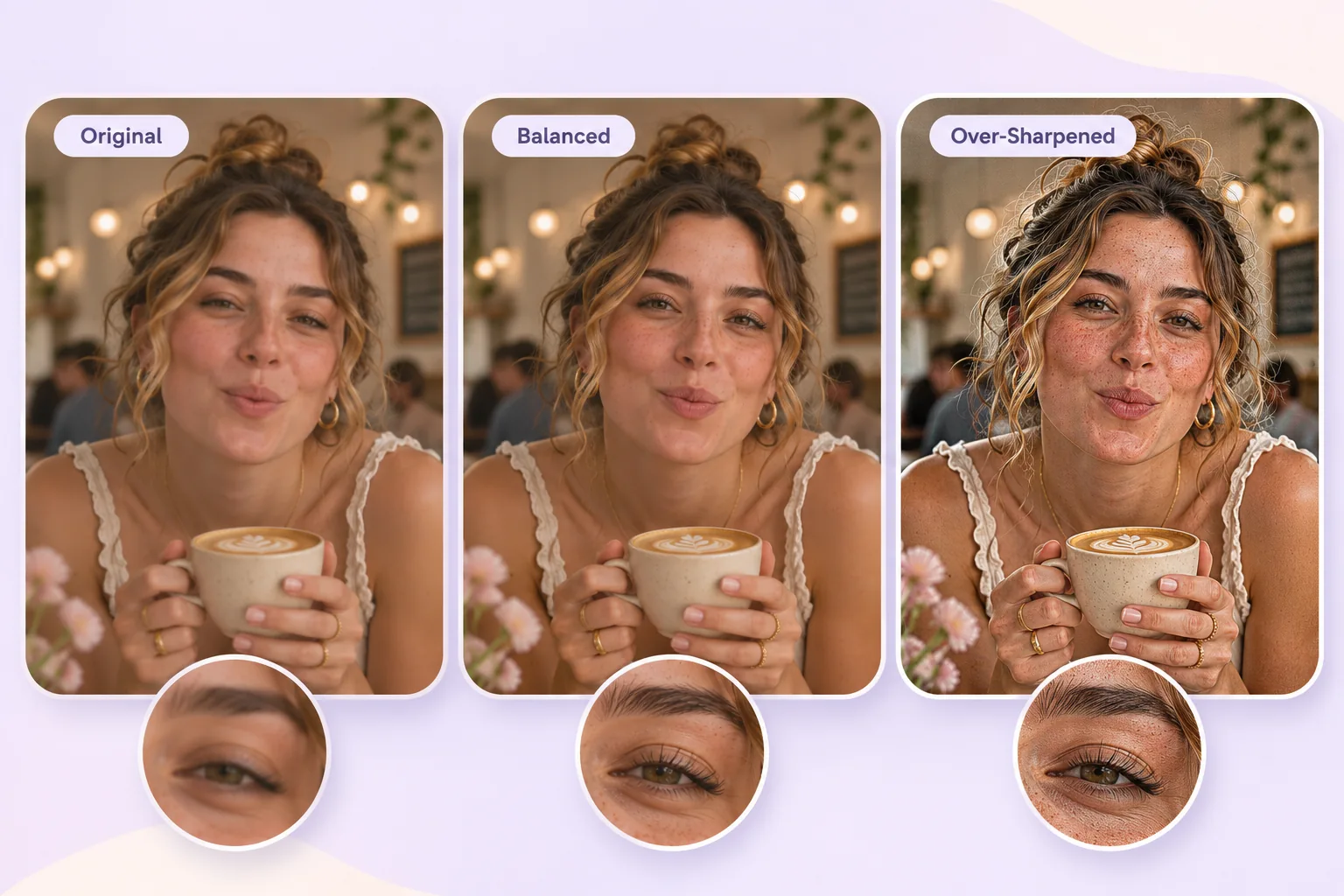
Excessive Denoising Can Erase Fine Details
To fix grainy video, avoid applying strong noise reduction to every clip. Excessive denoising can remove fine textures along with unwanted grain, leaving faces waxy and surfaces unusually smooth.
For lightly noisy footage, try an enhancement pass without aggressive preprocessing. For heavily grainy recordings, compare a gently denoised version with the untreated source.
A video enhancer may help when noise, softness, and other quality problems occur together.
Upscaling Helps Low-Resolution Videos, but It Won’t Fix Every Blur
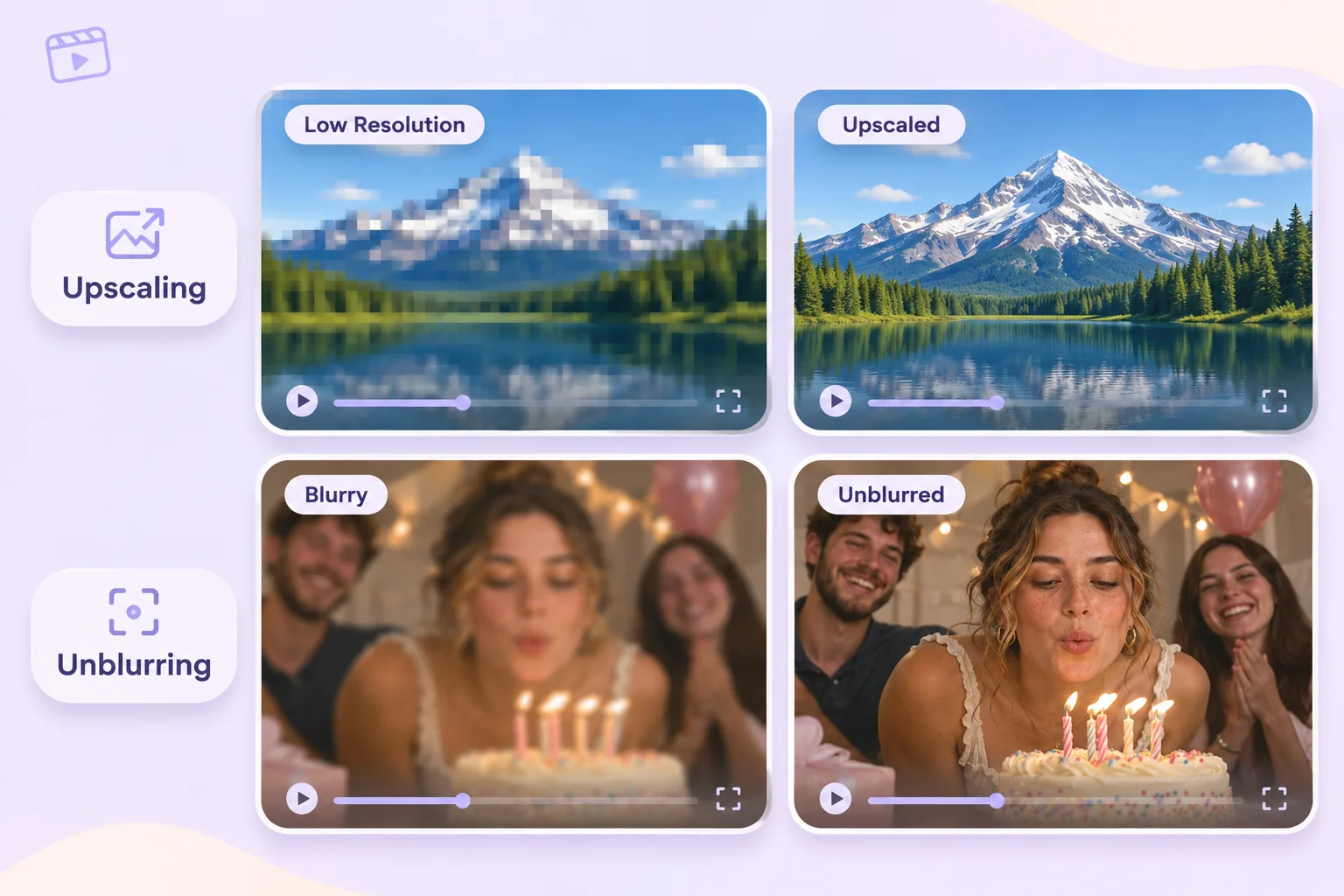
Video upscaling increases pixel dimensions, while deblurring aims to improve the clarity of existing footage. Upscaling makes sense for a relatively clear 480p or 720p clip that looks soft on a bigger screen. If a 1080p recording missed focus or suffered compression damage, address those problems before exporting it in 4K.
| Your Footage | What to Try |
|---|---|
| Clear but low-resolution or pixelated 480p/720p video | AI upscaling |
| Soft or out-of-focus 1080p video | Deblurring |
| Blocky footage caused by compression | Recover the original or try restoration |
| Shaky footage with motion trails | Stabilization and appropriate deblurring |
If you want to fix pixelated video caused by low resolution, an AI video upscaler may be the more appropriate choice.
A clean, stable 1080p video is often more enjoyable to watch than a 4K video with distracting flicker or artificial textures.
For footage that mainly needs a resolution increase, read our guide on how to improve video quality before you post.
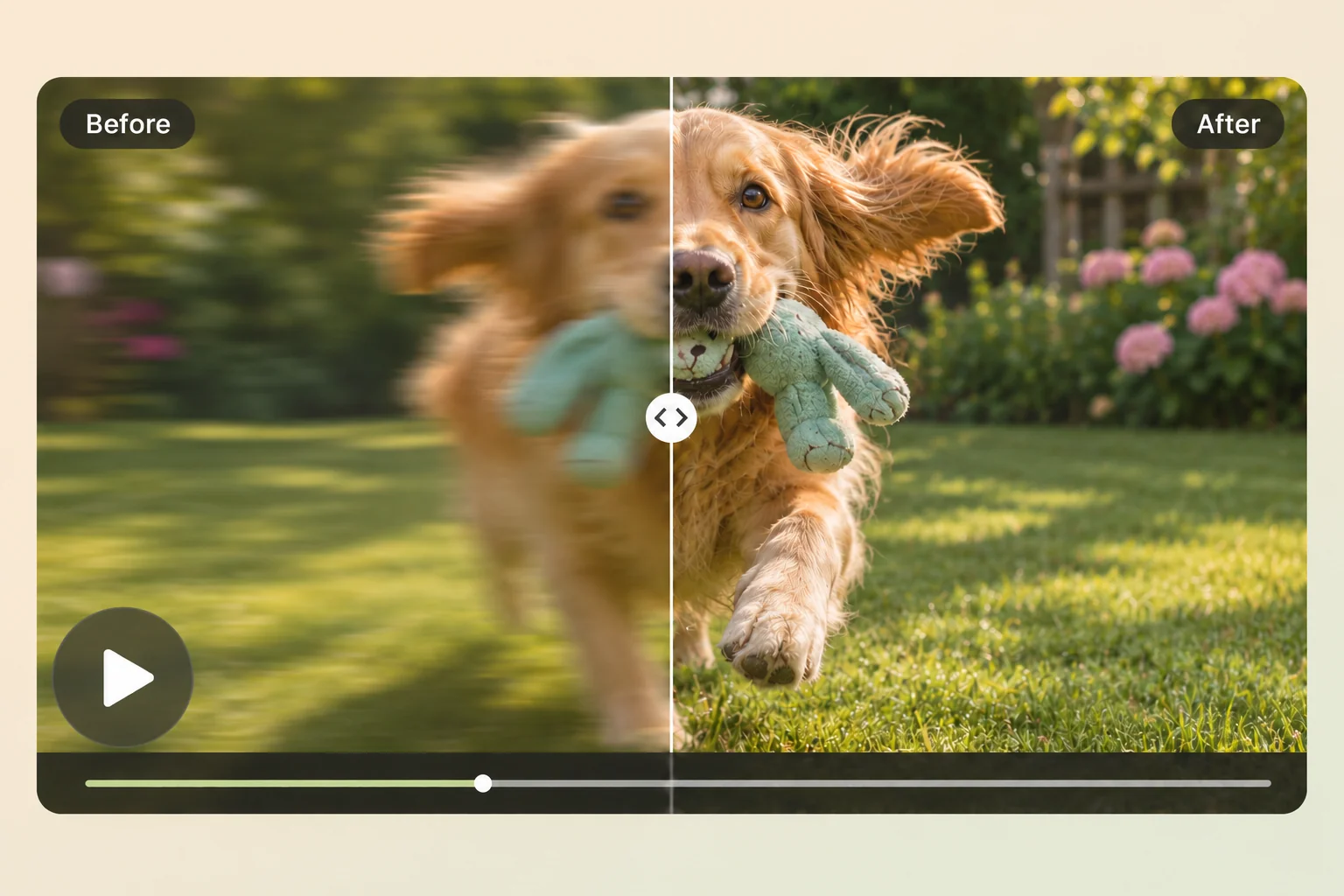
PhotoGrid Video Unblur
See how much detail you can bring back in a short, blurry clip. Start with a few seconds and check how the subject looks in motion. Fast movement can still leave visible trails.
Frequently Asked Questions
Can you completely remove blur from a video?
Not in every case. Mild focus blur and moderate compression can often be improved, while severe motion blur and missing details are much harder to repair. AI enhancement can improve visible features, but it cannot guarantee an exact reconstruction of information that was never captured.
Can I fix a blurry video recorded on my phone or sent via WhatsApp?
Yes, depending on the cause. If the video became blurry after sharing, request the original file or ask the sender to resend it as a document. If the original recording is blurry, try AI enhancement on a short section and compare the result before processing more footage.
Can AI unblur a license plate from dashcam footage?
AI may improve a license plate that is already partly readable. However, when individual characters are missing because of overexposure, distance, or severe blur, an AI tool may generate incorrect letters or numbers. Preserve the original recording and do not rely on AI-generated characters for accident investigations or insurance claims.
Can ChatGPT unblur a video?
ChatGPT can suggest restoration settings and help diagnose blur from sample frames, but it is not a dedicated video deblurring editor for exporting a consistently restored clip with its original motion and audio. Use a specialized video restoration tool for that workflow.
Do I need to install an app or an “unblur video APK”?
No. PhotoGrid processes compatible video clips through your browser on desktop and mobile devices. You do not need to install additional editing software. Avoid downloading unfamiliar APK files advertised as video repair tools, especially from untrusted sources.
Is it free to unblur a video without a watermark?
PhotoGrid is free to try and exports enhanced videos without a watermark. Video processing uses credits, with the estimated amount displayed before processing. Starting with a short test clip helps you evaluate the results before committing more credits.
You may not need a perfectly sharp video to enjoy that moment again.