Selfies
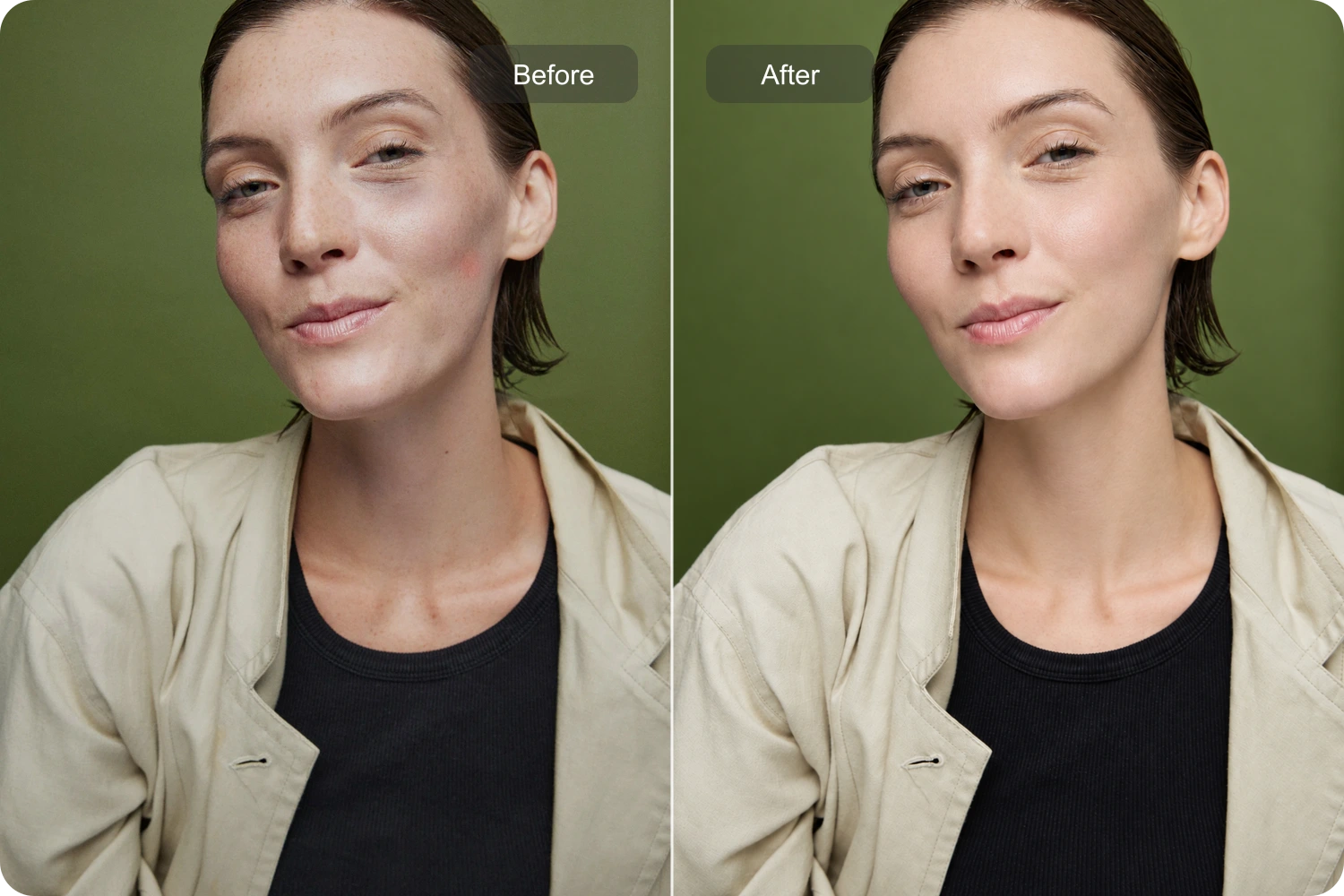
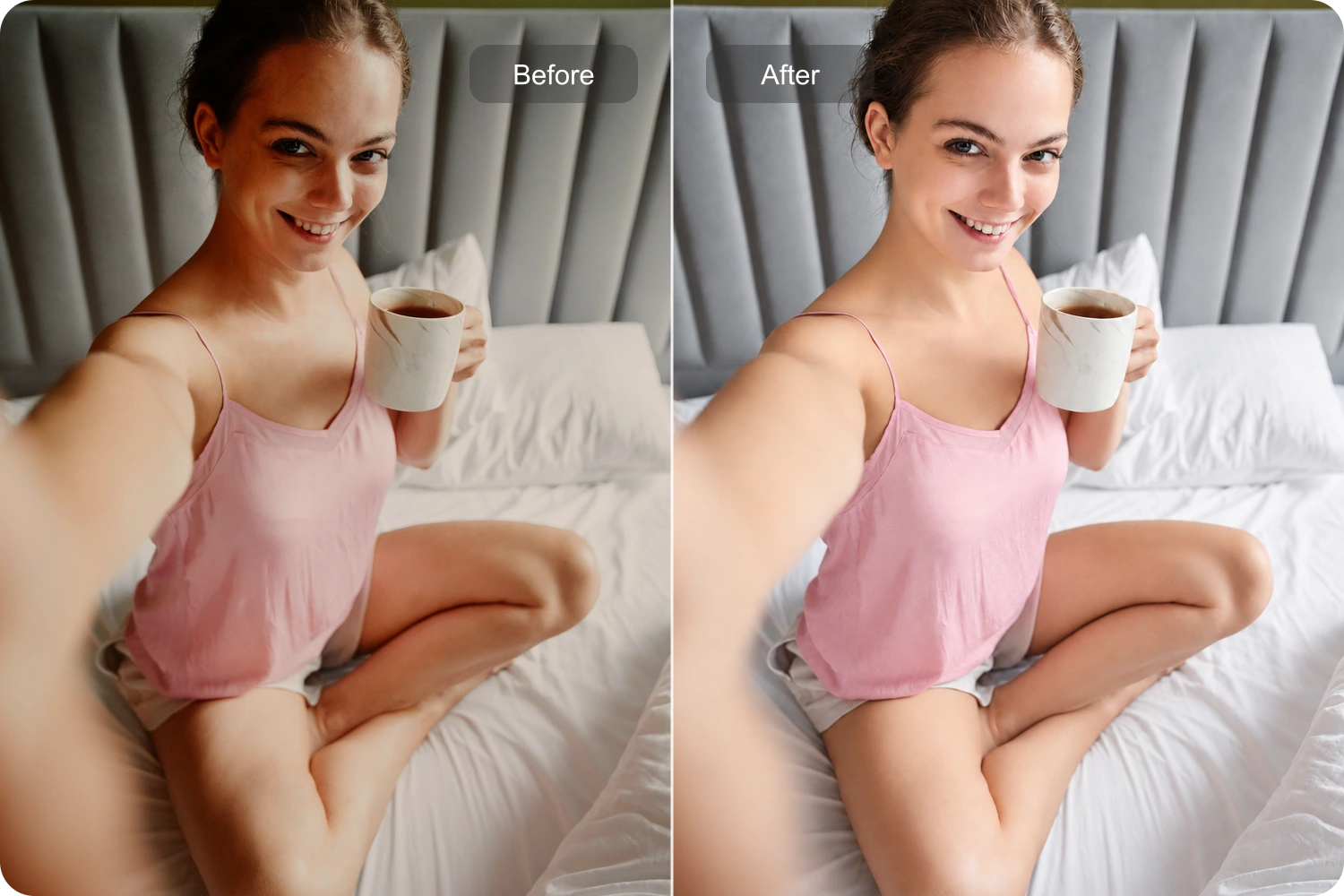
A light face retouch suits selfies and profile pictures that already have a good expression and composition. Focus on small distractions, such as uneven facial light or a temporary spot, for a finish that feels closer to the original photo.

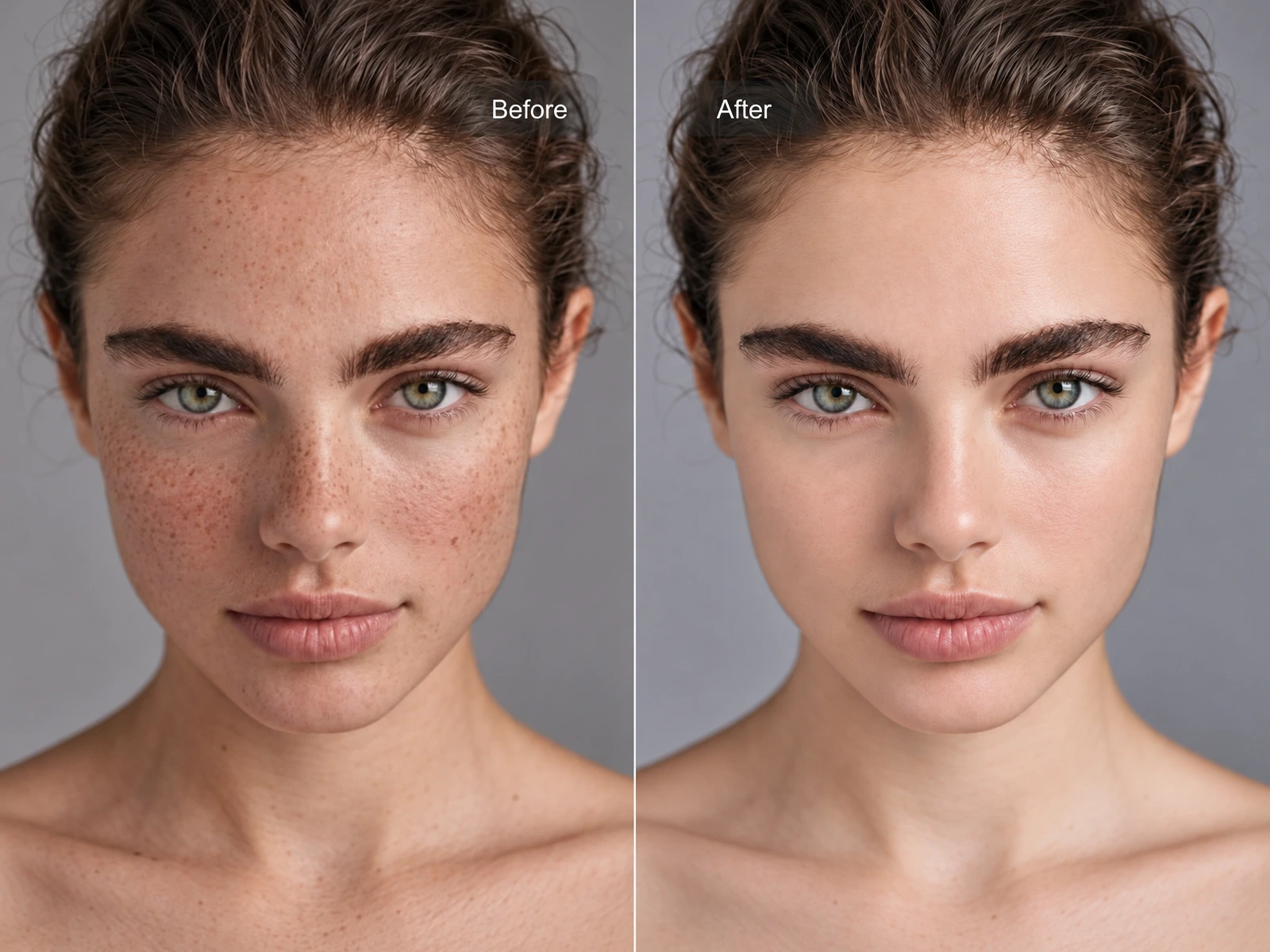
Natural face retouch, softer skin and flattering light for your selfies and portraits. Personalize your look with AI photo retouching in PhotoGrid.
Click, Drop or Paste
Supported formats: JPG/JPEG/PNG/WEBP

Choose Auto Retouch for a balanced portrait edit, or focus on one concern: blemishes, uneven skin texture, dark circles, redness or yellow-looking teeth. AI photo retouching also lets you add instructions for facial lighting while preserving your natural features.
Skin smoothing works best when it softens uneven texture without flattening every detail. A gentle skin retouch can balance the appearance of the complexion while leaving pores, freckles and fine lines part of the portrait.
For a subtle beauty-filter look, try “soft natural light, even-looking skin, keep my freckles.” For a warmer portrait, ask for a gentle warm tone while keeping the original skin color. PhotoGrid uses your description to request the edit; this page edits existing photos and does not add a live beauty filter to your iPhone camera.
Choose Redness for redness around the nose or cheeks, Smooth Skin for uneven texture, or Dark Circles for under-eye darkness. Auto Retouch combines gentle skin and lighting adjustments when you want an all-round edit.
A warm light source or a strong color cast can make teeth appear yellow in an otherwise good portrait. Photo teeth whitening is about balancing that color within the image. A restrained edit keeps the smile consistent with the light on the face, rather than making teeth the brightest part of the picture.
Select “White Teeth” to reduce yellow tones in visible teeth, then generate. No written instructions are required. Use “More edits” only for extra preferences, such as retaining natural shadows. This edits the photo, not your actual teeth.
A temporary spot can draw attention away from the expression you wanted to capture. Blemish removal in a photo can focus on that small distraction while leaving freckles, beauty marks and surrounding skin texture visible. For natural skin retouching, describe the specific area instead of asking for completely flawless skin.
A useful request is “remove the small pimple on my forehead, keep my freckles and visible pores.” You can also ask for a lighter under-eye shadow while retaining the shape of the eyes. This is an AI editing request rather than a pinpoint healing brush, so localized results can vary. Keep distinctive marks in the description when they matter to the portrait.
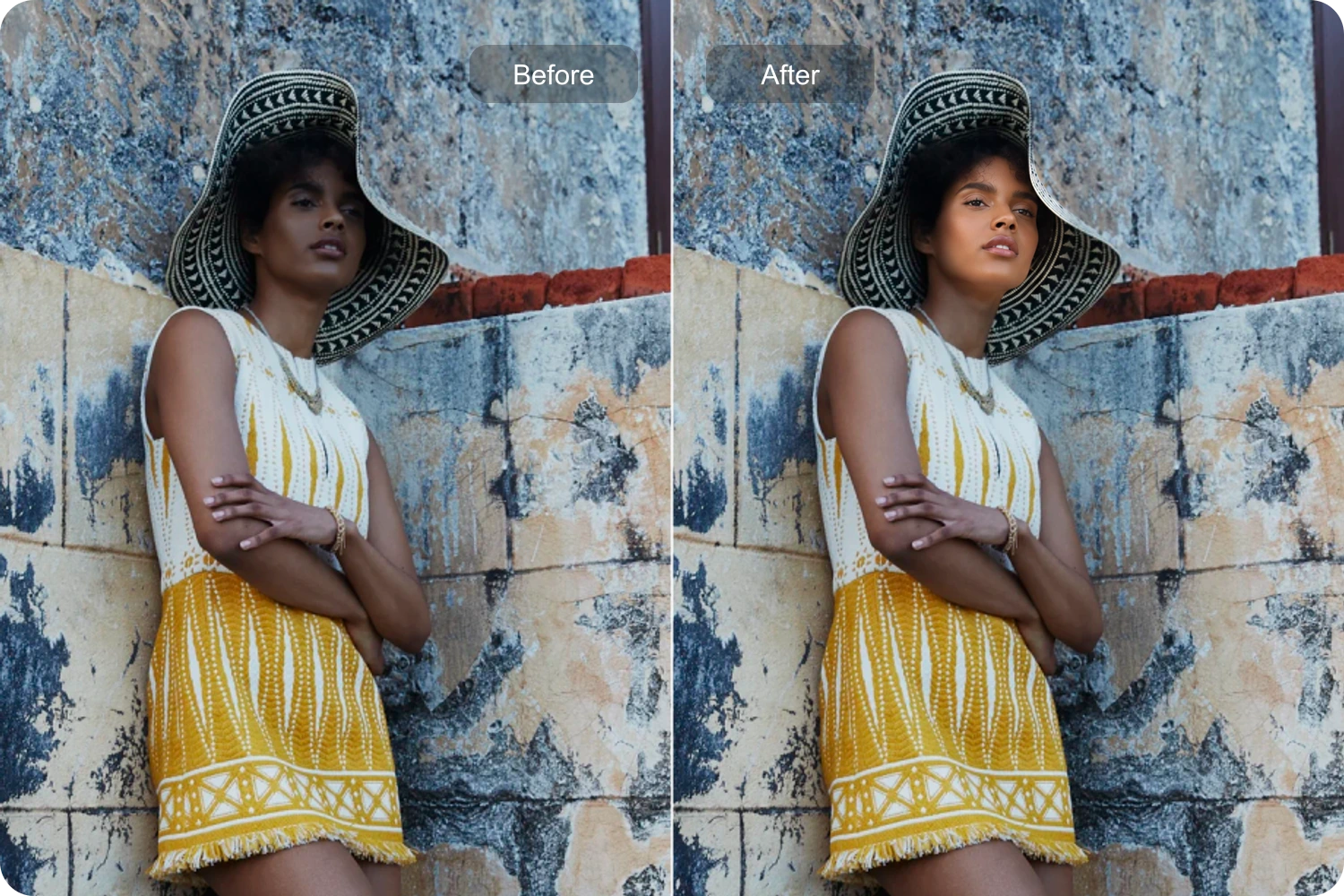
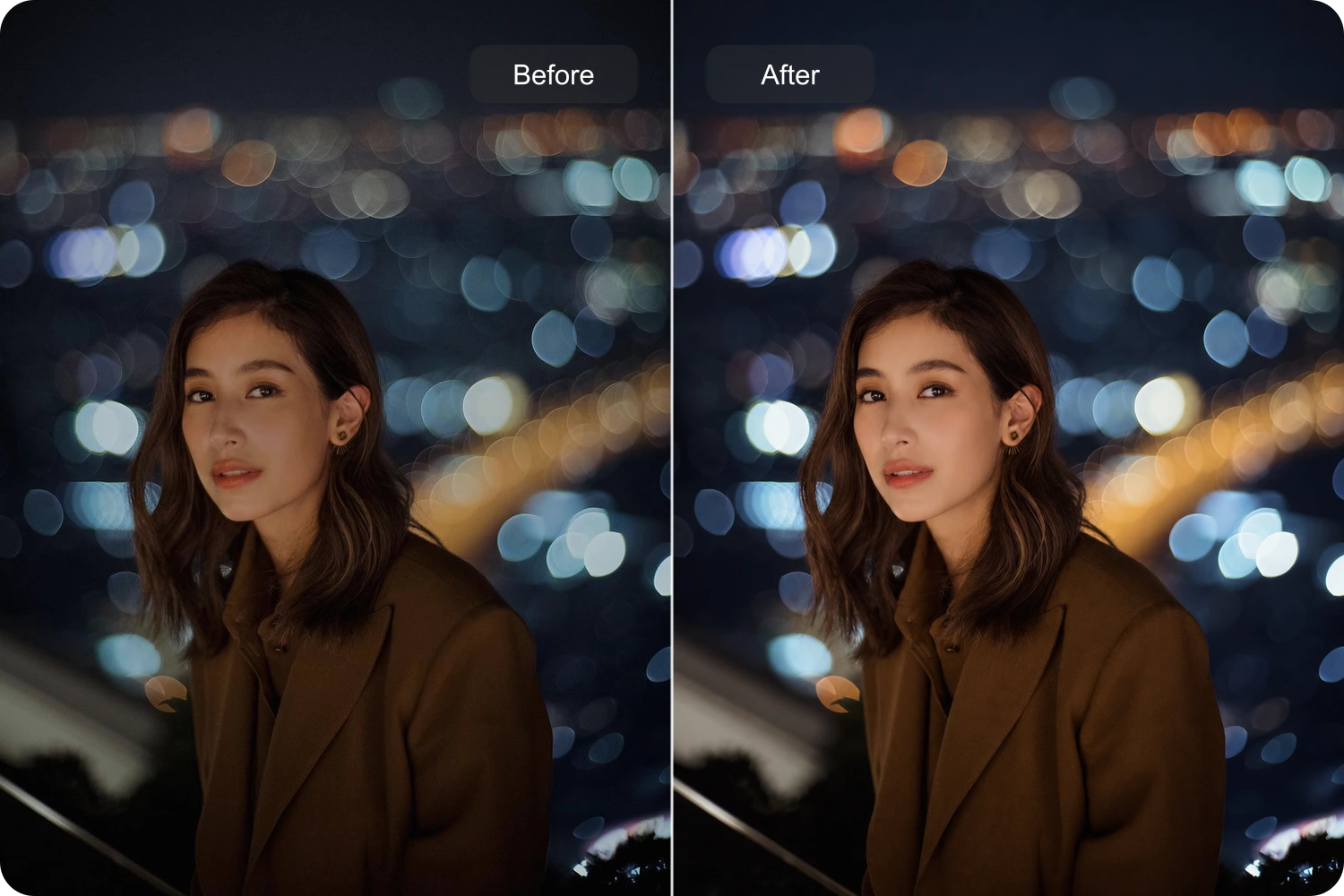
Different photos need a different touch: focus on skin texture, facial light or the overall finish.
A light face retouch suits selfies and profile pictures that already have a good expression and composition. Focus on small distractions, such as uneven facial light or a temporary spot, for a finish that feels closer to the original photo.