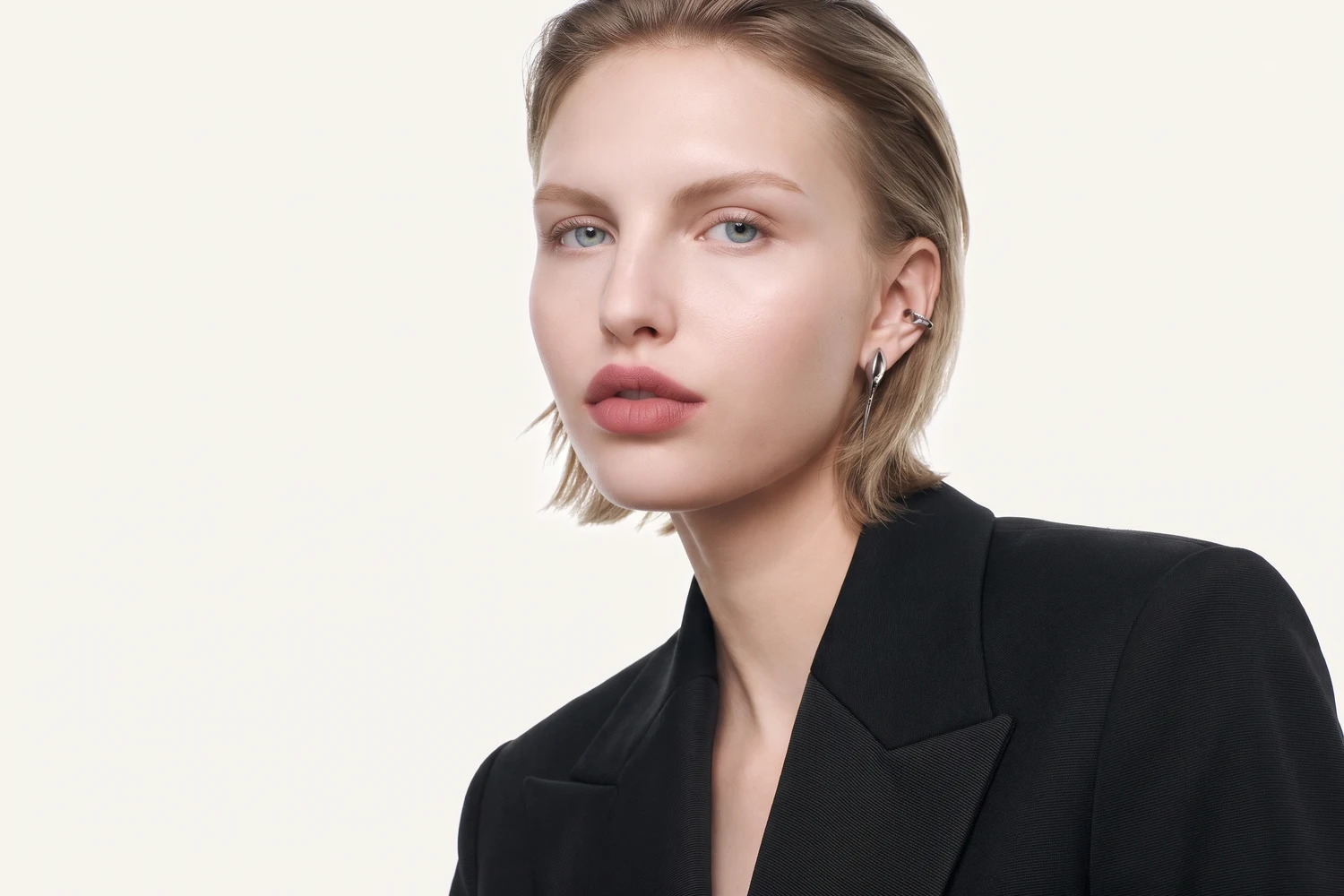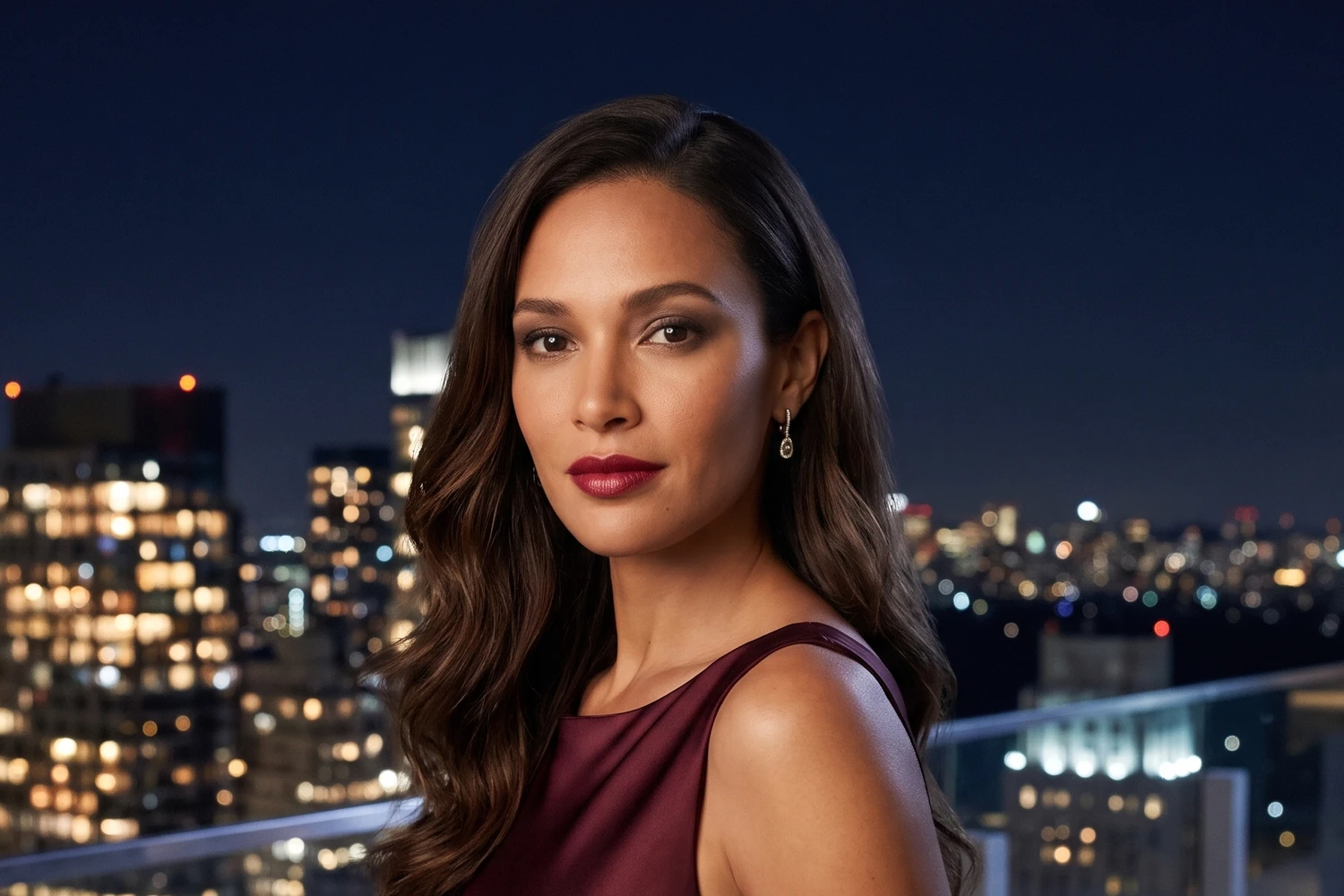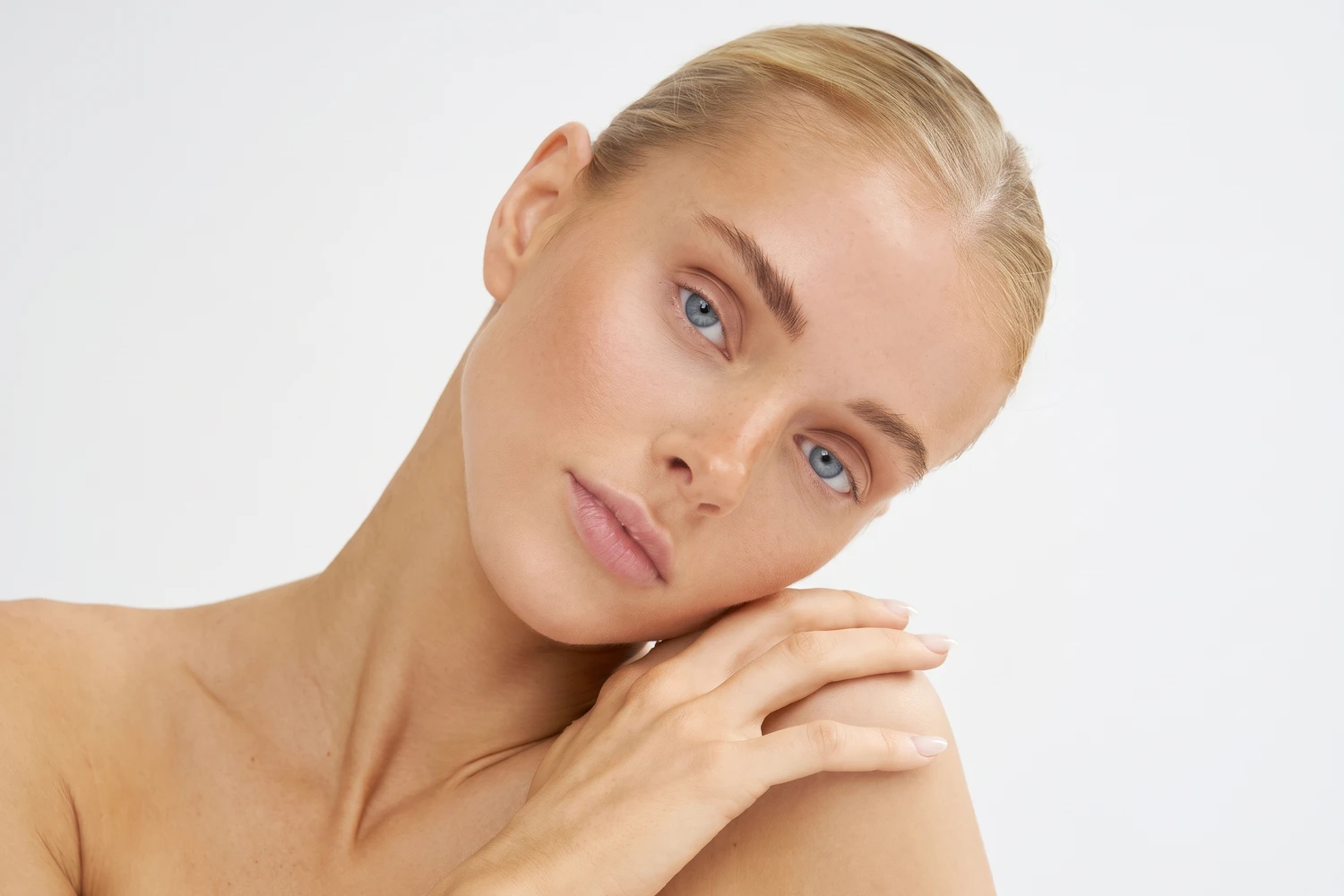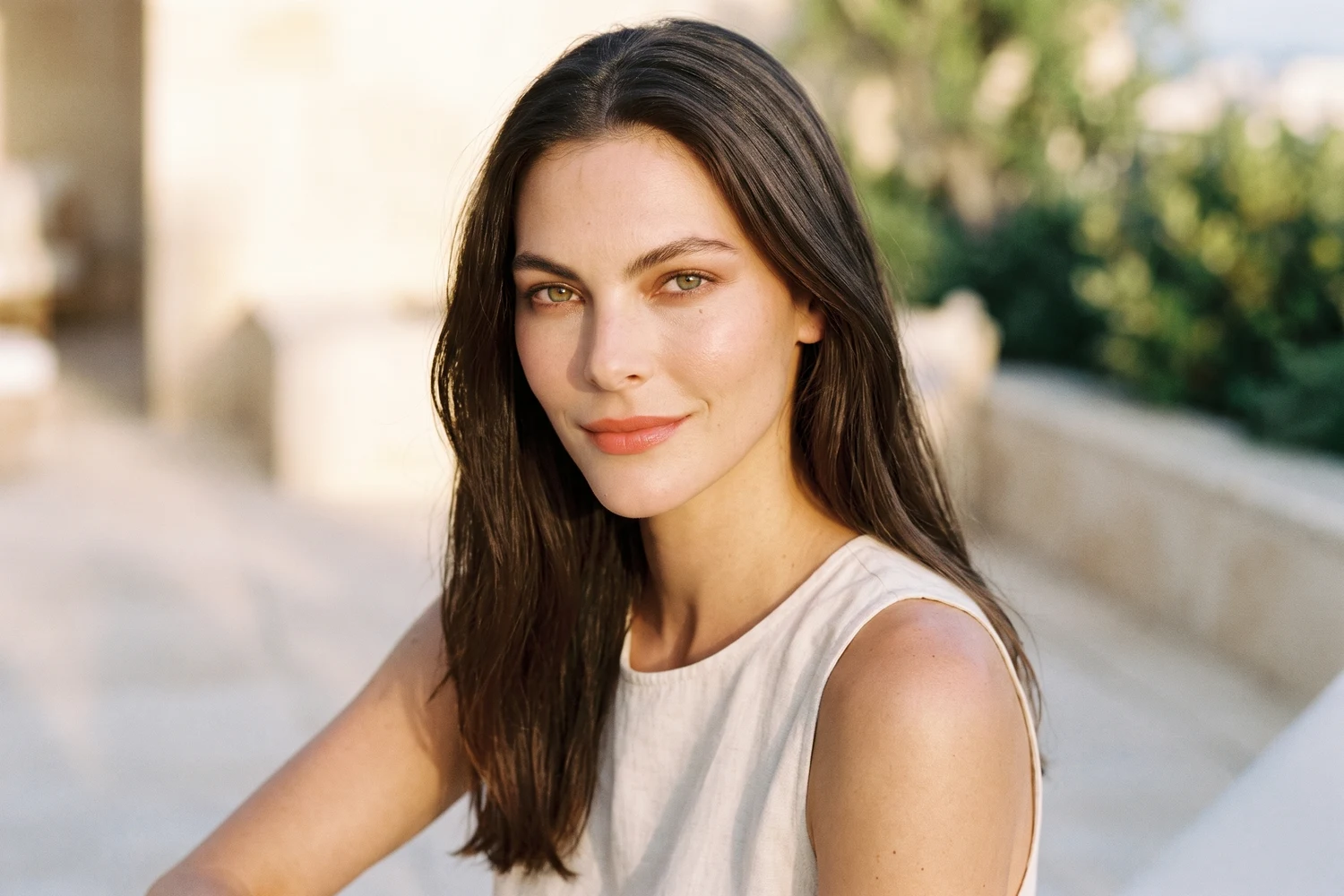
Try a softer everyday look
Start with a clear selfie and explore soft rose lips, everyday brown eyeshadow or lightly defined brows. Review one change before adding another.

Try a new lip color, eyeshadow or brow shape on your photo. Choose a preset, add details if needed, and continue editing the version you like.
Click, Drop or Paste
Supported formats: JPG/JPEG/PNG/WEBP

A different lip color can change the mood of a portrait. Choose Soft Rose, Classic Red or Berry to explore a lighter everyday shade or a deeper finish with this online makeup editor.
Add a short request if you want a lighter color, a softer edge or a different finish. The preset gives the edit a starting point; your details guide the selected area. Review the generated lips and surrounding features before keeping a version. The color in a photo is an illustration, not an exact match for a cosmetic product.
Try Everyday Brown, Soft Pink or Soft Smoky when you want to add makeup to a photo without choosing a full-face look. Each preset focuses the request on the eyelids, so you can explore eye makeup separately from lips and brows.
Use More edits to describe how light, deep or shimmery you want the eyeshadow to look. Review the shape of the eyes and the surrounding skin as well as the makeup. If a result is stronger than you wanted, undo to an earlier version before trying another edit.
Brow definition can change the overall expression of a portrait. Natural Brows, Soft Straight and Soft Arch offer three starting points for exploring a filled shape or a different arch.
Keep your request specific to the brows, such as softer definition or a lighter color close to the existing hairs. An AI makeup filter can alter details beyond the intended change, so check the eyes, skin and facial proportions in the result. Use the comparison and version controls to decide which edit to keep.
Start with one makeup area, review the result and then continue editing that version. For example, apply a lip color first, then try eyeshadow on the current image. Each generation creates another editable version rather than automatically returning to your original upload.
Undo and redo let you move between available versions without generating again. The next generation starts from the version currently selected in the workspace. In each comparison, Before is that round’s input and After is its result. Save a result you want to keep; generated images are also available through image history.
Explore a change in color or definition while working with an existing portrait. Choose a scene for inspiration, then use the same makeup controls to request your edit.
Start with a clear selfie and explore soft rose lips, everyday brown eyeshadow or lightly defined brows. Review one change before adding another.
Explore tools for skin retouching, clearer portraits, and hair color previews.
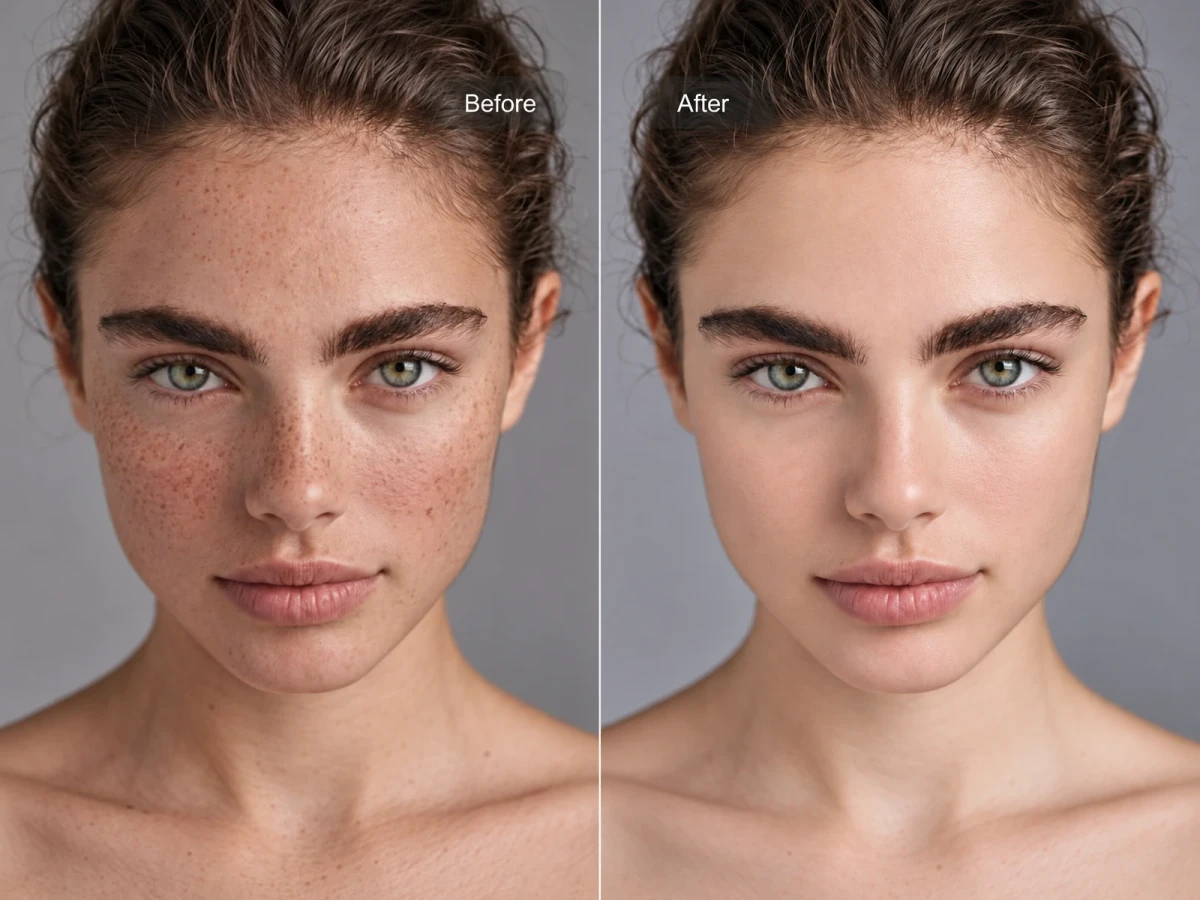
Refine skin texture, soften dark circles, and reduce visible blemishes.
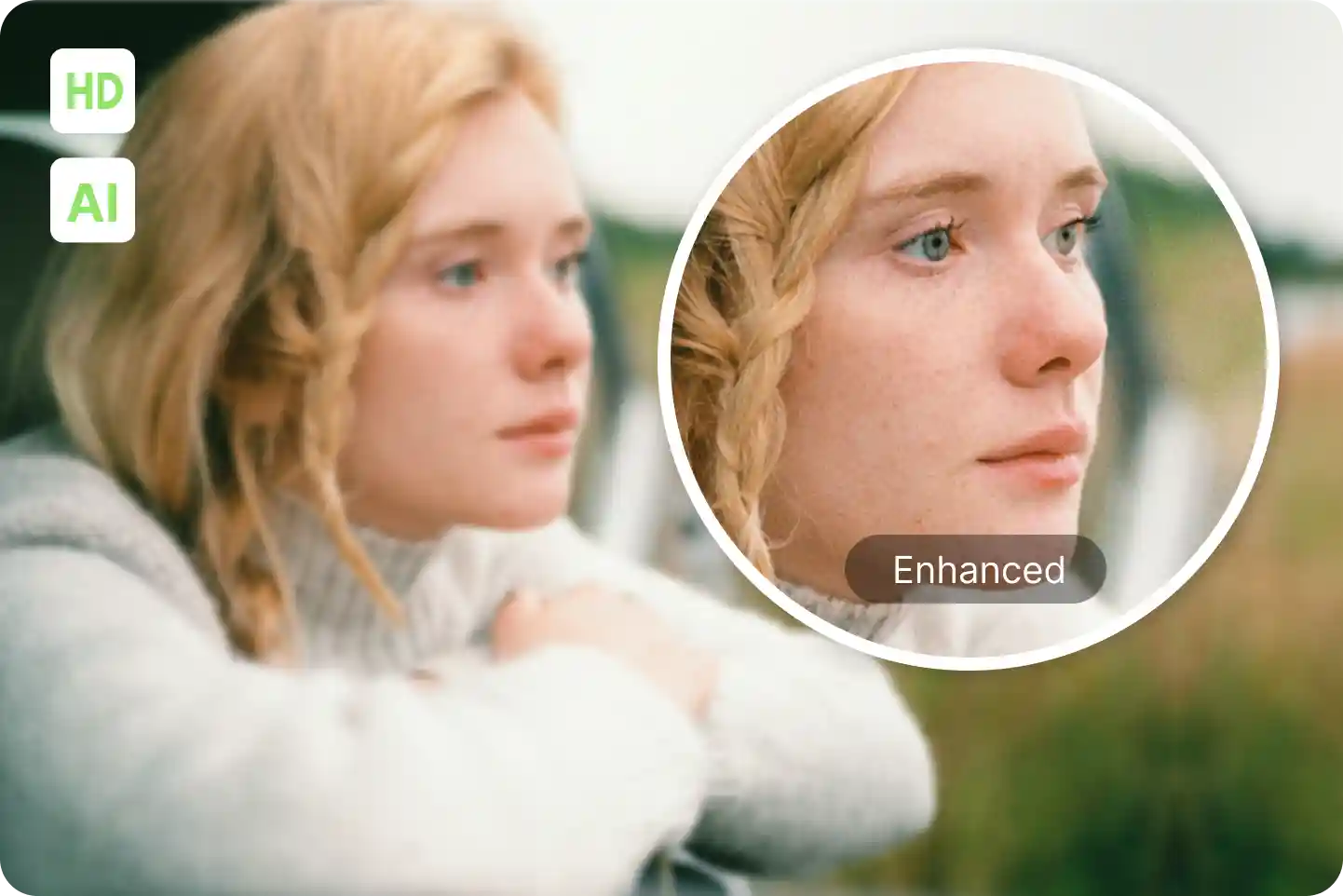
Sharpen facial details and improve the clarity of blurry portraits.
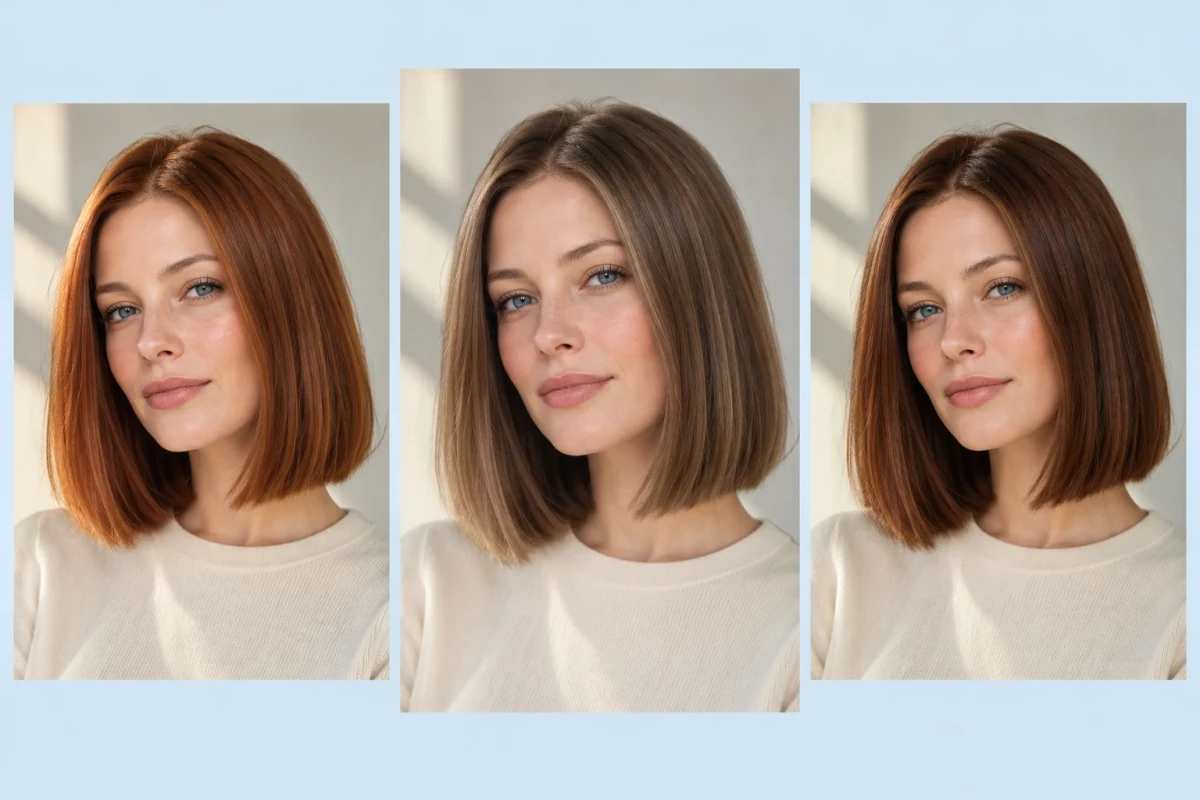
Preview different hair colors on your photo before trying a new look.
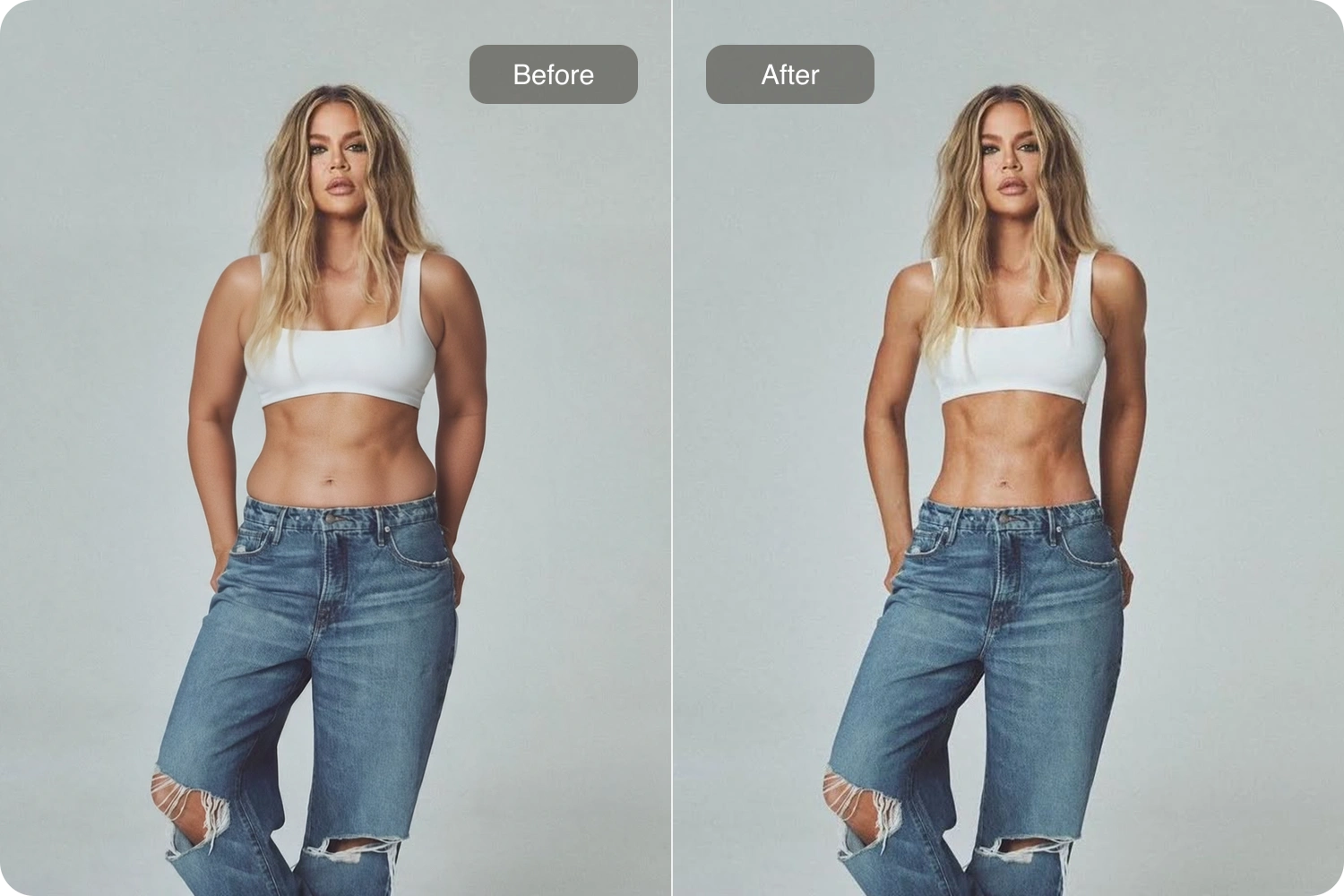
Adjust body shape, waist and proportions with precise controls.
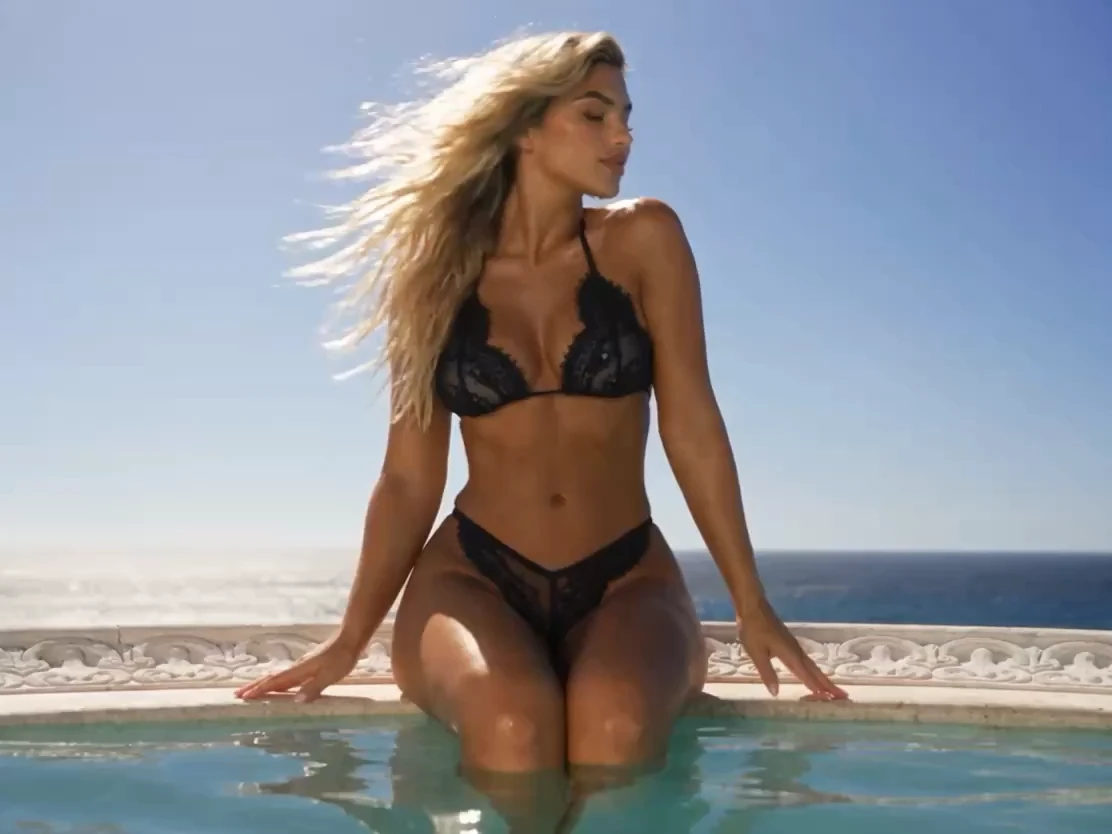
Try bikini looks and create a clean, confident result from your photo.